
Not every customer should see every option. On a select (dropdown) attribute, the Company availability tab lets you show or hide each option by the tags on a customer's company: an Include list shows the option only to companies with one of those tags, an Exclude list hides it from them. Options with no tags stay visible to everyone.
Applies to: shops that tag their customer companies. Select attributes only; there's nothing to show or hide on a number, text or checkbox attribute.
In this article
- Before you start
- Set up visibility on an attribute
- Apply one option's rules to every option
- Change the rules for one product
- What happens to defaults and existing orders
- Things to know
Before you start
Company availability keys off your company tags, so tag your customers first (on each company under Contacts > Companies). A tag such as dealer, premium or contractor is enough; the attribute rules refer to those tags.
Set up visibility on an attribute
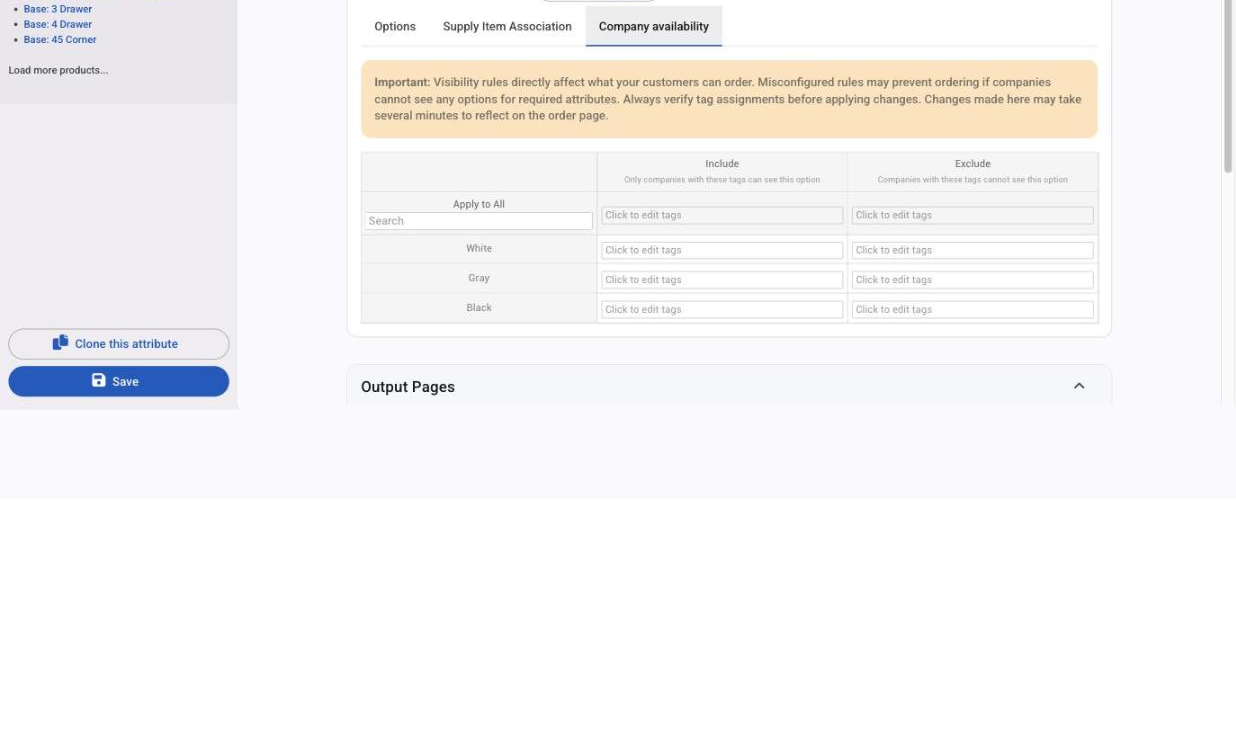
- Open the attribute at Settings > E-Commerce > Product Attributes.
- In the options table, click the Company availability tab. It shows each option's name with an Include column and an Exclude column.
- For each option you want to restrict, click into one column and add tags:
- Include: only companies with one of these tags see the option.
- Exclude: companies with one of these tags can't see the option.
- Save.
Changes made here can take a few minutes to show on the order page. A company needs just one matching tag for a rule to apply. An Include list of dealer and premium shows the option to anyone tagged either.
Quick rule of thumb: when a small, specific group should see an option, use Include. When almost everyone should see it except one group, use Exclude.
Apply one option's rules to every option
If every option should follow the same rule, set it on one option and click Apply to All at the top of the tab. It overwrites every other option's rules, so Allmoxy asks you to confirm. On a long list, use the search box at the top of the tab to find an option; it only filters the view.
Change the rules for one product
Open the product, click Edit Overrides next to the attribute and use the Company availability tab there. A product-level set of rules replaces the attribute's rules for that product entirely, so you can show an option the attribute normally hides, or hide one it normally shows. See Override an attribute for one product.
What happens to defaults and existing orders
- If the attribute's default option is hidden from a company, Allmoxy picks the first option that company can see instead, so the customer always lands on something valid.
- If the attribute has no default, nothing is picked and the customer chooses.
- A hidden attribute (Order Page Visibility set to Hide) still needs a default, and that default is carried on the order even if tags would hide it.
- Make sure every company can see at least one option of any attribute they must answer. If your tags hide all of them, that company can't order the product; the warning at the top of the tab is there for this reason.
- Changing rules doesn't rewrite existing orders by itself. Bids update as soon as they're opened; orders at Ordered status or later keep their current option until someone changes that product on the order and it recalculates.
Things to know
- Resellers (B2B): when another Allmoxy shop resells your products, the rules are checked against the reseller's tags on your side, not the end customer's.
- Renaming or deleting a tag changes the rules that refer to it. Check attributes that use a tag before removing it.
- Overrides on different products currently share one rule per option. Until a fix ships, a product-level rule set on an option can apply on other products where that option also has an override row.