
Custom fields collect information Allmoxy doesn't have a box for: a PO number, a tax exemption ID, a customer's own account reference. Create them at Settings > Operations > Custom Fields, attach each one to companies, contacts or orders, and the value is then available as a variable on output pages and in exports.
Applies to: every shop. You need the Manage Custom Fields permission; ask your account owner to tick it on your contact if the page is missing.
In this article
- Create a custom field
- Where the fields appear
- Use the value on output pages and exports
- Things to know
Create a custom field
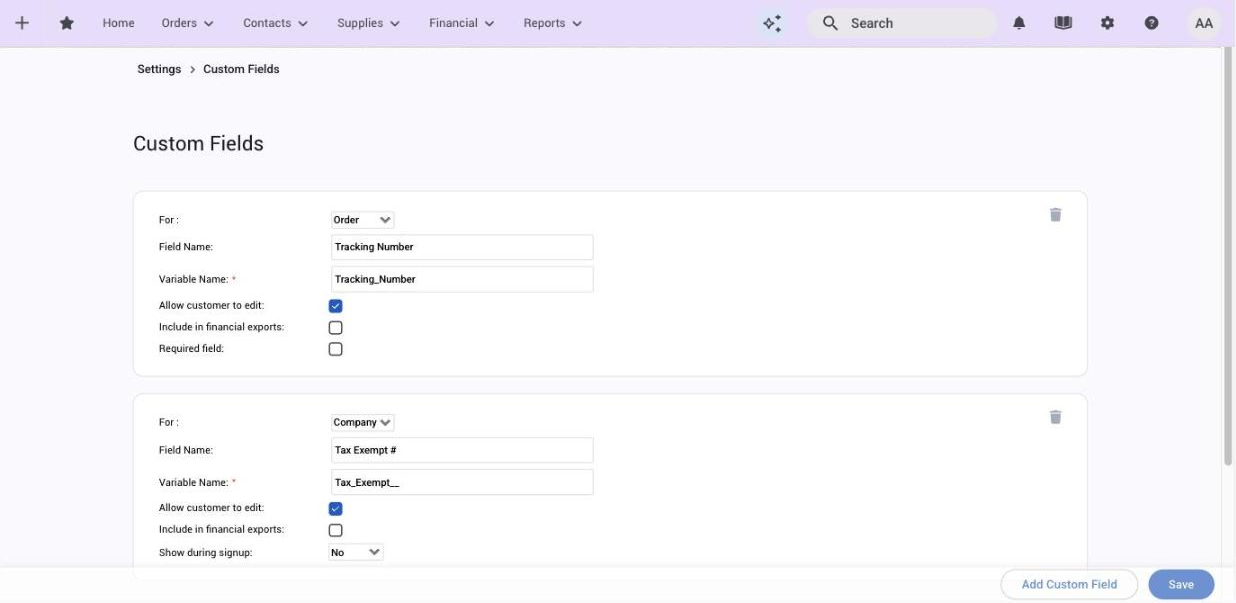
- Go to Settings > Operations > Custom Fields and click Add Custom Field.
- Under For, choose Company, Contact or Order.
- Enter the Field Name customers and staff will see, and the Variable Name used on output pages and in exports (letters, numbers and underscores; it can't be changed once set).
- Tick Allow customer to edit if customers should fill it in or change it. Leave it off for fields your team maintains.
- Tick Include in financial exports if the value should go to your accounting export.
- For an order field, tick Required field to make it mandatory before the order can go through. For a company or contact field, set Show during signup to No, Ask (optional at sign-up) or Require.
- Save.
Where the fields appear
- Order fields sit in the order's sidebar, under the order name.
- Company fields are on the company's settings page, above its tags.
- Contact fields are on the contact's record.
- Fields set to Ask or Require also appear on your customer sign-up page.
One useful combination: show a field at sign-up with Allow customer to edit off. The customer fills it in once when they register and can't change it afterwards.
Use the value on output pages and exports
Every custom field becomes a variable named after its Variable Name. On an output page (Settings > E-Commerce > Output Pages) pick it from the variable list to print it on work orders, packing slips or invoices. In an exporter it's available in the header and footer and in part export formulas, and fields with Include in financial exports ticked go to your accounting export.
Things to know
- Two different "must fill in" settings: Required field enforces an order field every time an order is placed; Show during signup: Require enforces a company or contact field at registration.
- Some fields are created for you. Shops with QuickBooks connected see the fields it needs added automatically.
- Variable names can't be renamed. Pick one you'll recognise on an output page later.