
Categories turn a long product list into something customers can browse in a few clicks. Add them at Settings > E-Commerce > Categories, nest them with Child of, order them with Priority Sort, and assign products from the Categories sidebar on each product.
Applies to: every shop. You need the Manage Catalog permission.
In this article
- What customers see
- Add or nest a category
- Put a product in a category
- Control the order and layout
- Show a category to some customers only
- Build or change a category without customers seeing it
- Rename, discontinue or delete a category
- Things to know
What customers see
On the order page customers see your top-level categories first. Clicking one shows its sub-categories, and clicking a sub-category shows the products inside it. Categories can nest as deep as you need, and a product can live in more than one category.
Anything that isn't in a category shows at the top level of the catalog, below the categories.
Add or nest a category
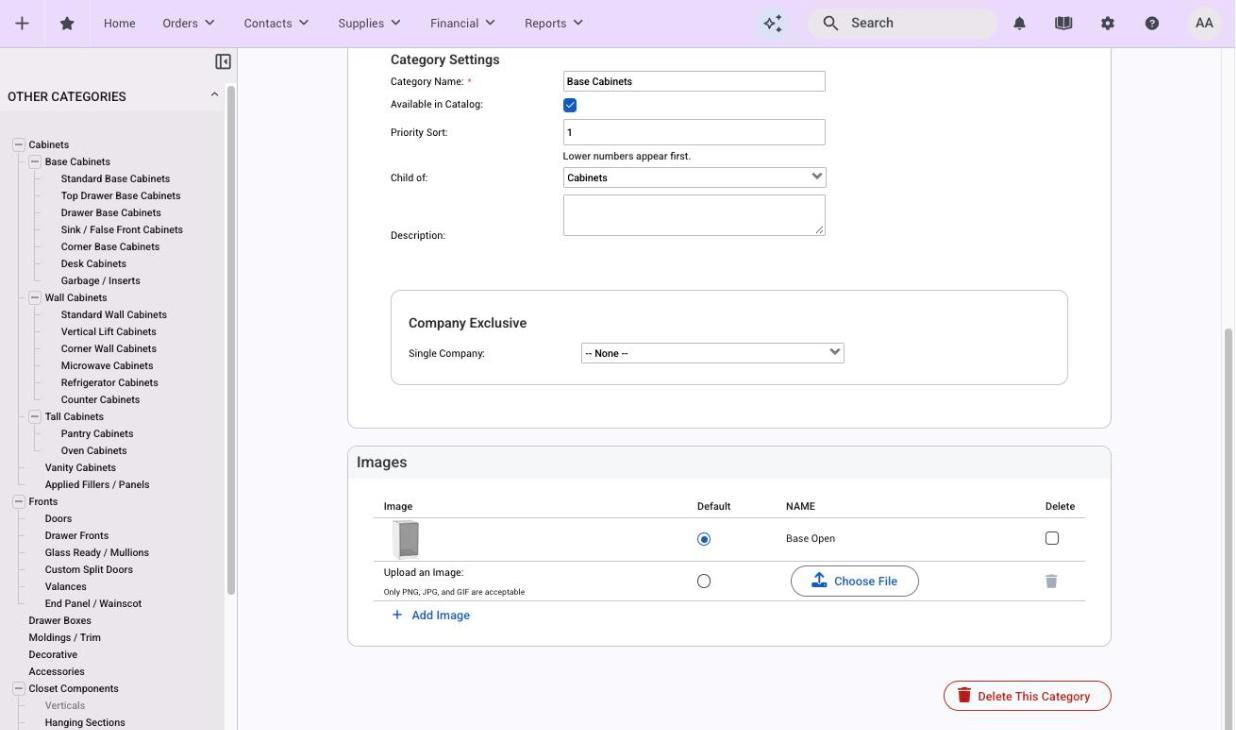
- Go to Settings > E-Commerce > Categories and click Add Category.
- Enter the Category Name.
- Leave Available in Catalog ticked so customers can see it, or untick it to keep it hidden for now.
- Set Priority Sort. Lower numbers show first.
- To nest it, choose the parent under Child of. Leave it on "Nothing, make this a top level category" for a top-level category.
- Add a Description and an image if you want one, then Save.
To move an existing category under a different parent, open it and change Child of. Only categories that are available in the catalog are offered as parents.
Put a product in a category
- Open the product at Settings > E-Commerce > Products.
- In the Categories sidebar, tick each category the product should appear in. Tick all that apply if it belongs in more than one.
- Save the product.
Components work the same way from their own editor.
Control the order and layout
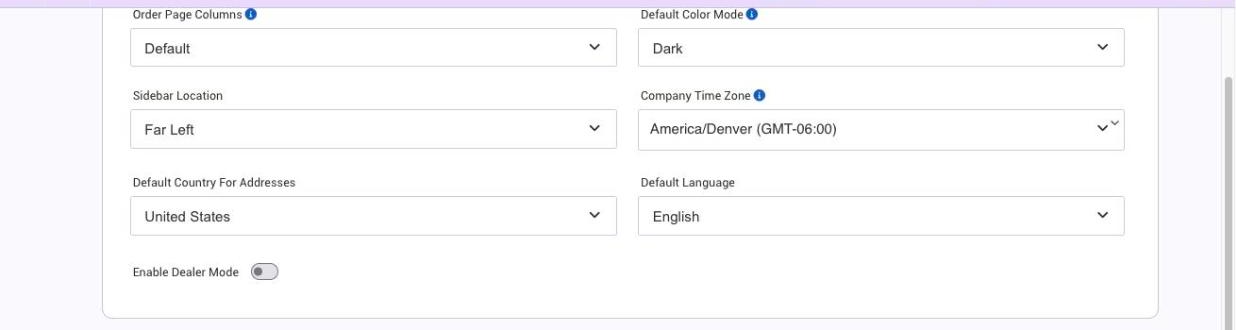
Two settings decide how the catalog looks:
- Priority Sort on each category and product sets the order they appear in. Lower numbers come first. Set it on categories to order the top level, and on products to order them inside a category.
- Order Page Columns at Settings > Admin > Theme sets how many products fit across the order page, from one to five columns. Default fits the most images across. Try a couple and see which suits your images.
Show a category to some customers only
Open the category and look at Company Exclusive:
- Single Company: choose one customer company, and only that company sees the category.
- Use Tags: pick one or more company tags, and every company carrying one of those tags sees it.
Tags are the easier way to manage this as your customer list grows: set the tag on the category once, then add the tag to each company that should have access. Products and components have the same setting.
Two things to know:
- Exclusivity grants access rather than taking it away, so there's no switch to hide one product from a single company. The workaround is a tag such as not_company_x on every product except that one, and on every company except Company X.
- A customer who can't see a category may still find a product by searching for it by name on the order page.
Build or change a category without customers seeing it
Make the category exclusive to your own company while you work on it: set Single Company to your own company. Customers can't see it, and your team can still open it on the order page by choosing your own company as the customer. When it's ready, set Company Exclusive back to None.
If you don't have customers ordering yet, the same trick keeps a whole catalog out of sight: put everything in one category that is exclusive to your company.
Rename, discontinue or delete a category
Open the category from the list, change its name or settings, and Save.
To take a category out of the catalog without losing it, untick Available in Catalog. Products whose only category is discontinued can't be browsed to, so move them to another category first or expect them to disappear from the storefront.
To delete it, click Delete This Category at the bottom of the form. Its sub-categories move up to its parent, and products that were only in the deleted category show at the top level of the catalog. Renaming is usually the safer choice.
Things to know
- Only available categories are offered as parents. If a category's parent is discontinued, saving the child can move it to the top level. Make the parent available again first.
- Changing who can see a product edits old orders. If a product becomes exclusive to one company, the next time an order for a different company is saved, that product line is removed from it. Check exclusivity before changing it on a product customers have already ordered.
- Check For Loop Traps (on the Categories page) lists any category whose parent chain loops back on itself. It reports the problem; fix it by changing Child of on the category it names.
- Re-check Company Exclusive after you save a product. Saving a product with the setting left unchanged can occasionally clear it. If a product keeps becoming visible to everyone, tell support.