
Getting Started with Operator: Ask Allmoxy to Do It
Operator is an AI assistant built into your Allmoxy instance, so the answer you'd normally dig through three reports to find is one plain-language question away.
In this article
- What Operator does
- Open Operator
- Give your team access
- Ask your first question
- Start a new chat for each task
- Approve a change before it happens
- Save and reuse Abilities
- Know how your AI tokens work
- Examples to try
- What Operator won't do
- Things to consider before you roll it out
What Operator does
Most of the time you spend in Allmoxy isn't spent deciding, it's spent retrieving. Which orders shipped late last month. What a customer has open. Where a part number is used.
You describe what you want in plain language, and Operator goes and gets it out of your own instance. Three things make it different from a general AI chat:
- It's connected to your live data. Every record it returns comes with a clickable link straight to that record in Allmoxy.
- It works inside your permissions. Operator runs as you, with the access you already have.
- It remembers useful work. Any task you complete can be saved as an Ability and re-run later with one click.
Open Operator
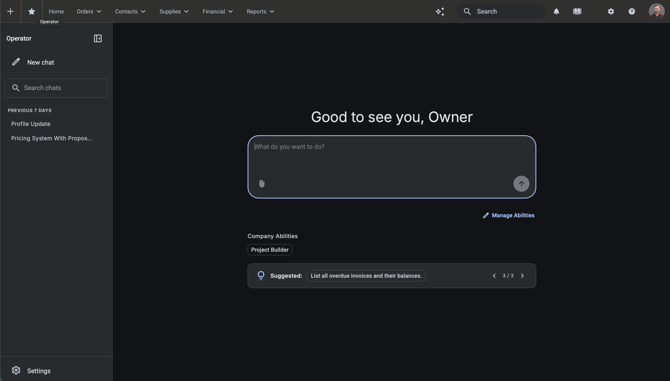
Operator lives in the Allmoxy nav you already use. There's nothing to install and nothing to set up first.
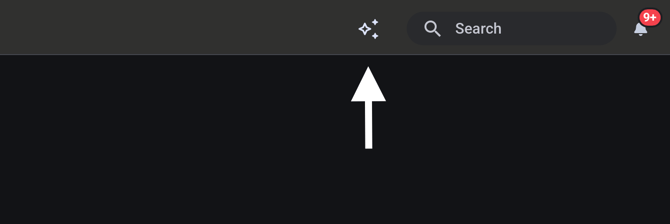
- Look in the top nav bar, just left of the search bar.
- Click the Operator icon. Operator opens on its own page.
That's it: you can start asking right away.
Give your team access
Access is per user. Operator is granted to your team automatically, but you can turn it off for specific people if you want to.
- Open the user's account and edit their permissions.
- Switch the Operator permission on or off.
- Have them log all the way out of Allmoxy and back in for the change to take effect.
If someone doesn't see the icon, it's almost always a stale session rather than a permission problem. Work in this order:
- Log fully out and back in. Not a page refresh; a full sign-out rebuilds the session, and this alone fixes most cases.
- Try a private browser window. That tells you in seconds whether cached files are the culprit. If it works there, clear your cache and cookies.
Still nothing? Send us the user's email and your instance name and we'll check it from our side. You don't need to keep troubleshooting it.
Still not showing up, or Operator keeps asking you to sign in? Can't open Operator, the Importer or new reports walks through every cause.
Ask your first question
The fastest way to learn what Operator is good at is to ask it something you already know the answer to. You'll see how it thinks and how it shows its work.
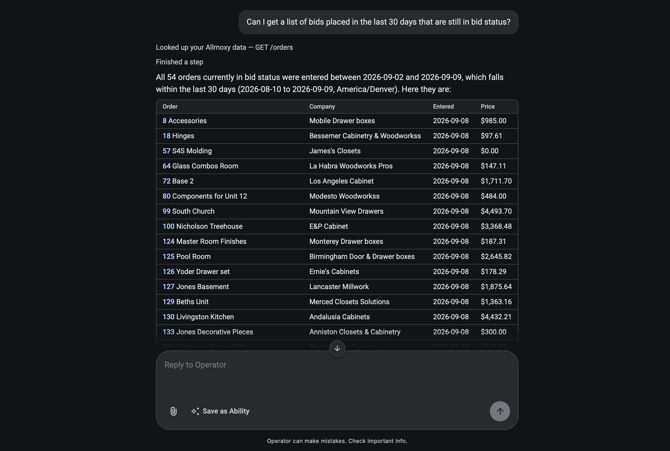
- Type what you want. Plain sentences beat keywords: "show me every order for Miller Cabinet that hasn't shipped" works better than "Miller unshipped."
- Send it. A motion graphic runs while Operator works out which parts of your instance to pull from.
- Read the result in the chat. Tables, summaries, and record cards render right there, in full.
- Click any record link to jump straight to that order, customer, or part in Allmoxy.
Two habits that sharpen the answers:
- Name the timeframe. "Last month," "this quarter," "since June" all narrow the work.
- Follow up instead of restarting. Operator holds the thread, so "now group that by customer" works.
Start a new chat for each task
This is the single habit that will save your shop the most tokens. Every time you send a message, Operator re-reads the whole conversation to keep its place. A thread you've been adding to all week costs more tokens per question than a fresh one, and the answers get vaguer as older topics compete for attention.
So treat a conversation as one task:
- New topic, new chat. Done with last month's late orders and moving to a customer's open balance? Start a new one.
- Keep follow-ups in the same thread. "Now group that by customer" belongs where the original question is.
- Save it instead of scrolling back. If you keep returning to an old thread to re-run something, that's the signal to make it an Ability.
If a task stops partway, for example because your token pool ran out, open the chat from the sidebar once tokens are available again and ask Operator to carry on. If it keeps failing, start a new chat and put the whole request in one message, including any filters ("only products available for sale"), rather than adding them as follow-ups.
Nothing is lost when you start fresh. Past conversations stay in the left sidebar, titled automatically, and the sidebar search looks across both titles and the messages inside them. Your chat history is private to you: not your admin, not your coworkers, not anyone at Allmoxy.
Approve a change before it happens
Operator can do more than look things up, it can make changes for you - and the moment it touches your data you want to be certain nothing moved without your say. Every write stops and asks you first, by name.
- You describe the change you want.
- Operator shows you exactly what it's about to do and puts your name on it.
- If the action can't be undone, you get an additional explicit warning before it runs.
- Once you confirm, the change is written and recorded in your Allmoxy activity log under your name.
This confirmation is permanent and cannot be switched off, not by you, not by anyone else. There's no configuration to audit and no way for a user to turn the guardrail off.
Save and reuse Abilities
An Ability saves whatever task you just performed and turns it into a button. Think of it as a favorites link that performs the task instead of just opening the page. The report you rebuild every Monday becomes a button you press once.
To save one:
- Work the task in chat until the result is what you actually want.
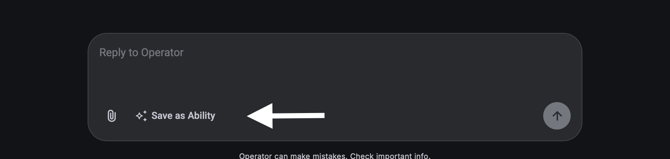
- Click Save as ability at the bottom of the chat bar. Operator also offers this at the end of a conversation.
- Keep the suggested name or rename it to something your team will recognize.
Saved Abilities appear as pills under your input box, in two groups: My abilities (private), which nobody else can see, and Company abilities, visible to everyone in your instance. New Abilities are private by default.
To change one, open Manage Abilities at the bottom right of the chat field, or just tell Operator what you want different while you're using it. "Include cancelled orders too." No settings, no logic to touch. Delete lives in the same place and asks you to confirm.
To share one, open Manage Abilities, click the Ability, change Sharing to Company, and save. It moves into Company abilities for the whole instance. Sharing is all or nothing right now; sending an Ability to one named colleague isn't available yet.
One more thing worth clicking: the suggestion bar below your input box offers useful Allmoxy actions you might not have known to ask for. Run one, see what comes back, save it if you'd want it again. Today it's the same curated list for everyone rather than picks based on your history.
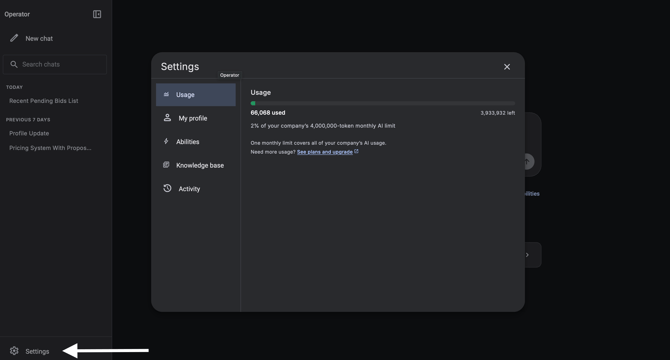
Know how your AI tokens work
Operator runs on AI tokens. Thirty seconds of understanding here beats finding out when a tool stops.
- Every instance gets a free monthly allotment. No card, no setup.
- It's one shared pool for your whole company. Every user and every AI-powered feature draws from it, including the Import Tool. One person working through a large catalog import can use capacity everybody else was counting on.
- The pool resets monthly and unused tokens don't roll over.
- Buying more is limited to whoever already controls your subscription and card on file. Everyone else sees a message telling them to talk to whoever handles billing; nothing is sent or recorded on their behalf.
Operator has its own usage view, so you can check what's left without leaving the tool.
Examples to try
Change the details to match your shop.
Pulling numbers
- "How much revenue did we generate last month?"
- "Show me how much we've received in payments in the last 30 days."
- "Show me all the orders that are currently verified."
Moving work along
- "Move these five orders to In Progress: 1041, 1042, 1043, 1044, 1045."
- "Create a purchase order for 4/4 Rustic Alder."
- "Create an announcement to my employees that we have Friday off."
Setup and configuration
- "Create an attribute called Wood Type with rows for Alder, Poplar, Birch, Oak, and Walnut, and columns for waste yield, wood ID, per sqft price, and weight."
- "Add a new tag called 'dealer only' to all the products in the Doors category."
- "Create a new company for Miguel's Magnificent Doors." (A company has a lot of required fields, so Operator will walk you through them.)
Figuring out how
- "How do I set a customer to be tax exempt?"
- "Where did order 1234 go? Did someone delete it?"
And the one that surprises people
- "I have a few minutes right now. Which company should I call to make the best use of my time?"
What Operator won't do
Knowing the edges now is worth more than discovering them mid-task.
- It stays inside Allmoxy. Ask it something unrelated and it says so and points you elsewhere. It isn't a general-purpose assistant, and it doesn't connect to QuickBooks, email, or your design software.
- It's for your team, not your ordering customers. Your customers ordering through your site don't have access to it.
- It types, it doesn't listen. Input is text only for now.
- Large multi-field changes belong in the Allmoxy screens built for them: building a full order, configuring a complex product.
- It can't see another user's conversations or private Abilities. By design.
When something is beyond what it can reach, Operator gets as close as it can, tells you plainly what it couldn't do and why, and links you to the Allmoxy page where you can finish by hand. Every one of those gaps is logged on our side and feeds what we build next.
Things to consider before you roll it out
A few decisions worth making on purpose rather than by accident:
- Start with whoever asks the most questions. The person pulling the most reports gets the most out of Operator on day one, and they'll build the first Abilities worth sharing.
- Seed a few Company Abilities before you announce it. A new instance opens with an empty pill row, and a blank screen is a hard sell. Two or three useful shared Abilities give everyone something to click on day one.
- Decide who curates Company Abilities. Ten sharp Abilities beat forty stale ones.
- Talk about the shared token pool. The person who hits the limit is often not the person who used it. A minute of context now prevents a confusing afternoon later.
- Point people at the confirmation prompt. New users are often nervous an AI will change something behind their back. Showing them that every write stops and asks by name, and that it can't be turned off, resolves that in about five seconds.