
When a system connected through the API can't accept one of your attribute names (a trailing underscore, a generic name it expects to be called something else), give the attribute an API Mapping Name. Set the name once on the attribute, then turn it on for each product where it should apply, from that product's Edit Overrides page. Your catalog keeps its own names; the integration gets the name it needs. Most shops never touch this field, and if you don't use the API you can ignore it.
Applies to: shops with the API add-on whose developer or integration partner connects through the API. Editing attributes and products needs the Manage Catalog permission.
In this article
- What an API Mapping Name is
- How Allmoxy uses the name
- Set the name on the attribute
- Turn it on for each product
- A custom name for one product only
- When you'd use it
- Things to know
What an API Mapping Name is
An API Mapping Name is an alternate identifier for a product attribute. It lets an external system reference the attribute by a different name than the one in your Allmoxy catalog, so an API call can use the mapping name where the original attribute name would be rejected.
The field exists because some external systems have naming restrictions that Allmoxy doesn't share. Certain integrations can't process attribute names that start or end with underscores, or they need attributes named to match their own data structure. Most Allmoxy users will never need to touch it; it is a specialized tool for advanced integrations. When you do need it, it lets you keep your catalog structure while meeting the other system's requirements.
How Allmoxy uses the name
Configuration happens in two places: on the attribute, where you say what the mapping name is, and on each product, where you say that it applies.
Setting the name on the attribute establishes what the mapping name will be, but doesn't apply it anywhere by itself. When an API call comes in for a product where the mapping is turned on, Allmoxy checks for an API Mapping Name first and accepts that name; where the field is empty, it uses the attribute's standard formula name as it always has. Setting a mapping name adds an alternative rather than replacing the original, so your internal catalog keeps its existing naming conventions while the integration uses its own.
Set the name on the attribute
- Open the attribute (Settings > E-Commerce > Product Attributes) and look in its Attribute Info, next to the display name and the formula name.
- In the API Mapping Name field, enter the alternative name the external system needs.
- Save.
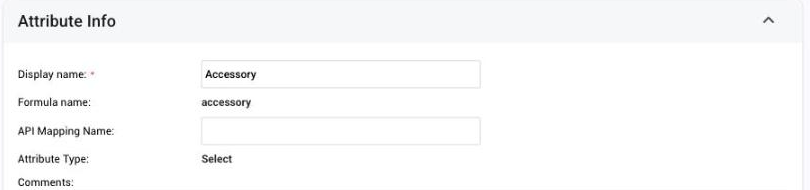
For example, if you have an attribute whose formula name is integrated_ends_ (note the trailing underscore), you might set its API Mapping Name to integrated_ends, without the underscore.
To set names on many attributes at once, use Settings > Utilities > Attribute Updater: it shows every attribute in one grid with an API Mapping Name column, so a new integration that needs a dozen renamed attributes is one page of edits rather than a dozen.
Turn it on for each product
The mapping name must be explicitly enabled on every product where you want it to function. This product-level control exists because a single product can carry several attributes with similar purposes, and you need to decide which mapping names apply where.
- Open the product that uses the attribute (Settings > E-Commerce > Products).
- On the Attributes tab, find the attribute in the product's attribute list and click Edit Overrides on its row.
- Find the API mapping setting (labeled API Mapping Options) and choose the option that uses the API Mapping Name you set on the attribute.
- Save the override.
Once saved, API calls for that product will reference the API Mapping Name instead of the formula name. Repeat for each product that the integration touches. There is no bulk tool for this product step today, so if a new integration needs mapping names across your whole catalog, plan for a product-by-product pass. The rest of the overrides page is explained on Override an attribute for one product.
A custom name for one product only
In rare cases a product needs a mapping name that differs from both the standard attribute name and the API Mapping Name set on the attribute. On the same Edit Overrides page, choose custom_name under API Mapping Options and type the name in the field that appears; it applies only to that attribute on that product.
This is uncommon but useful for edge cases in your integration where the standard mapping doesn't work for one product's configuration.
When you'd use it
API Mapping Name is most often used when integrating with design software or manufacturing systems that have rigid naming requirements. Common scenarios:
- Naming convention conflicts: the external system can't process underscores, special characters or a particular format in attribute names.
- Standardized field names: the integration expects generic names like width, height or depth regardless of how your catalog describes those dimensions (cabinet_width in your catalog, width in theirs).
- Legacy system compatibility: older systems built before flexible naming became standard.
If you're working with a developer or integration partner and they report that certain attributes are failing or being rejected during API calls, ask them specifically which attribute names are causing the problem. Often it is a naming format their system can't accept. Once you know which attributes need alternative names, agree with your partner on what those names should be (they can tell you exactly what format their system requires), then follow the steps above.
Things to know
- Two steps, not one. The name on the attribute does nothing until a product's Edit Overrides turns it on.
- The Attribute Updater sets many names at once (Settings > Utilities > Attribute Updater). Turning them on per product is still one product at a time.
- Mapping names don't change what your team sees. Your people keep seeing and using the original attribute names throughout Allmoxy; the mapping name only comes into play in API communication.
- Not using the API? Ignore this field. It only matters when an external system connects through the API.
- Ask the developer first. They can tell you which names fail and what format their system accepts, which saves guessing.