
- Overview of B2B attributes as Order Level Settings
- How to sync B2B attributes
- Use B2B attributes as order level settings
To use this functionality, you must be connected to a supplier and reselling their products! To learn more about vertical catalog integrations (B2B), click here
Overview:
If you're reselling products from a B2B supplier, you can use their product attributes as order level settings in Allmoxy. This means you or your customers can set B2B product specifications once at the order level instead of configuring them individually on each product.
For example, if your B2B supplier has attributes like material type or finish on their products, you can apply your selection globally for an entire order rather than selecting them product-by-product. This bridges a gap between your supplier's products and your native catalog products, giving your customers a more cohesive order experience!
Need a refresher on how order level settings behavior works in Allmoxy? Learn more here.
When to Sync B2B Attributes:
You'll need to sync your B2B attributes in two situations:
- If you already have B2B products in your catalog, you'll need to run an initial sync to bring the attributes into your Allmoxy instance.
- Run the sync again to pull in supplier attributes any time you add new products to resell
How to Sync B2B Attributes:
- Navigate to Settings ⚙️ ➡️ B2B Settings
If you don't see B2B Settings, you haven't turned it on to connect to a supplier! Reach out to your customer success manager to activate the B2B functionality.
2. Click Resynchronize B2B attributes now
3. Wait for the synchronization to complete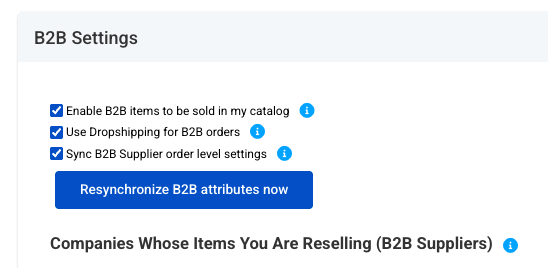
Set Up B2B Attributes as Order Level Settings:
Once your B2B attributes are synced, you can choose which ones to make available as order level settings.
- Navigate to Settings ⚙️ ➡️ Product Attributes
- Toggle on Show B2B supplier attributes to view your B2B attributes
-1.png?width=670&height=146&name=Untitled%20design%20(5)-1.png)
The formula name for the attribute will reflect the supplying company's name followed by the name for that attribute, as well as the Supplier Company on the attribute list.
3. Open any B2B attribute you want to use as an order level setting
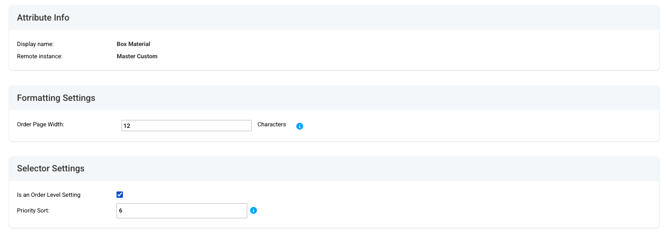
4. Check the box for Is an order level setting
5. Configure the optional settings:-
- Order page width - Controls how wide this field appears within the Order Level Settings section (this won't affect how the attribute displays on the product itself)
- Priority sort - Controls the display order of this attribute within your Order Level Settings list
❗Important Notes:
- Attribute names are set by your B2B supplier - The display name comes directly from your B2B supplier and cannot be renamed on your end
- Choose the attributes that make sense for your workflow - You can enable any B2B attributes as order level settings based on what you want to control globally