
In this article:
- What
?dev=1does - Turning it on
- On the order page: seeing the pricing breakdown
- On the product backend: testing formulas
- When this comes in handy
What ?dev=1 Does:
Allmoxy normally shows you the final, customer-ready version of an order — a clean total, a tidy list of products, a cut sheet ready for the shop. But every once in a while, you need to see why the total is what it is. Maybe a price looks off, maybe you're testing a new formula, or maybe a customer asked a question you want to back up with real numbers.
That's what ?dev=1 is for. Appending it to the end of a URL flips on a developer view that exposes the math behind the scenes — the formulas, the attribute values, and the adjustments making up a subtotal.
It works in two different places, and each one unlocks a different kind of insight:
- On the order page — see a full breakdown of price adjustments that make up a product's subtotal.
- On the product backend (pricing and parts) — see how each attribute is being calculated and what values are being pulled in, with tools to test formulas against real or simulated orders.
Turning It On
Go to the address bar on whichever page you want to inspect and add ?dev=1 to the very end of the URL, then hit enter.
For example:
https://yourshop.allmoxy.com/orders/12345/ becomes https://yourshop.allmoxy.com/orders/12345/?dev=1
To turn the view off, just remove ?dev=1 from the URL and reload, or navigate away from the page.
On the Order Page: Seeing the Pricing Breakdown
With ?dev=1 active on an order page, clicking the product subtotal opens a popup modal that lists every price adjustment contributing to that subtotal. It's a line-by-line view of the discounts, upcharges, attribute-driven adjustments, and base pricing that add up to the number the customer sees.
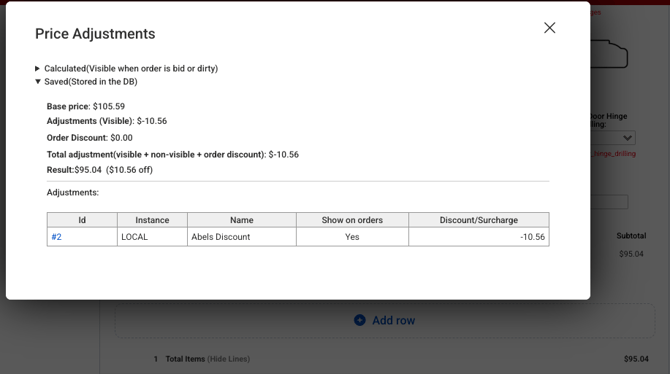
This is usually the fastest first stop when a price looks wrong. Before you start digging into formulas or overrides, the breakdown modal will tell you which adjustment is responsible for the discrepancy — and from there you know where to look next.
On the Product Backend: Testing Formulas
The dev tool works differently on the product backend. When you're on a product's pricing or parts tab with ?dev=1 enabled, you'll see the calculations and values being pulled for each attribute in your formulas, plus a set of purple buttons that let you actively test how those formulas behave.
Settings ⚙️ > ECommerce > Products > [Select Product] > Pricing or Parts tab > add ?dev=1 to the URL
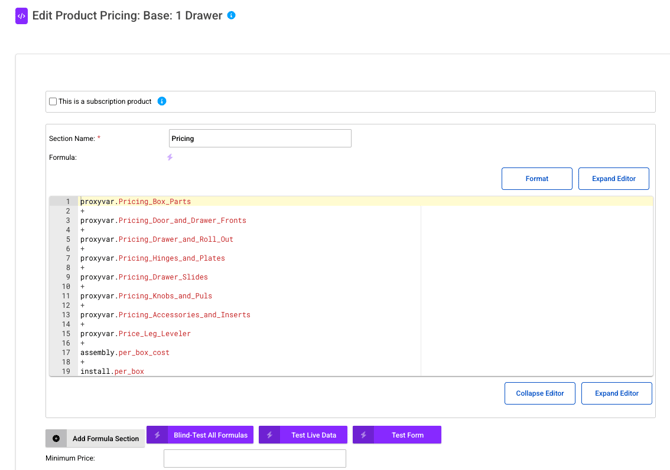
The two buttons you'll reach for most often are Test Live Data and Test Form. They do similar things but from different angles.
Test Live Data
Type in an order number and Allmoxy will run the formula against that exact order — using the real attribute values the customer selected. This is the right choice when you're troubleshooting a specific order or when you want to confirm a formula is working correctly in the wild.
Test Form
Instead of pulling from a real order, Test Form gives you the product's order form so you can enter inputs manually and watch the formula evaluate as you go. This is the right choice when you're building or tweaking a formula and want to experiment with different input combinations without having to create throwaway orders.
✅ Test Live Data and Test Form each have their moment. Live Data is best for "why is this specific order pricing wrong?" Test Form is best for "does my formula handle the edge cases?" Using both while you're building a new pricing structure will catch issues faster than either one alone.
When This Comes in Handy
A few of the most common situations where ?dev=1 pays for itself:
- A price looks wrong on an order. Click the subtotal with dev mode on and the breakdown modal will show you which adjustment is responsible.
- You're building or editing a pricing formula. Use Test Form on the product backend to walk through different input combinations and confirm the formula evaluates the way you expect.
- A customer questions a charge. Pull up their order, open the breakdown, and you can explain the math without having to reverse-engineer it.
- An attribute isn't affecting pricing the way you expected. On the product backend, dev mode shows you the actual value the system is pulling for that attribute — which can differ from the label the customer sees on the order form.