
Connect your Stripe account at Settings > Admin > Financial, under Payment Gateway Settings. Allmoxy takes payments through Stripe. Once your Stripe account is connected, your customers can pay their invoices online by card, and by bank account if you turn that on.
Applies to: anyone who takes online payments. Financial settings need the Manage Financial Settings permission, which only the account owner has by default.
In this article
Connect Stripe
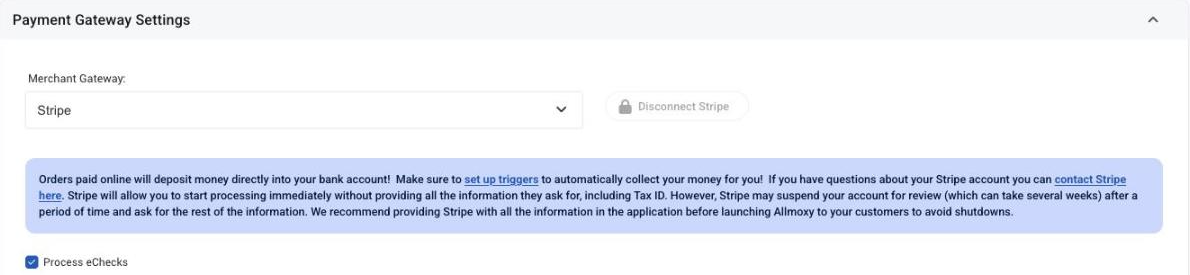
- Go to Settings > Admin > Financial.
- Under Payment Gateway Settings, set Merchant gateway to Stripe.
- Click Connect Stripe and sign in to your Stripe account (or create one) to link it to Allmoxy.
- Save your settings.
To unlink the account later, click Disconnect Stripe.
Choose your payment options
These settings sit in the same place, Settings > Admin > Financial:
- Process eChecks lets customers pay by bank account (needs the Stripe Connect gateway). See Accept bank (ACH) payments.
- Minimum payment amount shows in the payment screens as the smallest payment a customer can make.
Things to know
- With the gateway set to None, customers can't pay online. Your team can still record payments by hand.
- Bank payments need Stripe Connect. The plain Stripe option can't take them.
- Changing to a different Stripe account or payment setup hides cards saved with the old one. Customers will need to save them again.
- To pay online, a customer's company needs the Make Payments permission. Edit the company and turn it on under Company Permissions. All of that company's contacts can then pay.
- Your default currency can't be changed once it's set.
- Stripe takes its fee from each payment before paying you. There's no monthly bill, so the deposits in your bank account are smaller than what your customers paid.
- Stripe charges one flat rate for every card type. Once you have some payment volume, you can negotiate a better rate directly with Stripe.
- You can keep an existing card reader. Record those payments in Allmoxy as offline payments.
- Finish Stripe's underwriting before you launch. It lowers the chance of Stripe flagging your account.
- Your whole company shares one Stripe login.