
To charge more for walnut than for alder, add a column to the Wood Type attribute, type a price for each option, and use that column in the product's pricing formula as wood_type.column_name. The same column also works for upcharges, per-square-foot rates and any other number that changes with the option.
Applies to: shops pricing by material, style or any other dropdown choice. Needs the Manage Catalog permission.
In this article
- Add a price column to the attribute
- Use the column in the formula
- Different prices on one product
- Follow the cost of a supply
- Things to know
Add a price column to the attribute
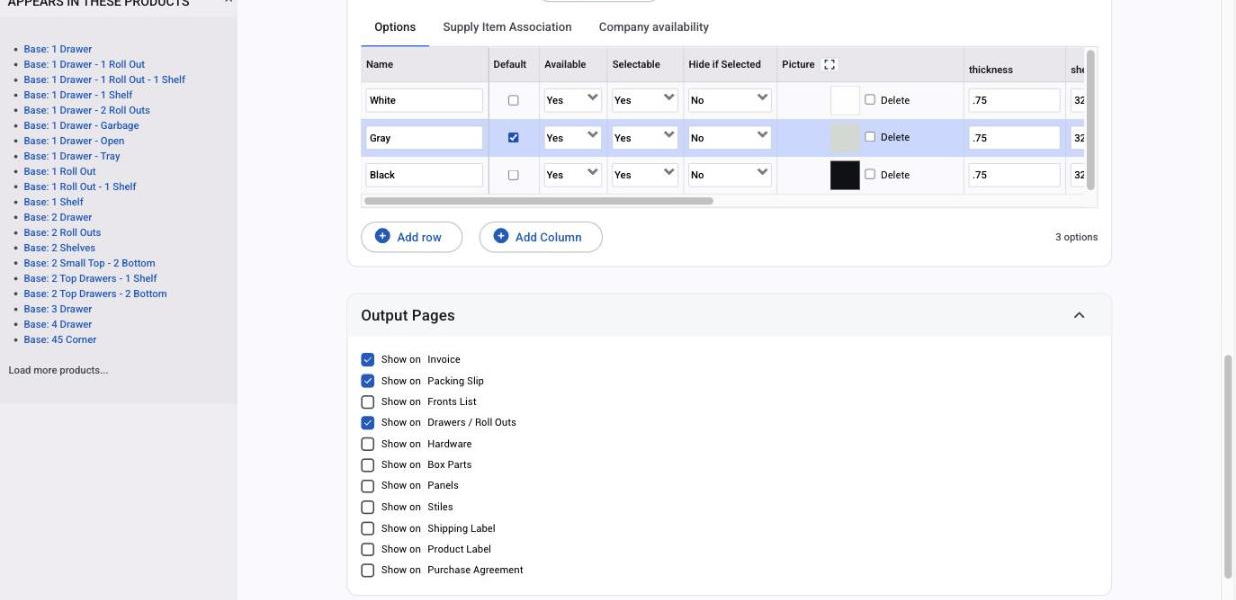
- Go to Settings > E-Commerce > Product Attributes and open the dropdown attribute (for example Wood Type).
- Scroll to Selector Settings. Wait for the options table to finish loading, then click Add Column and name it, for example
priceorupcharge. Keep column names short and lower-case; they become part of a variable name. - Type a value in the new column for every option. An option with a blank cell makes any formula that reads it show "-" on the order, so fill them all, with
0where there's no charge. - Click Save.
A column can hold any number, not just prices: thickness, square feet per sheet, a multiplier. Add as many as you need. Each column is also a variable in the product's part formulas, not only its pricing.
Use the column in the formula
- Open the product, click the Pricing tab, and find the new variable in the sidebar under Product variables. It's named
attribute_formula_name.column_name, for examplewood_type.price. - Click it to insert it where the cursor is, or type it.
Three common shapes:
- Flat upcharge per option: a section
wood_type.upchargeon its own, or38.50 + wood_type.upchargefor a base price plus the upcharge. - Rate per square foot:
((height * width) / 144) * wood_type.price_per_sqft. - Multiplier:
base_price * finish.multiplier, with1in the column for options that don't change the price.
The customer sees the result on the order page as soon as they change the option.
Different prices on one product
If one product should charge different option prices from the rest, don't make a second attribute. Open the product's Attributes tab, click Edit Overrides next to the attribute and type the product's own values in the Price column (or whichever column you're using). The override wins for that product only. See Edit overrides.
Follow the cost of a supply
Allmoxy doesn't move your prices when a supply's cost changes, because most shops don't want every lumber price change to reach customers the same day. To make a product follow a material cost, keep that cost in an option column (for example wood_type.cost) and build the formula on it. When the cost changes, update the column and every product using it changes at once. Bids pick it up on their next view; placed orders keep their price.
Things to know
- Hidden options still price. An option hidden on a product still returns its column values, so a hidden default option can carry a charge.
- One column, many products. Every product using the attribute sees the column. If only some products should charge it, use overrides or a condition in the formula.
- Export to edit in bulk. The attribute's Export Currently Saved Options gives a CSV with a column per custom column; see Import and export attribute options.