
A pricing formula lives on the product's Pricing tab (Settings > E-Commerce > Products > the product > Pricing). Split it into named formula sections that are added together, build each one from the variables listed in the sidebar, and use ? : conditions, floor, ceil and round where you need them. This page covers the building blocks; How Allmoxy prices a product explains what happens to the result.
Applies to: shops writing or editing product pricing. Needs the Manage Catalog permission.
In this article
- Formula sections
- Variables: where the numbers come from
- Conditions (if this, then that)
- Rounding: floor, ceil and round
- Minimum price and comments
- Things to know
Formula sections
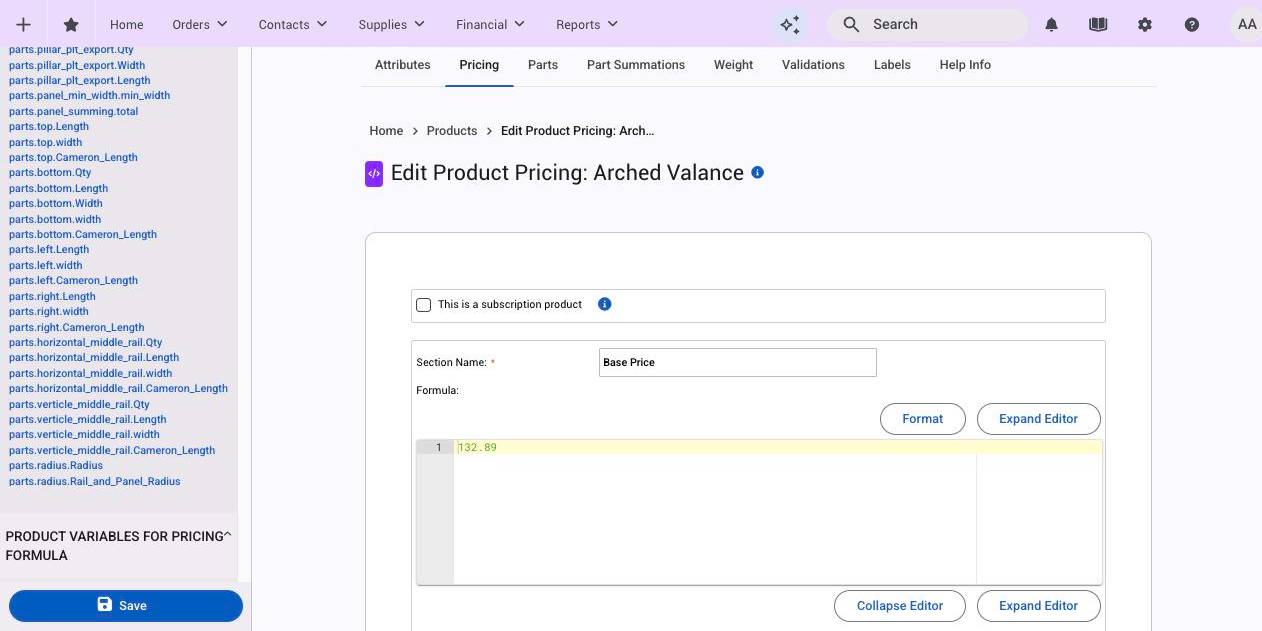
- Open the product and click the Pricing tab.
- Give the first section a Section Name (for example Base Price) and type its formula. A section can be as simple as
27.75. - Click Add Formula Section for each further piece: upcharges, oversize, hardware. Keep each section about one thing; the price is the sum of all of them, and the test tools show each section's result separately.
- Set a Minimum Price if the product should never go below a figure, and the Per Item Price Precision (how many decimals the item price keeps).
- Click Save and Exit.
If a section uses a name Allmoxy doesn't recognise, the save is refused with an invalid token message and nothing is stored, so fix the name and save again. Use Format to tidy a long formula and Expand Editor to see more of it.
Variables: where the numbers come from
The sidebar lists everything this product's formulas can use. Put the cursor where you want it and click a name to insert it.
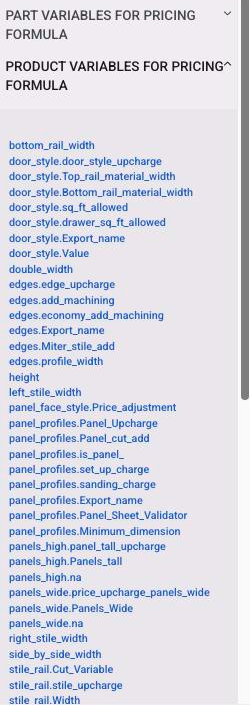
- Product variables are the product's attributes by formula name:
width,height,wood_type. A number attribute gives its value; a checkbox gives1when ticked and0when not. - Option columns appear as
attribute.column, for examplewood_type.priceordoor_style.upcharge. The value is that column of whichever option the customer chose. Adding a column to a dropdown attribute is how you price by option; see Price by dropdown option. - Part variables are
parts.<part>.<value>, such asparts.panel.Qtyorparts.panel.Width, and give what that part's formula works out for this item. Use them when the price depends on material, such as square feet of panel. - Proxy variables are shared formulas from Settings, used as
proxyvar.<name>. See Proxy variables. quantityis the item quantity.
A square-foot price with a per-wood rate looks like: ((height * width) / 144) * wood_type.price_per_sqft.
Conditions (if this, then that)
Write a condition as test ? value if true : value if false:
wood_type.is_premium == 1 ? 15 : 0
Compare with ==, !=, <, >, <= and >=, and combine tests with && (both) and || (either):
((height * width) / 144) > 3.5 ? (((height * width) / 144) - 3.5) * wood_type.oversize_price : 0
This charges the oversize rate only on the square footage above 3.5.
Checkbox attributes are 1 or 0, so hinge_drilling == 1 ? 4.50 : 0 adds $4.50 when the box is ticked.
Several tiers chain conditions. Open a parenthesis for each tier and close them all at the end, with as many closing as opening:
(drawer_height <= 4 ? 10 : (drawer_height <= 6 ? 12 : (drawer_height <= 8 ? 14 : 16)))
Put each tier on its own line for readability; line breaks don't change the result.
Rounding: floor, ceil and round
Wrap the part of the formula you want rounded in parentheses after the function:
round(x)rounds to the nearest whole number (.5 and up goes up).floor(x)always rounds down.ceil(x)always rounds up.
For decimals, scale first and divide after. To round to cents: round((height * width / 144) * wood_type.price * 100) / 100. To round up to the nearest 5 cents: ceil(x * 20) / 20.
The sidebar lists these as Round, Floor and Ceiling; what you type is round, floor and ceil.
Minimum price and comments
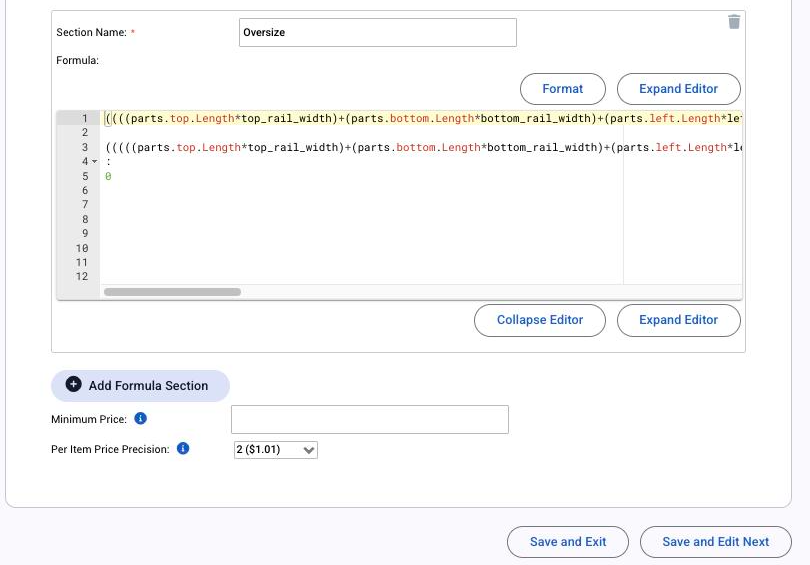
- Minimum Price at the bottom of the Pricing tab is the lowest price the formula may return for one item. Use it for a minimum charge per item rather than building the floor into the formula.
- Comments go anywhere inside a formula between
/*and*/, for example/* oversize rate */. They're stripped before the formula is worked out, so use them freely to label sections.
Things to know
- Formula names are permanent. Renaming an attribute's display name is safe; its formula name never changes, so formulas keep working.
- Save to check. Pricing formulas are checked when you save, and Allmoxy tries each section with sample values. A section that can never produce a number is refused.
- Blank numbers count as 0 and an unselected dropdown makes the price show as "-" until the customer picks an option. Give attributes sensible defaults.
- Test before you publish. Test and fix a pricing formula shows how to see each section's result with real values.