
Capture a signature on an invoice, a custom agreement or a delivery checklist without leaving Allmoxy. The Signature Block is a variable, so it works on any output page type, whether the signer is you, a co-worker or a customer standing in your office.
Applies to: any shop that needs signed documents. Adding the block needs the Manage Catalog permission; signing needs access to the order.
In this article
- Add a signature box to a page
- How signing works
- Signature history and clearing a signature
- Proof of delivery on a phone or tablet
- Run a trigger when a page is signed
Add a signature box to a page
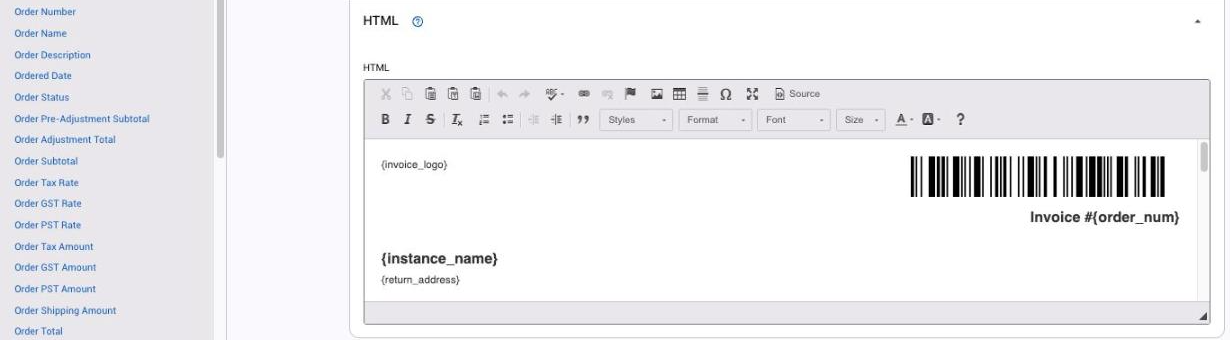
- Go to Settings (gear) > E-commerce > Output Pages and open the page.
- In the HTML editor, click where the signature box should sit.
- Click Signature Block in the black sidebar. It appears in the editor as
{signature_block}.
When the page is printed or sent as a PDF, the block renders as a clean signature line rather than an interactive element.
Tip: signature boxes are just as useful on custom agreement pages and delivery confirmation checklists as on invoices.
How signing works
- Open the output page on an order and click the signature block.
- Choose who is signing:
- Yourself (the logged-in user): your name is used and your signature is required.
- Someone else, such as a customer in your office or a homeowner who would not log into Allmoxy: they type their own name, and the signature is not tied to your login.
- The signature saves on its own; there is no separate save button.
If you sign often, your previous signatures are kept and can be reused with one click.
Signature history and clearing a signature
After a page is signed, the output page shows its full signature history, including who signed and when.
Employees can delete any signature on a page, including a customer's, which is useful when one was added by mistake or someone else needs to sign instead. Customers cannot delete signatures.
Proof of delivery on a phone or tablet
Drivers can collect a signature at drop-off on a phone or tablet:
- Create an output page for it, such as Delivery Confirmation (Settings (gear) > E-commerce > Output Pages). Put on it what the driver checks at the door, such as the shipping address and the products, and add the Signature Block. Make sure it shows to employees.
- At drop-off, the driver opens the order on a phone or tablet, opens that page and taps the signature box.
- They choose Someone else and hand it over, so the customer types their own name and signs. The signature isn't tied to the driver's login.
- The signature, the signer's name and the date and time save on the order. To send the office a signed copy, add a trigger on Output Page Signed for that page (below).
Drivers need an employee login that can open the order.
Run a trigger when a page is signed
- Go to Settings (gear) > Operations > Triggers and create a new trigger.
- In Trigger when, choose Output Page Signed and pick the output page. The trigger fires automatically as soon as the page is signed.
- In the action, attach a copy of the signed output page so the recipient gets the document with the signature on it.
Three variables are available in the trigger text: {signature_date}, {signature_time} and {signer_name}. {signature_date} is the date the page was signed, {signature_time} the time, and {signer_name} the name of the person who signed. They work in confirmation emails, internal tasks and triggered texts. For more on building triggers, see Intro to Triggers.