
To change how a shared attribute behaves on one product without touching the attribute itself, open the product, find the attribute on the Attributes tab and click Edit Overrides. Anything you set there applies to this product only; leave a field blank to keep the attribute's own value.
Applies to: every shop with its own catalog. You need the Manage Catalog permission.
In this article
Open the overrides page
- Open the product at Settings > E-Commerce > Products.
- On the Attributes tab, find the attribute under Group Attributes or Item Attributes and click Edit Overrides on the right of the attribute's row.
- Make your changes and click Save and return to product.
The page is titled with the attribute and the product, so you always know which pair you're editing.
What you can override
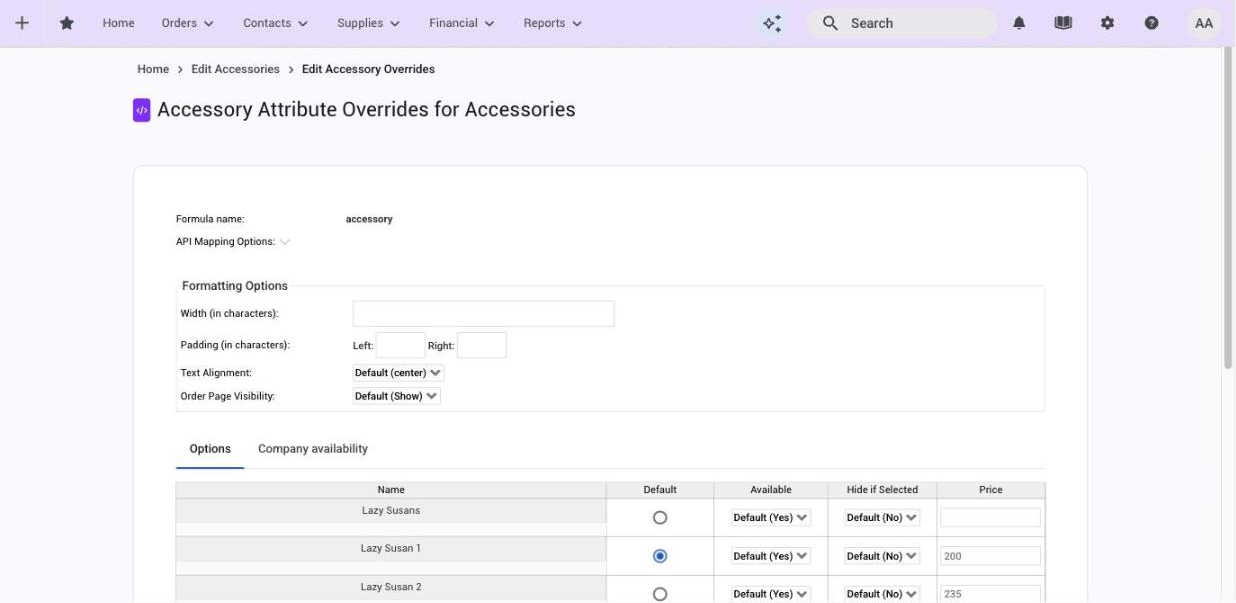
- Formatting Options: width in characters, left and right padding, text alignment, and Order Page Visibility. Set visibility to Hide to hide the attribute on this product only.
- API Mapping Options: how this attribute is matched on imports for this product.
- Options (select attributes): for each option, a different Name, whether it's the Default, whether it's Available on this product, Hide if Selected, and the Price or other custom column values. Each cell starts on Default, meaning "use the attribute's value".
- Company availability (select attributes): which customers see each option on this product. See Show options to some customers only.
- Number attributes: minimum, maximum, default and precision for this product.
Common uses
- Charge more for an option on one product. A premium wood might add $5 per door but $15 per end panel. Put the base price in the attribute's price column and set the end panel's price in its override. Override prices are fixed amounts. To raise an option by a percent on some products, use a price adjustment instead.
- Offer fewer options on one product. Set Available to No on the options that don't apply, and they drop out of that product's dropdown.
- A different default. The attribute defaults to Maple, but this product should start on Oak.
- Hide a helper attribute. An attribute that only exists to feed a formula can be hidden on the products where the customer shouldn't see it.
Things to know
- Blank means "use the attribute". Only the cells you fill in are stored, so clearing a cell removes the override.
- Formulas still read hidden or unavailable options. Making an option unavailable keeps the customer from picking it; it doesn't change what a formula gets if that option is somehow set.
- Precision is looked up in order: the product's override first, then the attribute, then the shop default.
- Company availability overrides currently share one setting per option. Until a fix ships, a tag rule set on an option in one product's override can apply wherever that option has an override row on another product. Check the other products that use the attribute after setting one.