
Every output page on an order has a Send To panel in the left sidebar with the same four actions: download the page as a PDF, print every page at once, email the page, and download the order's export files for your machines and software.
Applies to: anyone who prints or sends order documents. Customers see the same panel on the pages they are allowed to open.
In this article
Open an output page
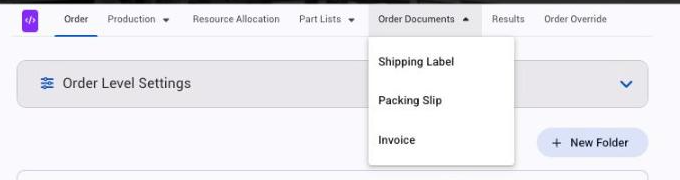
Open the order and click the page's tab across the top. When output page folders are on, the tabs sit in the Part Lists and Order Documents menus. The page renders on screen for that order.
The Send To panel
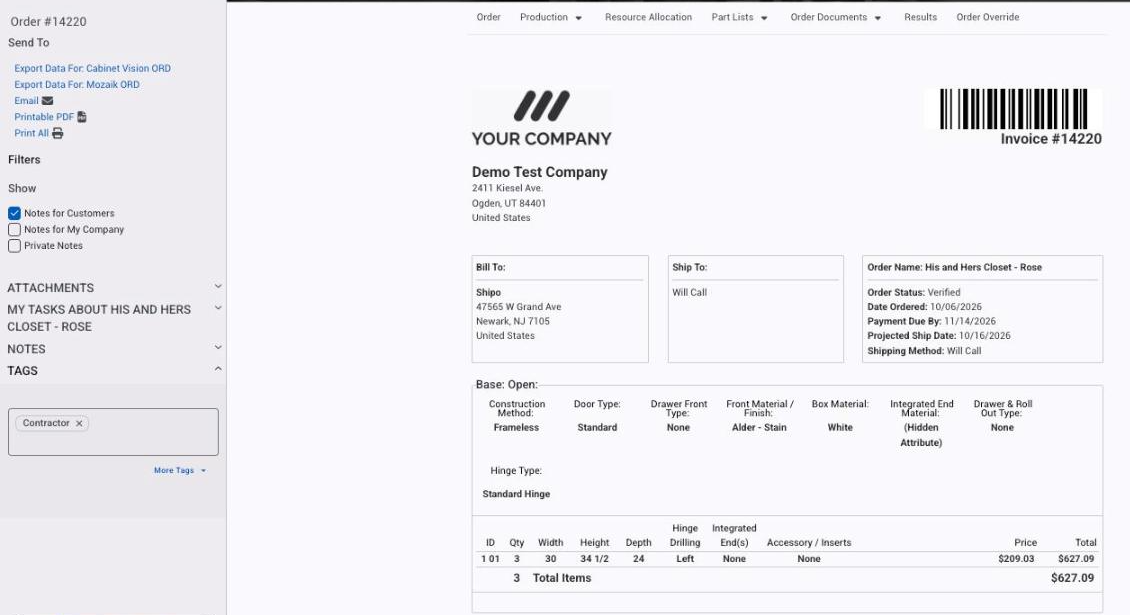
- Export Data For: (exporter name) downloads that export file, one link per exporter your products use (for example Cabinet Vision ORD or Mozaik ORD). Where the file lands is your browser's download setting. See Find and save an export file.
- Email opens a message with the page attached as a PDF named "Page name - #order". The recipient is prefilled with the order contact, the reply-to with your own address, and a checkbox sends you a copy.
- Printable PDF downloads the page as a PDF that matches what your browser shows.
- Print All builds one PDF of every page that has Add to Print All Function ticked.
The Filters below the panel choose which notes print: customer notes, company notes and private notes.
Things to know
- Print All needs every included page to share one orientation. Mixed portrait and landscape pages give an error instead of a PDF.
- Emailed PDFs, trigger attachments and batch prints are rebuilt on the server without page scripts, so a layout that depends on a script can look different from the Printable PDF.
- PDFs are always light, even when your screen is in dark mode.
- To print one page for many orders at once, use Orders > Batch Orders.
Watch: Exporting order data and printing output pages (older screens)