
An exporter is a file definition that turns an order's parts into a file your saw, CNC, nesting or design software can read: a CSV for a spreadsheet or label printer, an .ord for Cabinet Vision, an XML for Microvellum. You set up the exporter once, give each part an export formula that writes its line, and every order then has a download link for that file.
Applies to: shops sending cut data to machines or other software. Setting up exporters needs the Manage Catalog permission.
In this article
- How an export file is built
- Set up an exporter
- Write a part's export formula
- Common formulas
- Things to know
How an export file is built
Three things come together:
- The exporter (Settings (gear) > Operations > Exporters) names the file, picks the format and extension, and holds an optional header and footer.
- A part's export formula (open the product, Parts tab, open the part) writes one line of the file for that part, using the part's and the order's variables. The part's Choose Exporter dropdown says which exporter the line belongs to.
- The order collects every line from every part on it, wraps them in the exporter's header and footer, and offers the file in the Send To panel of any output page as Export Data For: (exporter name).
Set up an exporter
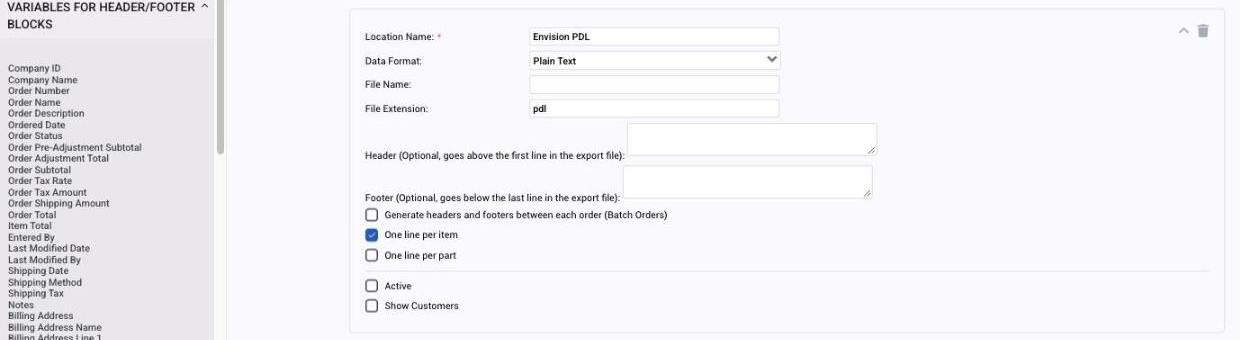
Go to Settings (gear) > Operations > Exporters and click Add Exporter. Each exporter has:
| Field | What it does |
|---|---|
| Location Name | The name shown on orders, such as "Biesse Panel Saw" or "Cabinet Vision ORD". |
| Data Format | Comma-Separated Values (CSV), Extensible Markup Language (XML) or Plain Text. |
| File Name and File Extension | What the download is called. Cabinet Vision, for example, wants plain text with a .ord extension. |
| Header and Footer | Text written above the first line and below the last. Order variables from the sidebar (order number, name, addresses, dates) work here, so an XML wrapper or a job header can carry the order details. |
| Generate headers and footers between each order (Batch Orders) | When several orders are exported together, repeat the header and footer for each. |
| One line per item, One line per part | Whether a part with quantity 3 writes one line or three. |
| Active | Turn the exporter off without deleting it. |
| Show Customers | Let customers download the file from their side of the portal. |
A product can also carry its own header and footer for an exporter: open the product and look for Exporter Header/Footer near the bottom, pick the exporter and click Add Exporter.
Write a part's export formula
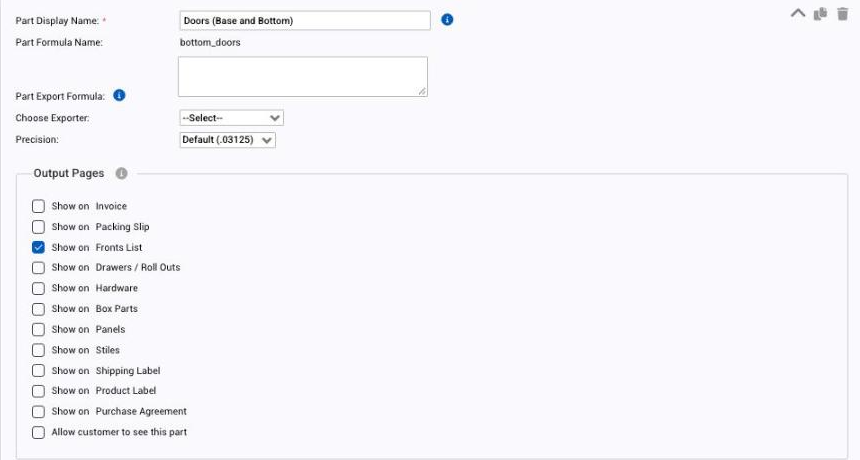
- Open the product (Settings (gear) > E-commerce > Products), go to the Parts tab and open the part.
- Choose the exporter in Choose Exporter.
- In Part Export Formula, write the line. Put your cursor where a value belongs and click a variable in the sidebar; Allmoxy adds the braces for you.
For a CSV, separate the columns with commas. This formula gives a four-column spreadsheet:
{cabinet_width},{cabinet_height},{qty},{material}
Fixed text is allowed anywhere, so a column can be a constant such as Door or a code your software expects.
Common formulas
Line ID. To put the order line number in the file, use the group and line variables together with nothing between them: {group_id}{line_num} gives 101 for group 1, line 01, then 102, 201 and so on.
Order details on every line. Order variables such as {order_num} and {order_name} can sit in a part formula as well as in the header.
A label printer CSV. Most label printers import a CSV. Build an exporter with Data Format CSV and give each part a formula with the fields the label needs; the shop downloads it from the order and opens it in the printer's software.
Things to know
- Summations cannot be exported. Only part variables and order variables go into a file; a product's summation totals do not.
- Where the file saves is your browser's download setting. Point the browser's download folder at the saw's network folder if you want the file to land there.
- The export links on an order sit in the Send To panel on the left of any output page. See Find and save an export file.
- For nesting and design software such as Cabinet Vision, Mozaik, Microvellum or CutRite, send us a sample file and we build the exporter with you. See Export files for nesting and design software.
Watch: Exporters overview (older screens)
Watch: Exporting to other software (older screens)