
Upload images on the product, category or component form under Images, and on a dropdown attribute's options for option pictures. Use square images, around 1000 px on each side; anything that isn't square is forced into a square and can look squashed.
Applies to: every shop. You need the Manage Catalog permission.
In this article
- Add an image
- Pictures on dropdown options
- Images look distorted or condensed
- Allmoxy's stock images
- Things to know
Add an image
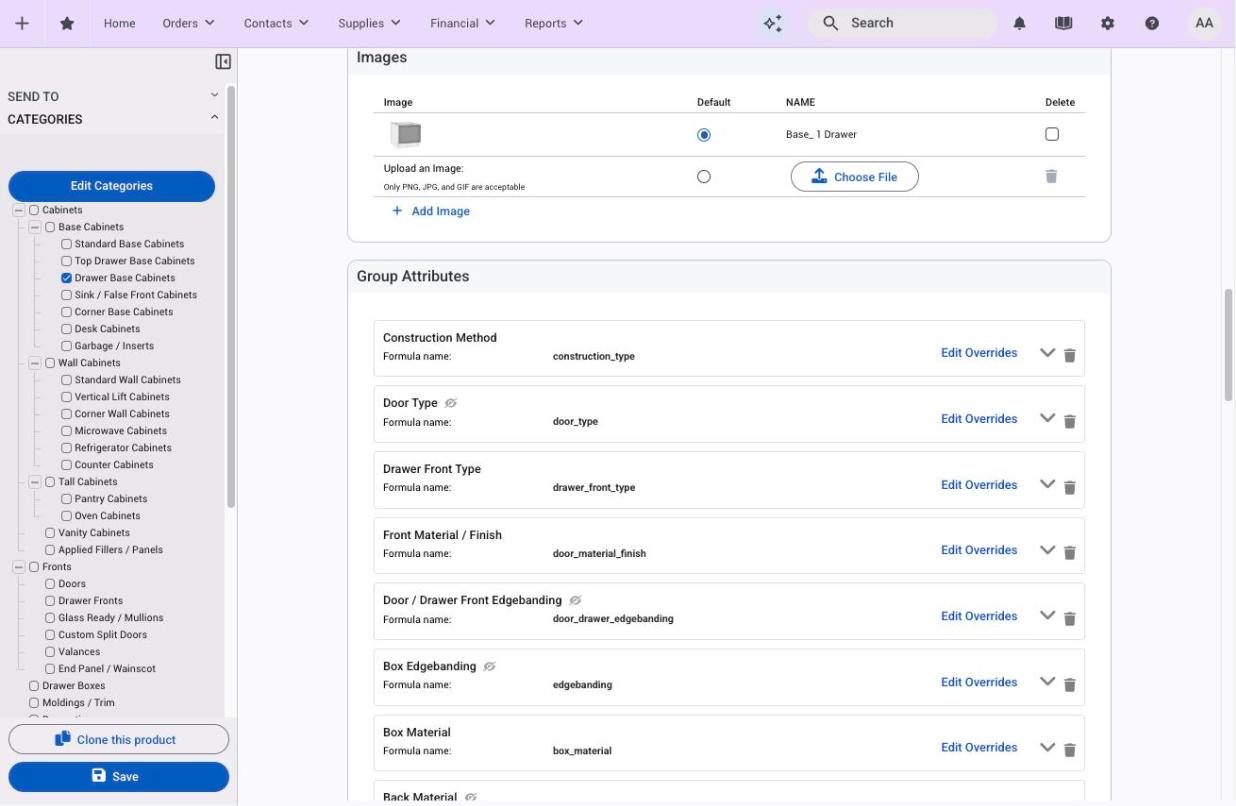
- Open the product (or category or component) and scroll to Images.
- Click Choose File under Upload an Image and pick a PNG, JPG or GIF.
- Click Add Image for more; tick Default on the one customers should see first.
- Save.
Image position on the product form (Middle or Bottom) sets where the picture sits on the product's card on the order page.
Pictures on dropdown options
Options of a dropdown attribute (a door style, a wood type) can each carry a picture that customers can enlarge on the order page. Add them on the attribute at Settings > E-Commerce > Product Attributes, in the options table. See How attributes work.
Images look distorted or condensed
Allmoxy shows images in a square. A tall or wide image is squeezed to fit, which shrinks one side. Crop the image to a square before uploading, and use about 1000 px by 1000 px for the best mix of sharpness and load time.
How many images fit across the order page is set by Order Page Columns at Settings > Admin > Theme.
Allmoxy's stock images
Allmoxy keeps a set of product images (cabinet components, for example) and attribute images (wood types) you can use. Download them from the shared folder: Allmoxy product images.
Things to know
- Cloning a product copies its images. Exporting a product to a file includes images and option pictures too.
- The Images filter on the product and category lists shows only items that have a picture, which is a quick way to find the ones that don't.