
This page lists every setting on the product form at Settings > E-Commerce > Products, what the product list shows, and how sorting works on the order page and on output pages.
Applies to: every shop. You need the Manage Catalog permission to open these pages.
In this article
- Product Info
- Company Exclusive
- Notes, tags, images and the rest of the form
- Output Page Part Sorting
- The other tabs
- The product list
Product Info
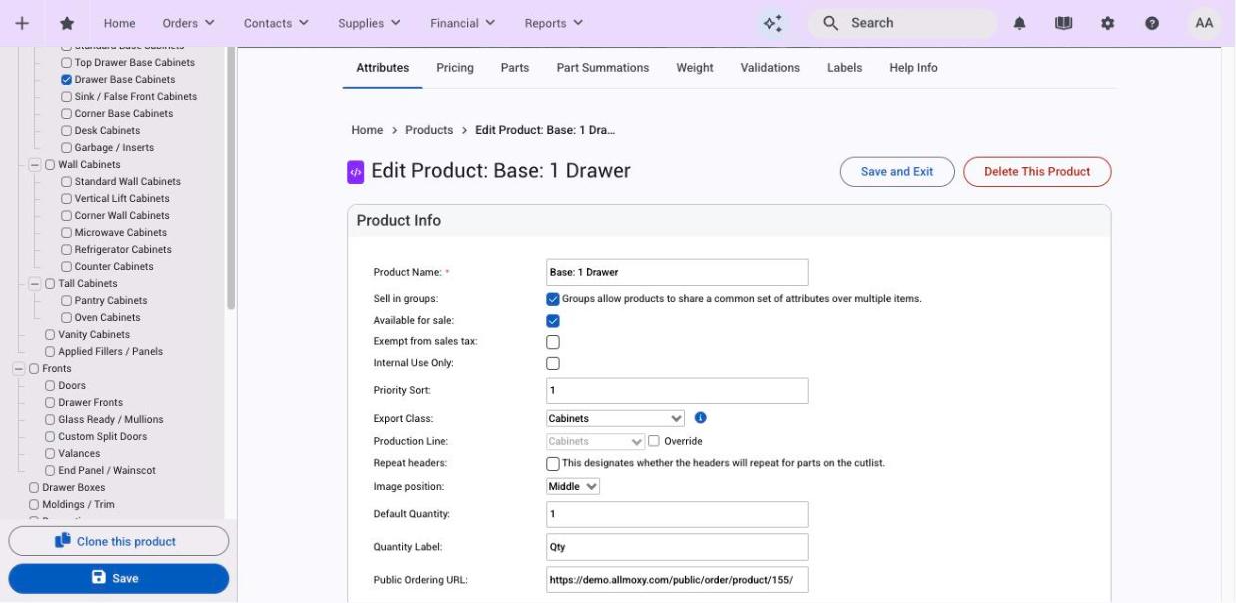
| Setting | What it does |
|---|---|
| Product Name | The name customers see on the order page and on every document. |
| Sell in groups | Lets customers order several items that share group attributes (one wood type for five doors). Turn it on before adding group attributes. |
| Available for sale | Ticked, the product is in the catalog. Unticked, it's discontinued: hidden from customers but kept with all its setup. |
| Exempt from sales tax | Leaves this product out of the sales tax calculation on orders. |
| Internal Use Only | Hides the product from customers; your team can still add it to orders. Also turns off B2B access. See Internal use products. |
| Allow B2B access | Lets other Allmoxy shops resell this product. Shown when your shop uses B2B. |
| Priority Sort | Order within a category on the order page. Lower numbers first. |
| Export Class | The accounting class (QuickBooks or Xero) this product's sales go to. Choosing a class also sets the production line, unless you tick Override and choose your own. |
| Production Line | The line this product runs on in the shop. |
| Repeat headers | Repeats the column headers for this product's parts on the cut list, so each group of parts has its own headings. |
| Image position | Where the product image sits on the order page: Middle or Bottom. |
| Default Quantity | The quantity filled in when the product is added. Leave it blank to make the customer enter one. |
| Quantity Label | What the quantity field is called: Qty, Feet, Pieces, Sheets. |
| Public Ordering URL | A direct link to this product on your public ordering page, if you use public ordering. |
Company Exclusive
- Single Company: None (everyone sees it), Use Tags, or one customer company.
- By Tags: with Use Tags chosen, the company tags that grant access. Any company carrying one of them sees the product.
See Categories: organize what customers see for how exclusivity behaves.
Notes, tags, images and the rest of the form
- Notes: internal notes on the product, with the date and who posted them. Customers never see them.
- Tags: product tags, used for filtering the product list and the Product Updater. Saving tags needs the Manage Tags permission.
- Images: upload as many as you like and pick one as Default. Square images, 1000 px, look best. See Product images.
- Group Attributes and Item Attributes: the questions customers answer. Each has Edit Overrides for changes that apply to this product only. See How attributes work.
- Exporter Header/Footer: text added at the top or bottom of this product's rows in an export file, per exporter. Click Add Exporter to add one.
- Output Page Part Sorting: see below.
Output Page Part Sorting
When an order has several of the same product, this decides the order they print in on cut lists, labels and other output pages. Set a Primary, Secondary and Tertiary sort, each by an attribute or a part value. A door product might sort by height, then width, then quantity, so the shop floor sees parts in a sensible sequence.
Sorting on the order page is separate: that's Priority Sort, plus Order Page Columns at Settings > Admin > Theme.
The other tabs
Each tab is its own form with its own Save.
| Tab | What's there |
|---|---|
| Pricing | Named formula sections added together to make the price, a minimum price, and the test tools. See How Allmoxy prices a product. |
| Parts | What the product is made of: part attributes (formulas), supplies, exporter and output pages. See Parts: how a product is calculated. |
| Part Summations | Totals across parts in a group, such as total square feet of panels. |
| Weight | Weight formula, built like pricing. |
| Validations | Rules that warn the customer or stop the order. See Product validations. |
| Labels | Label layouts for this product, with import and export between products. |
| Help Info | Text shown to customers from the product's info icon on the order page. |
The sidebar also has Export Product Data, Clone this product and Delete This Product. See Copy, bulk-edit, import and export products.
The product list
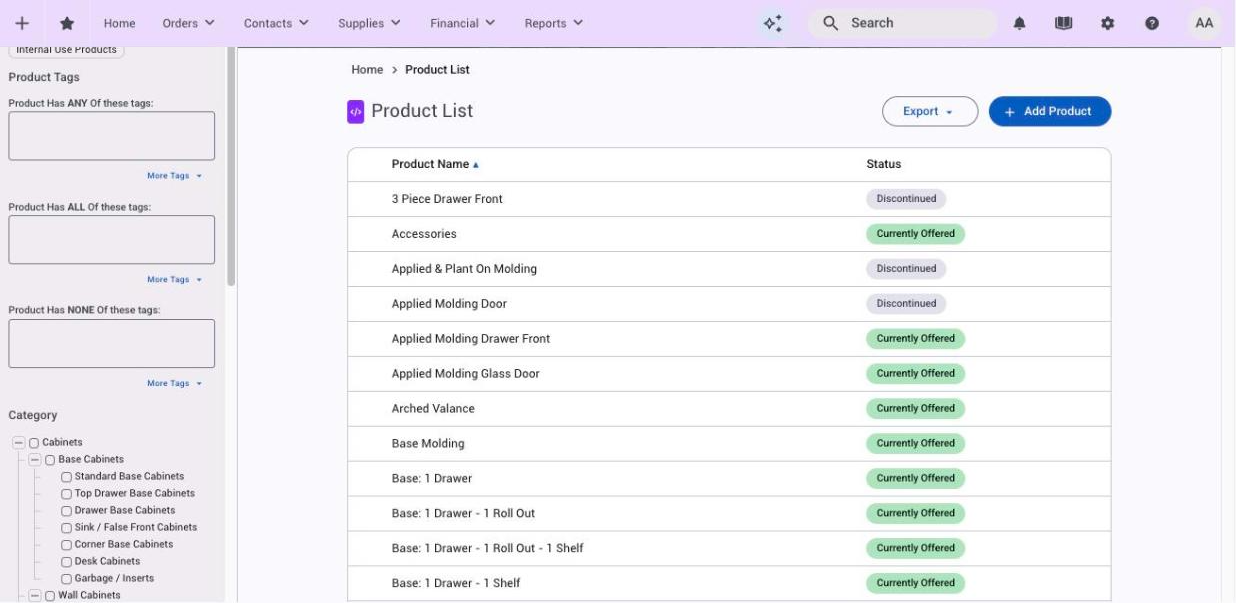
Settings > E-Commerce > Products lists every product with its status, Currently Offered or Discontinued. Click a name to open it.
Filters in the sidebar:
- Product Name.
- Show: Discontinued Products (on by default; untick to see only products for sale), Images (only products with a picture), Only B2B-Enabled Products, Internal Use Products. Filters combine, so Internal Use Products plus Images shows internal products that have a picture.
- Product Tags: products with ANY, ALL or NONE of the tags you pick.
- Category: tick a category to see the products in it. Pick the lowest category a product sits in; ticking a parent doesn't show products that are only in its sub-categories.
Export at the top downloads the list as a CSV or a PDF. The CSV includes each product's Allmoxy id, name, status, export class and tags.