
To change a customer, open the company or contact and click Edit; to change many contacts at once, use the Contact Updater. A customer you no longer deal with is set Inactive, which keeps their history and stops them signing in. Delete is only for records with nothing attached, and merge is the fix for a duplicate company.
Applies to: every shop. Editing companies needs Add/edit companies; editing contacts and the Contact Updater need Add new user / edit other users profiles; deleting a company needs Delete Companies; merging needs Edit the site settings.
In this article
- Edit one company or contact
- Edit many contacts at once (Contact Updater)
- Deactivate or reactivate a company or contact
- Delete a company or contact
- Merge duplicate companies
- Start over with a clean customer list
- Things to know
Edit one company or contact
- Open the company (Contacts > Companies) or the contact (Contacts > Company Contacts or Contacts > Individual Accounts), or hover over the name on the list and pick Edit from the menu that appears.
- Click Edit, change what you need, then Submit at the bottom of the page.
A customer's own main user can edit their company's details too, with Modify their Company's Profile.
Edit many contacts at once (Contact Updater)
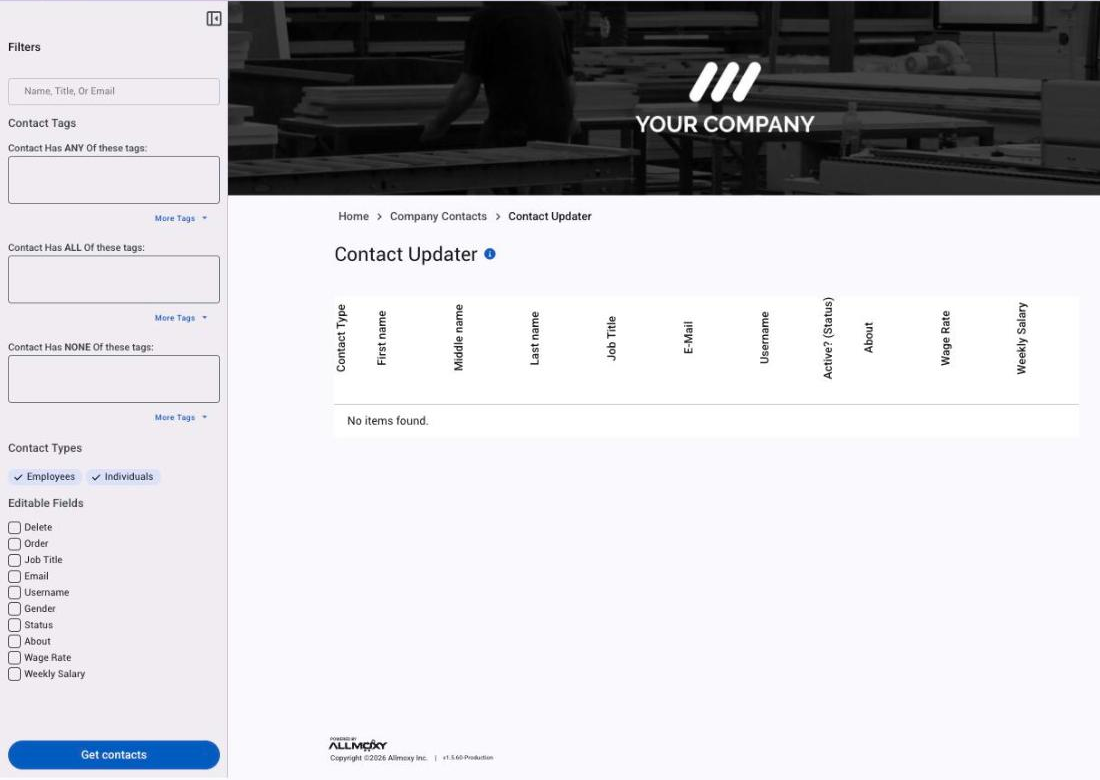
The Contact Updater puts many contacts on one grid. The grid shows each contact's type, name, Job Title, E-Mail, Username, Active? (Status), About, Wage Rate and Weekly Salary; under Editable Fields you tick what you want to change (Delete, Order, Job Title, Email, Username, Gender, Status, About, Wage Rate or Weekly Salary), and ticking Delete or Order adds that column to the grid.
- Go to Contacts > Contact Updater.
- Narrow the list: type a name, title or email in the search box, pick contact tags (Contact Has ANY, ALL or NONE of these tags), and choose the Contact Types: Employees or Individuals. "Employees" here means every person at a business, so your customers' and vendors' contacts are in it along with your own staff.
- Tick the fields you want to change under Editable Fields.
- Click Get contacts, change the rows in the grid, then click Save. Every row is applied at once.
The main administrator account is left off the grid for anyone who isn't an administrator. To deactivate people here, set their Status to Inactive rather than using the Delete column (see Things to know).
Deactivate or reactivate a company or contact
New companies and contacts are Active by default. A deactivated company or contact can't access your Allmoxy site or place orders.
- Open the company or contact and click Edit (or hover the name on the list and pick Edit).
- Change Status to Inactive, or back to Active.
- Scroll to the bottom of the page and Submit.
Deactivating a company sets every one of its contacts Inactive and turns off their sign-in. Reactivating the company does not reactivate them: open each person, set them Active and tick Allow this person to log in again. An employee set Inactive while clocked in is clocked out. Inactive records are hidden from the lists until you change the Status filter.
Delete a company or contact
Allmoxy won't delete a company or contact with records attached, to prevent accidental loss of data entered into your site. Set them Inactive instead.
- A company: open it, click Edit and use Delete This Company (needs Delete Companies). It's refused for your own company, a company linked to a B2B partner, and any company with orders, invoices, supplied items or subscriptions; the message names the blocker. Deleting a company also deletes its contacts and frees their emails and usernames.
- A contact: open them, click Edit and delete. It's refused for yourself, for the main administrator, and for anyone with orders, notes they wrote, tasks, announcements or time entries.
The success message offers an Undo, which restores the status only: the email and username keep a changed ending, sign-in stays off, the password is cleared, and undoing a company delete doesn't bring back its contacts. For fake sign-ups, see Review new sign-ups.
Merge duplicate companies
When the same customer exists twice, merge them: one company goes away and its records move to the one you keep. There is no undo.
- Go to Settings > Utilities > Merge Companies (needs Edit the site settings).
- In Company to merge, pick the company you want to merge away.
- In Merge into company, pick the company you want to keep.
- Click the Merge companies button. Allmoxy shows a success message.
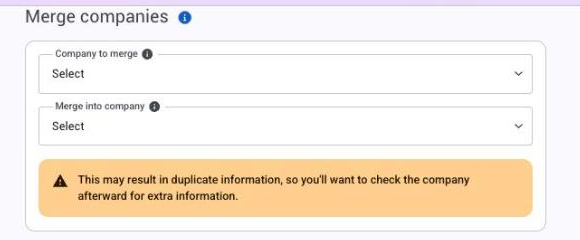
What moves to the kept company: contacts, invoices, payments, orders, notes, phone numbers, addresses, tasks, tags, attachments and supplied items. The merged-away company is then marked Deleted.
What doesn't move: websites, custom field values, subscriptions, saved payment methods (cards and bank accounts), roles and permission settings. Fields that can only have one value, such as the company name, aren't overwritten: the company you keep keeps its own name and details.
You can also merge an individual account into a company: the person becomes a new contact under that company and keeps the email from the individual account. Individual into individual moves the person's orders and records too. Merging a business into an individual account shows a data-loss warning first.
Start over with a clean customer list
If a bad import or a messy migration left you with a list you'd rather not keep:
- Undo last import on Settings > Utilities > Import, right after the import (once, for the login that ran it; see Add customers for what it leaves behind).
- Merge the duplicates into the record you want to keep.
- Delete companies and contacts with no history.
- Set the rest Inactive. They drop off your lists and can't sign in.
If you need the whole companies list cleared, contact support. It's developer work, arranged as a service, and may be billable.
Things to know
- Delete in the Contact Updater is different. It skips the history check, so it can delete a contact who has orders, notes or time entries, and it leaves their email and username "already taken" (see "The email is already taken"). Set people Inactive there; delete only from the contact's own page.
- A merge can't be undone. Some phone numbers or notes can end up on the wrong contact, so check the kept company afterwards. Two companies both linked to B2B partners can't be merged.
- Merged people take the kept company's settings: its role defaults and company permission settings. Their own person-level settings go with them.
- Saved cards don't merge. The customer re-adds them; see Manage a customer's payment methods.