
Precision is the smallest step a measurement can take when someone places an order: 1/32 of an inch, 1/16, or whatever fits your shop. Set it once for your whole shop, then override it for a single attribute or a single product where you need to.
Applies to: every shop. Needs the Edit the site settings permission.
In this article
- Set your shop-wide precision
- Set precision for one measurement
- Set precision for one product
- Which precision wins
- Show fractions on the order page
- Things to know
Set your shop-wide precision
- Go to Settings > E-commerce > Order Settings.
- Set Precision. The choices are Whole number, 1/2, 1/4, 1/8, 1/10, 1/16, 1/32, 1/64, 1/100, 1/128, 1/1000 and 1/10000.
- Click Save Changes.
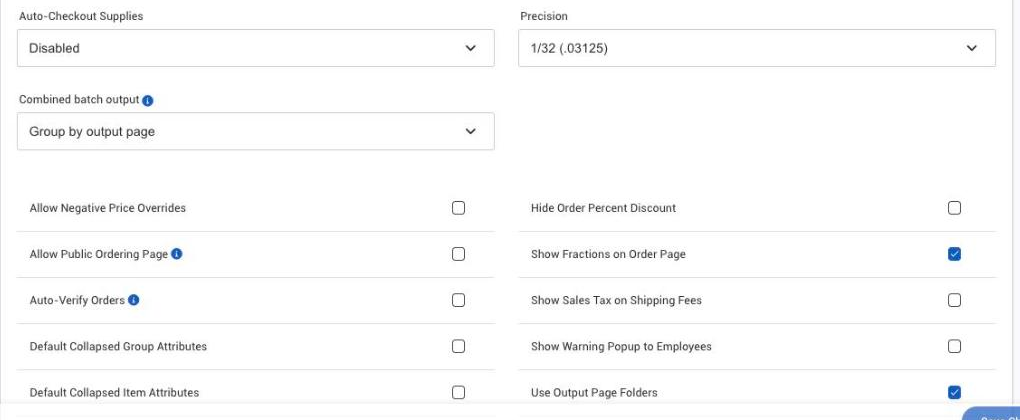
This is the default for every measurement on every order. When a customer enters a number, Allmoxy rounds it to the nearest value your precision allows.
Worked example: your precision is 1/32 in (0.03125). A customer enters 24.4 in. The 0.4 falls between 12/32 and 13/32 and is closer to 13/32, so the measurement becomes 24 13/32 in (24.40625 in).
Set precision for one measurement
Sometimes one measurement needs a different precision from the rest. Number attributes (the ones used for sizes) have their own precision that overrides the shop-wide setting.
- Go to Settings > E-commerce > Product Attributes.
- Open the attribute you want to change.
- Set its precision. If you take orders in both imperial and metric, set a precision for both units; see Let customers order in imperial or metric.
- Save.
Set precision for one product
For the finest control, a product can override an attribute's settings for that product alone, and that override includes its precision.
- Go to Settings > E-commerce > Products and open the product.
- Open the attribute's override settings on that product.
- Set the precision and save. See Edit attribute overrides on a product.
Which precision wins
Allmoxy looks for a precision in this order and uses the first one it finds:
- The product's own setting for that attribute (the override).
- The attribute's precision.
- Order Settings, your shop-wide default.
So you can keep a broad standard for the whole shop and still be more (or less) precise for one measurement or one product.
Show fractions on the order page
Allmoxy accepts both decimals and fractions when someone types a measurement. If you'd rather see fractions on the order page:
- Go to Settings > E-commerce > Order Settings.
- Check Show Fractions on Order Page.
- Click Save Changes.
From then on, decimals a customer types are converted to fractions once the order is saved.
Things to know
- Rounding happens on save, not while typing. The number changes when the order or bid is saved, not as the customer types it. Customers sometimes think something went wrong when they see 24.4 become 24 13/32 after saving. Let them know it's normal.
- Parts don't have their own precision. The three levels are the product's override, the attribute and Order Settings.
- Precision is per unit. An attribute has an imperial precision and a metric precision. If your metric customers' millimeters are being rounded, set the metric precision finer. Set both units fine enough that a measurement converted from one to the other doesn't get rounded away.