
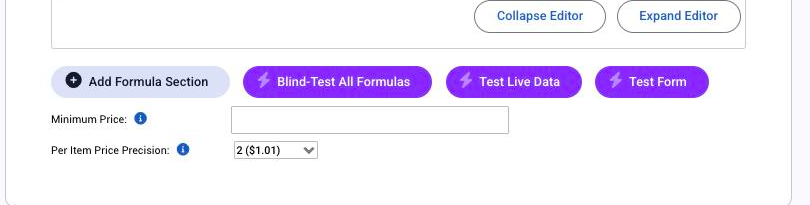
To see what a pricing formula is doing, add ?dev=1 to the end of the product's Pricing tab URL. Three purple buttons appear: Test Form prices the product from a test order form and shows each section's result with every variable's real value filled in; Test Live Data does the same against an existing order; Blind-Test All Formulas checks every formula on the product in one go. This page shows how to use them and what the common symptoms mean.
Applies to: anyone writing formulas or chasing a price that looks wrong. Needs the Manage Catalog permission.
In this article
- Test a formula with the Test Form
- The Pricing tab won't save: invalid token
- The price shows "-"
- The price is $0 (or exactly the minimum)
- The price is wrong but not broken
- Things to know
Test a formula with the Test Form
- Save the Pricing tab. The test tools use the formulas saved on the server, not unsaved edits.
- Add
?dev=1to the end of the page URL and press Enter, for example.../catalog/products/pricing/321/?dev=1. - Click Test Form. A Test Order Form opens with the product's order form.
- Fill in the attributes you want to try, add an item row with a quantity, width and height, and click Get pricing.
- Scroll down. Each Formula Piece shows its Computed result; click the chevron to see the formula with each variable's actual value written above it. Complete Formula shows the total before adjustments, and messages lists any validation messages that fired.
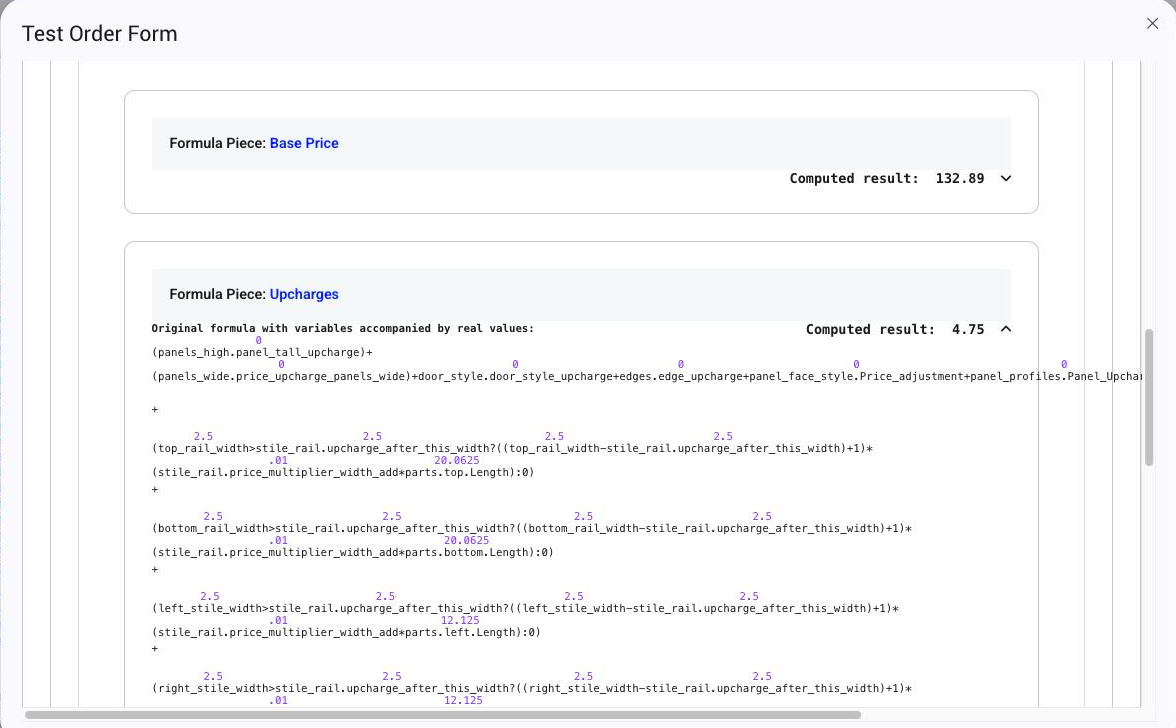
Try the edge cases: the smallest and largest sizes, each option, and the checkbox on and off. A section that comes out as 0 when it shouldn't, or a variable showing a blank value, is where the problem is.
Test Live Data works the same way but asks for an order number and uses that order's saved values, which is the fastest route when a customer questions a specific line. Blind-Test All Formulas checks every formula on the product in one go without an order form; on a product with many parts and proxy variables it can take a while, so let it finish.
The Pricing tab won't save: invalid token
Allmoxy checks every section when you save and refuses a name it doesn't recognise. Nothing is saved until it's fixed.
- The attribute isn't on this product. Attach it on the Attributes tab, or pick the right name from the sidebar.
- A misspelt column.
wood_type.prizefails if the column isprice. Column names are exact, including case. - A part value that doesn't exist. Check the part's formula names on the Parts tab.
- A function name. Type
floor,ceilorround, with the expression in parentheses. - Unbalanced parentheses or a
?without its:also stop the save. Format lays the formula out so these are easier to spot.
The price shows "-"
A "-" means a value the formula needs could not be found, and the order can't be placed until it's fixed.
- No option chosen. The formula reads
wood_type.priceand the customer hasn't picked a wood type yet. Give the attribute a default, or expect "-" until they choose. - An option with a blank cell in a column the formula reads. Open the attribute and fill in every row, with
0where there's no charge. - A part with no formula for a value the price uses.
- A negative result on a product with no Minimum Price. Set a minimum (even
0).
In the Test Form, the failing variable shows with no value above it.
The price is $0 (or exactly the minimum)
A $0 price with no warning means the formula was read but failed while being calculated, so Allmoxy fell back to 0 or the minimum price. The order can still be placed, so fix these first.
- A proxy variable that doesn't work on this product, usually because it uses an attribute or part the product doesn't have. Test the product; the Complete Formula result will be 0.
- Division by zero, for example dividing by a part quantity that can be 0.
- A syntax problem that only shows with real values. Run the Test Form with the combination that gives $0 and read the expanded formula.
The price is wrong but not broken
- Check the order first. Add
?dev=1to the order page URL and click the line's subtotal to see the price adjustments and order discount that went into it; a wrong price is often an adjustment, not the formula. See Power user: the dev tool and Price adjustments. - Re-save the Pricing tab and the Parts tab so any errors show.
- Run Test Live Data on the order and compare each section's result with what you expect. Look at the values above each variable: a dropdown column reading
0or blank, a width in the wrong units, a checkbox you expected to be 1. - Check overrides. The product may override the attribute's column values (Edit Overrides on the Attributes tab).
- Remember when prices refresh. A Bid reprices every time it's opened; a placed order's line only reprices when it's changed. If an old order shows an old price, that's expected.
Things to know
?dev=1is per page. Remove it from the URL, or navigate away, to turn the view off.- Build in a product, then share. Proxy variables aren't checked when saved; test formulas on a product before moving them into one.
- One section at a time. When a long formula misbehaves, split it into sections. The Test Form prices each section separately so the bad one stands out.