
A price adjustment is a percent or flat surcharge or discount layered on top of your catalog prices, aimed at one company, every company with a tag, every company, or only certain products and options. It's how you give customers a pricing tier, add a handling fee, or raise or lower every price at once without touching a formula. Set them up under Settings > Operations > Price Adjustments.
Applies to: shops offering tiered pricing, customer-specific discounts or shop-wide price changes. Needs the Manage Financial Settings permission.
In this article
- Set up pricing tiers with tags
- Change every price at once
- Limit an adjustment to certain products or options
- How several adjustments combine
- Things to know
Set up pricing tiers with tags
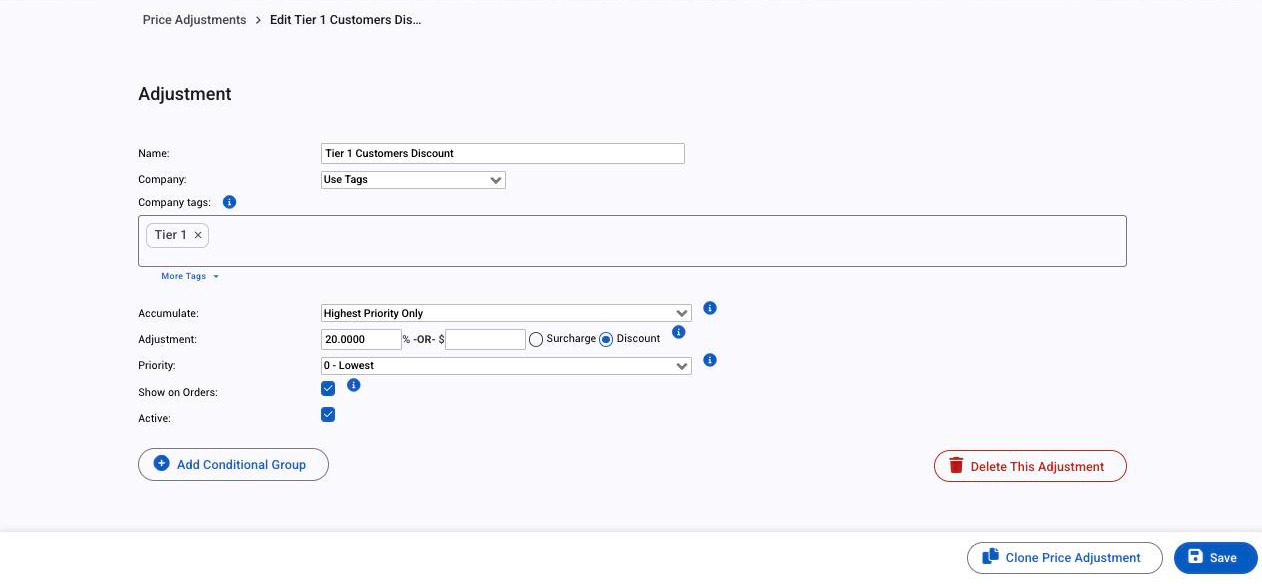
- Tag each customer company with its tier: for example Tier 1, Tier 2, Contractor. Tags are on the company's page under Contacts > Companies.
- Go to Settings > Operations > Price Adjustments and click Add Adjustment.
- Give it a Name, set Company to Use Tags and pick the tag.
- Under Adjustment, type the amount as a % or a $ figure (one or the other) and choose Surcharge or Discount.
- Leave Accumulate on Highest Priority Only for tiers, so a company that somehow carries two tier tags gets one tier, not both. Tick Active and Save.
On an order, pick the company first so Allmoxy loads its adjustments; the price shown before a company is chosen is the unadjusted price.
An adjustment for a single company works the same way: choose the company under Company instead of Use Tags.
Change every price at once
To raise or lower the whole catalog, create an adjustment with Company set to All Companies, the percent you want, and Surcharge or Discount. Nothing in your formulas or attribute prices changes; the adjustment sits on top of them, so you can switch it off later. Open Bids pick it up on their next view; placed orders keep their prices.
If you'd rather change the formulas themselves, contact support: a find-and-replace across all product formulas can be run for you.
Limit an adjustment to certain products or options

Click Add Conditional Group to say when the adjustment applies:
- If Product / Supply then Equals or Is not equal to a product, Use Tags for every product with a tag, or All Products. A "is not equal to" condition is how you exempt a product from a discount.
- Add Condition adds attribute tests to the group: an attribute, an operator (Equals, Is less than, Is greater than, and so on) and a value, such as Wood Type Equals Walnut. Every condition in a group must be true.
- Add another group for an alternative: the adjustment applies when any group matches.
Supplies get their own conditions in the same way, and with B2B switched on you can target resold products, supplies and components.
How several adjustments combine
Every adjustment that matches the customer and the item is worked out on the item's original price (the formula result), so a 200% surcharge and a 50% discount on a $10 item give $20 + (-$5) = $15. Which of the matching adjustments count depends on each one's Accumulate setting:
| Accumulate | What happens |
|---|---|
| Always | Always added, whatever else applies. Use for things like a handling fee. |
| Highest Priority Only | Of all the adjustments with this setting, only the one with the highest Priority applies. Use for tiers and anything that shouldn't stack. |
| Only With Other Accumulations | These are added together, but the group only counts if its highest priority is above the Highest Priority Only winner's. |
The total is the Always ones plus either the Highest Priority Only winner or the Only With Other Accumulations group.
Priority runs from 0 (lowest) to 9 (highest). When two Highest Priority Only adjustments tie, the larger signed amount wins: between two discounts that's the smaller discount, and between a surcharge and a discount it's the surcharge. Give the one you intend to win a higher priority rather than relying on a tie.
The order's own discount percent is separate. It comes off after all adjustments.
Things to know
- "Show on Orders" controls how much of the adjustment the customer sees itemised on the line. The full amount is always charged either way.
- Flat amounts apply per item, so a $25 discount and a 25% discount cross over at a $100 item. If both are Highest Priority Only with the same priority, the smaller discount wins: on an item under $100 the 25% applies, and on an item over $100 the $25 applies.
- Adjustments follow the company, not the contact. A tag adjustment needs the company (or an individual customer's primary contact) to carry the tag.
- Supplies have adjustments too. A condition on a supply applies to that supply line's sale price.
- Clone an adjustment from its edit page to make a similar one quickly.
- Checking a price on an order: add
?dev=1to the order page URL and click the line subtotal to see every adjustment that went into it; see Use the dev view to see how a price was worked out.