
This page lists every field on the attribute editor at Settings > E-Commerce > Product Attributes, section by section. For what attributes are and how they fit together, start with How attributes work.
Applies to: every shop with its own catalog. You need the Manage Catalog permission.
In this article
- Attribute Info
- Formatting Settings
- Selector Settings (Select type)
- Number Settings (Number type)
- Boolean, Text and Paragraph settings
- Output Pages and Help Info
- The sidebar and the list
Attribute Info
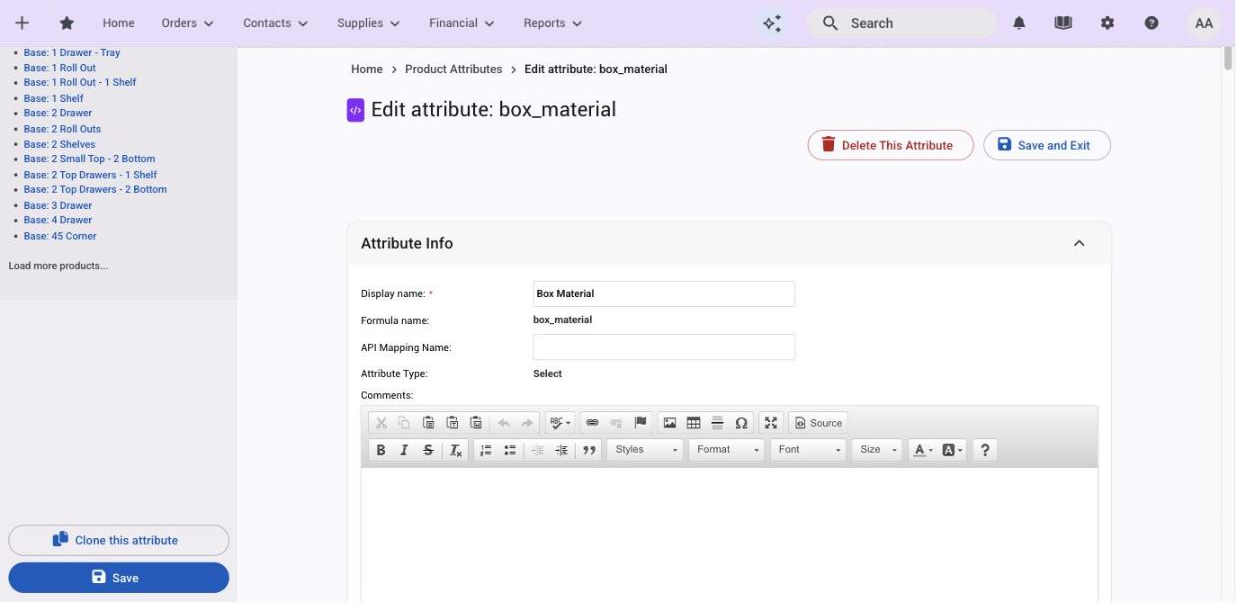
| Setting | What it does |
|---|---|
| Display name | The label customers see. Change it any time. |
| Formula name | The token formulas use. Set from the display name when the attribute is created and fixed from then on. |
| API Mapping Name | The name this attribute goes by in the API and in design-software imports. |
| Attribute Type | Select, Number, Boolean, Text or Paragraph. Locked after the first save. |
| Comments | Internal notes about the attribute. Customers never see them. |
Formatting Settings
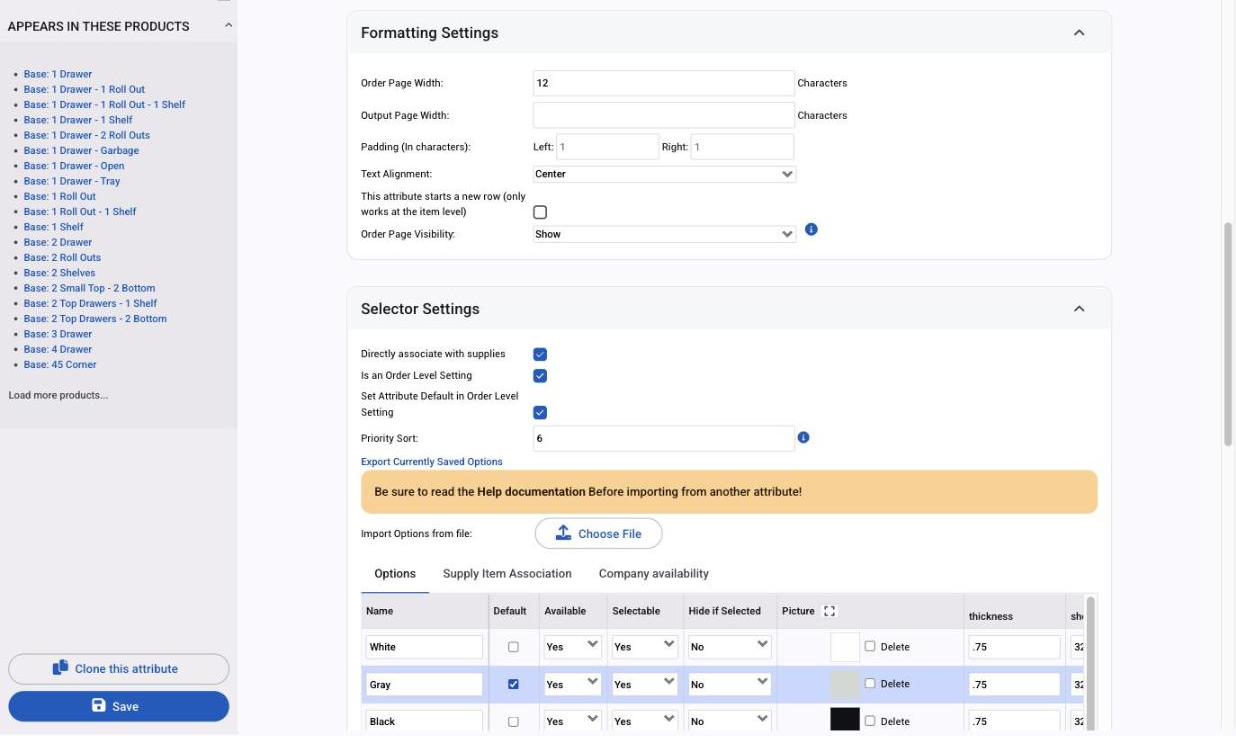
| Setting | What it does |
|---|---|
| Order Page Width | Width of the field on the order page, in characters. Narrow fields let more attributes fit on one line; a very narrow field (under about 20) leaves no room for the help icon. |
| Output Page Width | Width of the value on printed output pages, in characters. |
| Padding | Extra space to the left and right of the field, in characters. |
| Text Alignment | Center, Left or Right. |
| This attribute starts a new row | Puts the field at the start of a new line on the order page. Item attributes only. |
| Order Page Visibility | Show or Hide. A hidden attribute is invisible to customers, can't be changed by them, and still feeds formulas, so give it a default. Hide it here for every product, or on one product with Edit Overrides. |
To make a Paragraph attribute span the whole order page as a comments box, set both widths to about 105.
Selector Settings (Select type)
| Setting | What it does |
|---|---|
| Directly associate with supplies | Lets each option name the supply it uses, so parts can pull inventory from the chosen option. See Parts: how a product is calculated. |
| Is an Order Level Setting | Shows this attribute in the Order Level Settings panel on the order page. |
| Set Attribute Default in Order Level Setting | Uses the attribute's default as the preset's starting value. |
| Priority Sort | Where this attribute sits among the order-level settings. Lower first; ties sort by formula name. |
| Export Currently Saved Options | Downloads the options table as a CSV. |
| Import Options from file | Replaces the options table with a CSV. Read the help note first; see Import and export attribute options. |
Below these sits the options table with three tabs:
- Options: one row per option with Name, Default, Available (Yes/No), Selectable (Yes, Disabled or Header), Hide if Selected (No/Yes), Picture, then your custom columns. Add row adds an option, Add Column adds a custom column, Delete removes a row.
- Supply Item Association: the supply each option represents, per association name.
- Company availability: the tags that show or hide each option per customer. See Show options to some customers only.
Wait for the options table to finish loading before you save, so your custom columns are kept.
Number Settings (Number type)
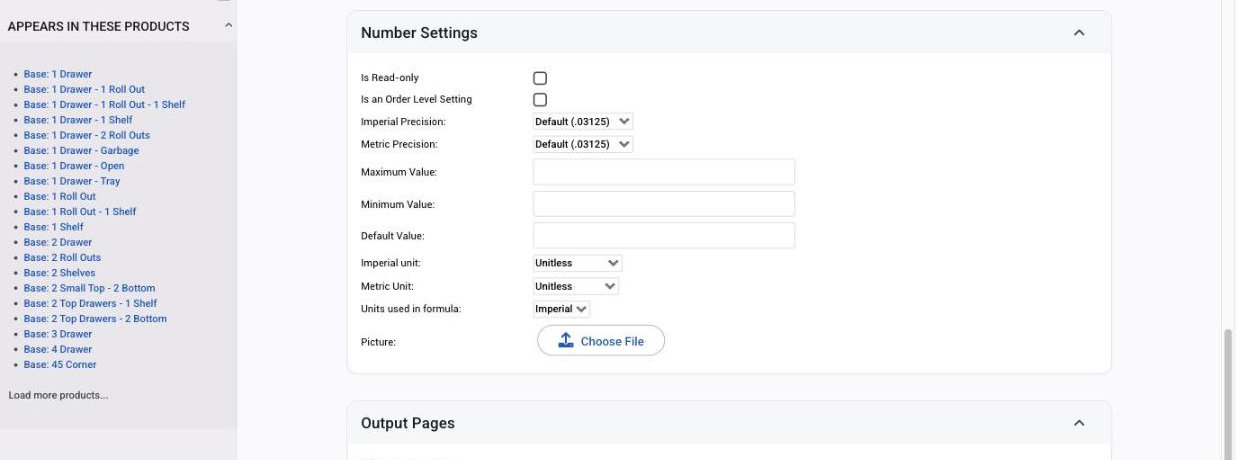
| Setting | What it does |
|---|---|
| Is Read-only | The customer sees the value but can't change it. A read-only number can't be an order-level setting. |
| Is an Order Level Setting | Shows the attribute in the Order Level Settings panel. |
| Imperial Precision and Metric Precision | The rounding step for each unit system, from whole numbers to 1/10000. Default uses the shop's precision from Order Settings. |
| Maximum Value, Minimum Value, Default Value | The allowed range and the starting value. |
| Imperial unit and Metric Unit | The unit shown with the field (Inches, Millimeters, Pounds, Unitless and so on). Customers whose company uses the other system see the converted value. |
| Units used in formula | Which system the formulas read the value in: Imperial or Metric. |
| Picture | An image shown with the field. |
Boolean, Text and Paragraph settings
- Boolean: the checkbox description shown next to the box, and whether it is checked by default.
- Text and Paragraph: the maximum length, the box height in lines (Paragraph), and a default.
Output Pages and Help Info
- Output Pages: tick Show on for each output page (Invoice, Packing Slip, Fronts List, Product Label and the rest) where the customer's answer should print.
- Help Info: text and images shown when the customer clicks the info icon next to the attribute on the order page. It opens in a window about 80% of the size of the screen. The new-window icon in the window's top left corner opens the help in a new tab, so the customer can switch between it and the order page. The icon only appears when the attribute is visible and wide enough. If the icon is missing on one product but not others, check that product's Edit Overrides for a setting that hides the attribute.
The sidebar and the list
The attribute's sidebar lists Appears In These Products, with Clone this attribute and Delete This Attribute (refused while any product still uses it). The attribute list at Settings > E-Commerce > Product Attributes shows display name, formula name and type, filters by name and type (Checkboxes, Numbers, Paragraphs, Select, Texts), and exports to CSV. Settings > Utilities > Attribute Updater edits formatting, output pages and help on many attributes at once.