
Your shipping methods are the list your customers choose from on every order, and they live at Settings > Operations > Shipping (the page is titled Shipping Methods). Pick the address you ship from, switch on the built-in Will Call for pickup, and add a custom method for each way you deliver: your own trucks, a flat fee, a second pickup location. Each custom method has a formula for the price, a From Address, a tag rule for which customers see it, and two switches for tax and pickup. This article covers that page; the formula itself is in Write a shipping price formula, and live UPS or FedEx rates are in Connect UPS or FedEx.
Applies to: catalog, itemized and project orders on every shop. Opening the Shipping page needs the Manage Supply locations permission, and the Shipping entry shows in the Settings menu only when you also have Edit the site settings. If you can't see it, ask your admin for permission to edit site settings and supply locations.
In this article
- Choose your Ship From / Will Call address
- Turn on Will Call (pickup)
- Add a custom delivery method
- Act as Will Call: more pickup locations, or pickup with a fee
- Show a method only to some customers, or hide it from them
- Tax on shipping and delivered orders
- If you resell a supplier's products (B2B)
- Things to know
Choose your Ship From / Will Call address
At the top of the Shipping page you choose your Ship From/Will Call Address from your company's saved addresses (older settings may still hold a ZIP code on its own; that ZIP is only a fallback when no address is chosen). This one address does three jobs: it is where UPS and FedEx rates start from, where distance is measured from for any custom method without a From Address of its own, and the tax location for pickup orders. Designating it gives you a precise tax calculation for all of your will call orders, so pick the address of the shop your customers actually collect from. The page also reminds you to set a matching Default Country for Addresses in your Theme settings, or tax rates may calculate incorrectly.
Turn on Will Call (pickup)
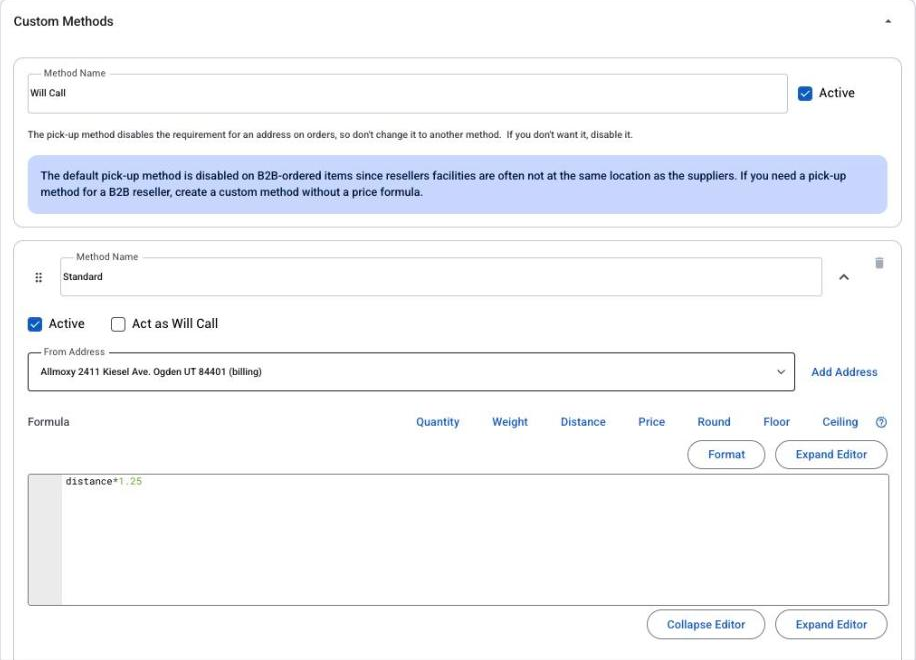
Will Call is built in. Its card sits at the top of the Custom Methods section: tick or untick Active and rename it (Customer Pickup, for example). The card reminds you that this pickup method is what removes the address requirement on orders, so rename it rather than turning it into a delivery method; if you don't want it, make it inactive. When a customer picks it, Allmoxy taxes the order at your Ship From address rather than the customer's address, the customer isn't asked to fill in a delivery address, and any shipping address on the order is cleared when it's saved.
The native Will Call works well for most shops, but it has limits: it can't have a price formula, a tag rule or a From Address, there is only one of it, and it is never offered on a B2B supplier's order. If you need more than that, see the Act as Will Call section below.
Add a custom delivery method
Use custom methods if you have your own delivery trucks, charge a flat fee, or prefer not to use the carrier connections.
- On the Shipping page, click Add Shipping Method. A new method card appears.
- Type the Method Name customers will see on the order: Local Delivery, Freight (we arrange), Free Shipping.
- Tick Active. Only active methods are offered on orders; untick it later to retire the method without deleting it.
- Pick a From Address for the method from your company's saved addresses. Use Add Address beside it if the address isn't saved yet; it opens your company editor. Every delivery method should have one: it is where distance is measured from, and it decides which address the order is taxed at (see the tax section below).
- Write the formula for the price: a number for a flat fee, or a formula using price, quantity, weight or distance. A blank formula or 0 means free shipping. The words, functions and worked examples are in Write a shipping price formula.
- Set the tag rule if only some customers should see the method (next section), and leave Apply Tax and Act as Will Call off unless the sections below apply to you.
- Click Save. Allmoxy saves every method on the page, including one whose formula has an error; the error shows after the save, and that method charges $0 on orders until you fix it.
Switch the shipping method on a test order to see what the method charges before customers do.
Act as Will Call: more pickup locations, or pickup with a fee
If you have multiple pickup locations, or you need to charge packaging fees and surcharges on your will call orders, use the Act as Will Call setting on a custom shipping method instead of the native Will Call. When it's on, Allmoxy treats the method like pickup:
- Tax is calculated using the From Address saved on that method, not the customer's ship-to address.
- The customer isn't prompted to enter a shipping address when they select the method on an order. An address already on the order is kept, and the Shipping report marks the order as will call.
- Everything else you can do with a custom method, pricing formulas and tags to control visibility, still works.
This is the right setup for shops with more than one distribution center or pickup point: create one custom method per location, give each one its own From Address (add the locations as company addresses first), turn on Act as Will Call, and your customers see a real list of pickup options at checkout, each one taxed correctly for where they're actually picking up from.
If you created a custom method named "Will Call" years ago just to attach a price formula to it, check its From Address. A custom method with no From Address is already taxed at your Ship From address; one that has a From Address has been taxing those pickup orders at the customer's ship-to address instead of your pickup location. Either way the fix is the same and nothing needs rebuilding: turn on Act as Will Call and set the method's From Address to the pickup location, so tax uses that location and the customer isn't asked for a delivery address.
Show a method only to some customers, or hide it from them
You can filter which customers can view or not view specific shipping methods. This option is great if you need to filter by certain delivery zones or regions: a Local Delivery method for customers inside your delivery zone, or a freight method only for dealers. The filter uses company tags; see Tags in Allmoxy for adding them to customers.
On the method card, pick one of the two tag options and choose the tags:
- Hide from customers with tags (the "blacklist" way): customers whose company has any of those tags can't see or use the method. Everyone else can.
- Show to customers with tags (the "whitelist" way): ONLY customers whose company has one of those tags see the method. Everyone else doesn't.
Only active methods are offered at all. A customer whose default shipping method is hidden from them still sees only the methods they're allowed, so their orders fall back to one of those.
Tax on shipping and delivered orders
Allmoxy taxes an order at one address, and the shipping method decides which one. Pickup orders (Will Call, or a method with Act as Will Call on) are taxed at your Ship From address or the method's From Address. A delivered order on a custom method that has its own From Address is taxed at the customer's shipping address. A custom method saved without a From Address keeps no From Address, and an order on it is taxed at your Ship From address, your local rate, even though it's being delivered somewhere else. That is why every delivery method needs a From Address; it is the most common reason "the tax looks like our local rate" on a delivery. More on where the rate comes from: Troubleshoot a sales tax rate.
Whether the shipping charge itself is taxed is decided by the tax service for the customer's address; some tax jurisdictions tax shipping and some don't, and there is no shop-wide switch for it. If your shipping methods should always be taxable, contact support@allmoxy.com: Allmoxy turns the option on for your site and asks you to accept a one-time agreement on the Shipping page, and then you tick Apply Tax on each method that should always charge tax. It works only on a custom method with its own From Address, never on Will Call.
To show the tax on shipping as its own line on orders and invoices, turn on Show Sales Tax on Shipping Fees in Settings > E-commerce > Order Settings. It only splits the line out; it doesn't change the tax charged, and the split line can be a cent off from rounding.
If you resell a supplier's products (B2B)
This section applies if you've set up a B2B connection with a supplier through Allmoxy's vertical catalog integration. The setup itself is in Set up B2B for resellers.
If you want the supplier's products to ship directly to your customers, turn on Use Dropshipping for B2B Orders in Settings > E-commerce > B2B Settings. Once it's on, your supplier's shipping methods appear in the Shipping section of the order: a customer with both your local (native) products and B2B products on the order chooses a shipping method for your items and one for each supplier, and each supplier prices its own items to the customer's address. This also indicates to customers that you are sourcing some of your products from the supplier. With dropshipping off, the customer sees only your method, the supplier ships everything to you, and you re-ship it. A placed order keeps whichever dropship choice it was placed with, even if you change the setting later.
The supplier's quoted shipping lands on your order as B2B shipping, and you can adjust it with the B2B Shipping Price Formulas section at the bottom of the Shipping page (it shows when B2B is on). Each B2B formula applies to one supplier or to all suppliers and has its own tag rule. Every active formula that fits the supplier and the customer applies, and the results are added together, so a formula for all suppliers plus one for that supplier charges both. With no matching formula, the supplier's own amount passes through unchanged. If shipping on a B2B order looks doubled, count the active formulas for that supplier and narrow them with tags or suppliers.
Before you place a B2B order, make sure your company on the supplier's site has a default billing address, and with dropshipping off a complete default shipping address too; otherwise the supplier refuses the order. Your Will Call is never offered on the supplier's part of an order.
Things to know
- Save saves everything on the page, including a method whose formula fails. Read the messages after saving.
- Only active methods are offered, and only to companies the tag rule allows. A customer who "can't see" a method has usually hit one of the two.
- Drag the handle on a method card to reorder the list customers see; the trash icon removes a method. Removing a method keeps it in the background so old orders still show its name, and an address used as a method's From Address can't be deleted while a method points at it.
- Changing a method's formula changes future saves, not shipped orders. Shipping is frozen once an order is Shipped, and a paid order recalculates only when its method or address changes; see Shipping shows $0 or the wrong amount.
- Customers pick a default method when they sign up, from the methods allowed for them; see Set a customer's default shipping method and addresses.