
A shipping formula is a short calculation you type on a shipping method at Settings > Operations > Shipping. It can use the order's price, quantity, weight and the driving distance to the customer, plus round, floor and ceil, and Allmoxy runs it every time the order is saved to work out the shipping charge. A plain number is a flat fee, a blank formula is free shipping on a custom method, and on a UPS or FedEx method the formula adjusts the carrier's live rate. This article lists the words you can use, shows worked examples you can copy, and explains how to check an order's weight and how to charge different shipping for different products.
Applies to: catalog, itemized and project orders on every shop. Editing the Shipping page needs permission to edit site settings and supply locations. On a project instance a formula always sees a weight of 0, so price project orders by a flat fee, distance, quantity or order price instead of weight.
In this article
- The words a formula can use
- Worked examples
- What a blank formula means
- Check an order's weight
- Charge different shipping for different products
- Get help with a complex formula
- Things to know
The words a formula can use
A formula may contain only these words, plus numbers, parentheses and the usual arithmetic (+, -, *, /). Anything else is rejected when you save. The editor's toolbar inserts each one for you with the buttons Quantity, Weight, Price, Shipping Price, Round, Floor, Ceiling and Distance.
price: the order's total price (on a B2B order without dropshipping, your items plus the supplier's).quantity: the total number of items on the order, products and supplies added together.weight: the total order weight: each product's weight times its quantity, plus each supply's weight times its quantity. A product's weight comes from the Weight tab on the product, so a product with no weight formula adds 0.distance: the driving distance from the method's From Address (or your Ship From address when the method has none) to the customer's ZIP or postal code. The street address is never used, so two customers in the same ZIP get the same distance. Only custom methods can use distance; UPS and FedEx methods can't.shipping_price: the carrier's live rate on a UPS or FedEx method. It is 0 on a custom method.round,floor,ceil: round to the nearest whole number, round down, or round up, to even off the price. Write them asround(weight),floor(price / 100),ceil(weight / 500).
Write the words bare, with no braces or dollar signs: weight * 0.35, not {weight}. You can also use conditional logic in the form test ? value if true : value if false, as in the free-shipping example below. The result is rounded to cents, and a result that isn't a number (a formula that divides by zero, say) becomes $0.
Worked examples
Each example is a complete formula you can paste into a custom method and then adjust.
- Flat fee.
25charges $25.00 on every order.0, or a blank formula, is free shipping. - Free over $500, otherwise $20.
price > 500 ? 0 : 20reads as "if the price is greater than 500 then shipping is $0, otherwise it's $20". A $600 order ships free; a $400 order pays $20.00; an order of exactly $500 is not over 500, so it pays $20.00 too. - A share of the order plus a base charge.
price * 0.05 + 10on a $1,200 order is 60 + 10 = $70.00. - Per pound.
weight * 0.35on an 820 lb order is $287.00. For a minimum charge, use the conditional form:weight * 0.35 < 50 ? 50 : weight * 0.35charges at least $50.00. - Per 500 pounds, rounded up.
ceil(weight / 500) * 75on 820 lb is ceil(1.64) = 2, times 75 = $150.00. Every order with any weight pays at least $75.00, and a 1,000 lb order pays exactly $150.00. - Per mile from your shop or a pickup point.
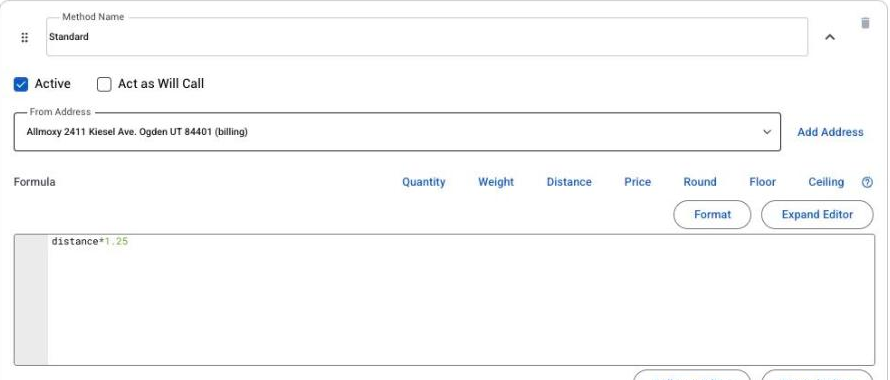
distance * 2charges $2 for each mile from the method's From Address to the customer's ZIP: a customer 37 miles away pays $74.00. Give the method the From Address you actually drive from. - Carrier rate plus handling. On a UPS or FedEx method,
shipping_price + 15adds a $15 handling fee: a $212.40 carrier rate becomes $227.40. See Connect UPS or FedEx for live shipping rates.
To test a formula, open a test order, switch its shipping method to the one you're working on, and read the estimate under the method picker; then save and check the shipping line, because the saved amount is what counts. Allmoxy offers a variety of shipping options, and your customers can switch between the methods you show them to find the most economical choice.
What a blank formula means
- On a custom method, a blank formula or
0means free shipping: the order gets $0 shipping with no error. - On a UPS or FedEx method, a blank formula means "charge the carrier's rate as it is". You only need a formula there to adjust the rate.
- A formula with a mistake in it is still saved, with an error shown after the save, and the method then charges $0 on orders until you fix it. A formula that uses distance also gives $0 when the distance can't be found for the customer's postal code.
Check an order's weight
Because most formulas use weight, it pays to know what an order weighs before you trust the charge.
- On the order. The order page shows Total Weight in the totals under the lines, so you can compare it with the pallet or the scale. If it isn't there, turn on the setting in Settings > E-commerce > Order Settings that shows the order weight on the order page.
- Per product. A product's weight is its Weight tab: named formula sections, added together, using the same variables as pricing. If a product adds 0 to Total Weight, it has no weight formula yet, or the formula fails its check. See the weight formula section of Parts: how a product is calculated.
- On a printout. Output pages have a setting called show weights on this output page (about halfway down the page's settings). Tick it and the weight prints on that page as if it were a part, which is a quick way to see whether a product's weight formula is calculating correctly and whether you need to modify it.
The older workaround, an internal custom method whose formula was just weight, that you switched the order to and back again to read the weight in the shipping price line, is no longer needed. Avoid it on real orders: switching the method recalculates and re-saves the order's shipping charge each time.
Charge different shipping for different products
Cabinets, drawer boxes and doors don't cost the same to ship. There are two ways to reflect that, and the first is usually the better one.
Price by weight. Give each product a weight formula and write your shipping formula around weight. Heavier products then pay more shipping on their own, the charge shows on the shipping line, and the customer sees it before they order. Products that are bulky but light (doors on a rack, say) can carry a heavier "shipping weight" in their Weight tab than they really weigh.
A surcharge on the product instead. If weight won't do it (a per-cabinet crating fee, for example), tag the products you want priced differently, such as "drawerboxes" and "cabinets" (Tags in Allmoxy), then add a price adjustment:
- Go to Settings > Operations > Price Adjustments (you need Manage Financial Settings; price adjustments are not available on project instances) and add an adjustment.
- Leave the customer set to All Companies. Don't pick Use Tags here: that option picks customer company tags, not product tags, so an adjustment set that way would charge every product to companies that carry the tag, which is usually nobody.
- Add a condition for the product or the product tag (cabinets, for example).
- Choose Surcharge and enter the amount, as a percent of the product price or a flat amount.
- In the Accumulate column pick Always so the surcharge applies every time, whatever other adjustments apply, and save.
The trade-off: a price adjustment changes the product's price, not the shipping line. The extra lands inside the product price on the order and the invoice, it is taxed the way the product is taxed, and the customer doesn't see it as shipping. More on adjustments: Price adjustments: discounts and surcharges.
Get help with a complex formula
If you need help configuring a shipping price formula, or your pricing calls for a complex one (tiers by weight and distance, say), ask your Customer Success Manager or email support@allmoxy.com, and Allmoxy can write the formula with you.
Things to know
- The saved amount is what counts. The estimate under the picker is only a preview; it can show $0.00 when the postal code is empty or no line has a weight, while the save still runs the formula. Check the shipping line after you save; see Shipping shows $0 or the wrong amount.
- Distance is measured to the customer's ZIP or postal code, not the street address, and only custom methods can use it. Canadian postal codes need the space (N5P 4B9).
- A failure gives $0 on the order, not an error: a rejected formula, a distance that can't be found, or a result that isn't a number.
- Project instances always see a weight of 0. Formulas there should use price, quantity, distance or a flat fee.
- Have whoever verifies new orders glance at the method the customer picked to make sure it is feasible for the order; see Change an order's status.