
A project order lets you open a job, name the rooms, collect inspiration and drawings, and price it with proposal lines you write yourself when the customer is ready. This page covers getting a project started and quoted: the Discover, Design and Proposal steps.
Applies to: project orders, created by your team. Customers can't start a project order.
In this article
- What a project order is
- Create the order
- Set up your rooms on the Discover tab
- Upload drawings on the Design tab
- Build the proposal
- How rooms stay in sync
- What happens next
What a project order is
Catalog orders assume you already know what you're selling: the customer picks products, the price calculates, and off it goes. A lot of your work doesn't start that way. A homeowner walks in with a Pinterest board and a vague idea about their kitchen, and it's weeks before anyone talks about line items.
That's what project orders are for. You can open a job, name the rooms, drop in inspiration images and drawings, and leave pricing alone until you're ready to quote it.
A project order runs through these steps along the top:
- Discover: rooms, room-level settings and inspiration files.
- Design: your drawings and design files.
- Proposal: the line items that become the price.
- Purchasing: what you need to buy or outsource for the job. See Track supplies and order from vendors on a project.
- Your output pages: the proposal, the invoice, and whatever else you've set up.
Create the order
Nothing slows a new job down like a form asking for a ship date before anyone has picked a countertop, so start with the essentials.
- Click Add > Project Order, or go to Orders > Add Project Order.
- In Let's start with the basics, give it an Order Name you'll recognize the job by, choose the Company and Contact the project is for (or click New Contact), and click Next.
- Fill in any custom fields your shop uses, then click Save in the sidebar.
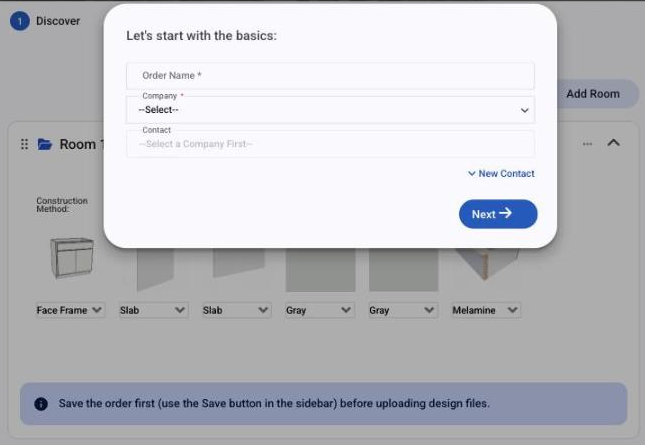
Until the order is saved, only the Discover step shows, and design files can't be uploaded yet. Save first, and the other steps appear.
The order starts as a Bid. Once it's saved, the sidebar holds the ship date, the Requested install date and Actual install date, the description and the addresses. Change them whenever the job calls for it.
Set up your rooms on the Discover tab
Projects are organized by space, because that's how your customer thinks about them. They're not buying 34 doors; they're doing the kitchen, the primary bath, and a mudroom if the budget holds.
On Discover, build out those spaces as rooms. New rooms are named Room 1, Room 2 and so on; rename them to whatever makes sense: Kitchen, Master Bath, Laundry. Each room holds its own settings, so a finish choice on the kitchen doesn't have to apply to the whole job.
You can also upload files to each room. This is the spot for early-stage material: screenshots, Pinterest saves, the photo the customer took of their neighbor's island. Keeping inspiration with the room it belongs to means nobody is digging through email six weeks later to remember which bathroom the tile was for.
Upload drawings on the Design tab
Once you're past inspiration and into design work, Design is where those files live.
It takes any file type. Your most recent upload lands at the top of the list and opens automatically, so the newest version of a drawing is what you see when you walk in. Click any file in the list to preview it, and delete anything that's been superseded.
A habit worth building: name files so the version is obvious. The list shows the file name above the preview.
Build the proposal
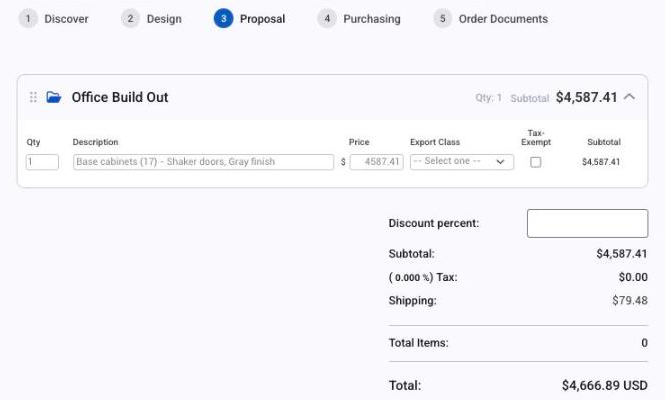
Proposal is where the job gets its price. There's no catalog doing the math, so you write the lines yourself, which is what you want on a project where half of it is custom anyway.
Add a line for each thing you're quoting and fill in:
- How many.
- A description of what the customer is paying for, in their language.
- The price per unit. The line total is calculated for you (quantity times price).
- The export class, which sorts the line when it syncs to your accounting software. See Export classes.
- Tax exempt, for any line that shouldn't be taxed.
Lines sit under the same rooms you set up on Discover, so the proposal reads room by room, the way the project runs.
Take your time here. You don't need a single proposal line to save the order: upload files and name rooms during discovery, and come back to pricing when the customer has decided something. The one rule is that an order with no proposal lines stays a Bid. It can't move to Authorized or beyond until it has at least one line, because there would be nothing to approve, price or invoice.
How rooms stay in sync
Rooms are shared between Discover and Proposal. Add, rename or delete a room on either one, save, and the other reflects the change. Rename Room 2 to Guest Bath on Discover, and Proposal shows Guest Bath too. Same list, two views of it, so you never maintain rooms twice.
What happens next
Once the proposal has real lines in it, your customer logs in, reviews it and accepts it by submitting the order, paying any deposit their payment term asks for. See Get a project proposal accepted and paid.
From there the job climbs its own ladder: Authorized, Confirmed, In Production, Ready to Install, Shipped and Installed. Project orders recognize revenue at Installed rather than at Shipped. See Move a project order through its statuses.