
The Purchasing tab gives every project order one place to list what the job will pull from your shelves and to order what you don't make yourself. Supplies are tracked against your real inventory, and vendors who run on Allmoxy can take your order right from the job.
Applies to: project orders, for your team. The supplies you track need to exist in your inventory first.
In this article
- What the Purchasing tab is for
- What you'll need
- Add supplies to a project order
- Allocate and use supplies
- Read the available number
- Order from a vendor
- How this compares to Resource Allocation
What the Purchasing tab is for
Project orders don't run on catalog products, so Allmoxy can't calculate your materials the way it does on a catalog order. You know what the job needs, whether that's a cut list from your design software or your own takeoff. The Purchasing tab is where that list lives, so it's tracked against your inventory instead of a spreadsheet.
It's also where you order what you don't make yourself. If you buy doors, drawer boxes or other components from a manufacturer who also uses Allmoxy, you can connect to them as a vendor and order right from the job.
You'll find Purchasing in the steps along the top of any project order, after Proposal. It has two sections: the supplies for the order, and Outsourcing.
What you'll need
- Your supplies set up in inventory. The supplies table pulls from the same inventory records the rest of Allmoxy uses, so anything you want to track has to exist there first.
- Access to the tab. If someone on your team can't see Purchasing, check their permissions.
Add supplies to a project order
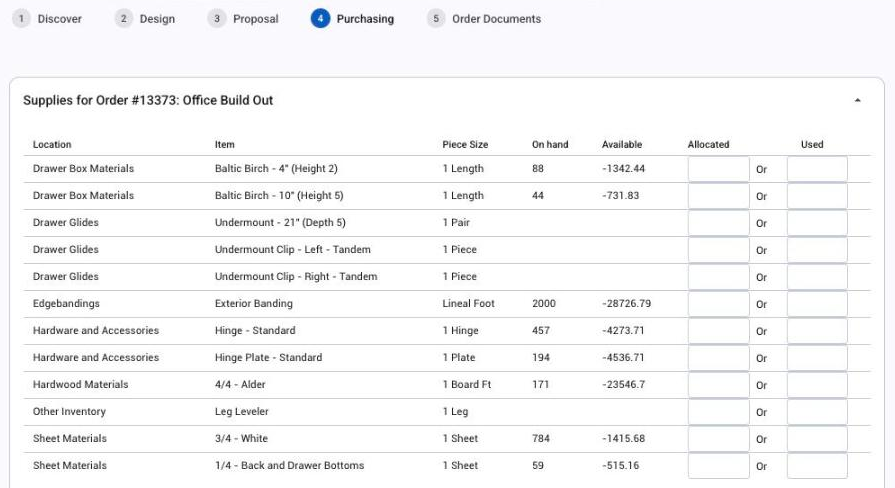
The supplies section sits at the top of the tab, titled with the order number and name (for example, "Supplies for Order #1988: Kitchen Remodel").
- Open the project order and click Purchasing.
- Click Add New at the bottom of the supplies table.
- Choose the location, then the item.
- Allmoxy fills in the piece size, how many you have on hand, and how many are available, straight from inventory.
- Repeat for each supply the job needs.
Added something by mistake? Click the trash icon at the end of the row. You can sort the table by any column.
Allocate and use supplies
Each supply row has two quantities, with "Or" between them:
- Allocated is what you're setting aside for this job. It's reserved, but not used yet.
- Used is what has actually been consumed.
Most of the time you'll enter what you're reserving as allocated while you quote and confirm the job, then record it as used once it's been pulled, usually In Production. If you're logging material that's already gone, go straight to used.
Read the available number
On hand is what's physically in inventory. Available is what's left after everything already allocated across all your orders.
A negative available number means your jobs have spoken for more of that item than you have on the shelf. That's the heads-up this column is for: it's your cue to order more before the job gets into production.
Order from a vendor
Not everything on a job comes off your own shelves. The Outsourcing section, below your supplies, connects you with the companies you buy from. Any company that runs its business on Allmoxy and has made itself available to purchase from can be your vendor.
Connect a vendor
- In the vendors area, click Add vendor.
- Find the company you want to buy from and add them.
- They appear as a card with their logo, their name and an Order Now button.
To remove a vendor, click the trash icon in the corner of their card.
Place an order
Click Order Now on the vendor's card to start an order with them for this job.
Track your outsource orders
Orders you place with vendors show in the Outsource Orders table, with the order number, vendor, name, total, ordered date, ship date and status. You can see what's coming in for the job, and when, right next to your supply list.
How this compares to Resource Allocation
If you run catalog orders, the supplies table will look familiar. It's the same table as Resource Allocation, pulling from the same inventory, with one difference: there's no Needed column. On a catalog order, Needed is calculated from your products' supply formulas. Project orders don't have products behind them, so you tell Allmoxy what the job needs by building the list yourself.