
To let other Allmoxy shops resell your products, turn B2B on for your shop, upload a B2B Logo and tick Allow other companies to access and resell your catalog in Settings > E-commerce > B2B Settings, then mark each product you want to offer with Allow B2B access. Give each reseller its own pricing with a price adjustment, and check the reseller's company on your site (payment term, order limit, addresses and primary contact) so its orders go through. Resellers then connect to you from their own B2B Settings, and their orders arrive in your order list as a Bid.
Applies to: catalog shops (not project-only shops) with B2B turned on. B2B Settings needs the Manage B2B permission; marking products needs Manage Catalog; price adjustments need Manage Financial Settings.
In this article
- Before you start
- Set up B2B Settings
- Choose what resellers can sell
- Price each reseller
- Set up each reseller's company on your site
- How resellers connect to you
- What you see when a reseller orders
- What resellers can see
- Things to know
Before you start
If you don't see B2B Settings and B2B Catalog under Settings > E-commerce, B2B isn't turned on for your shop yet. Reach out to our customer service team through the chat or by emailing support@allmoxy.com, or ask your Customer Success Manager. Once it is on, those two entries appear.
Decide which products in your catalog you want to make available for resale. Usually a reseller has already approached you about a certain product or line of products; you can also pick products you have the capacity to build more of and offer those. Agree pricing with each reseller, and how discreet your branding should be on their orders, before they place their first order. How the two sides work together is explained in Guide: Sell through other Allmoxy shops (B2B vertical catalog).
Set up B2B Settings
- Go to Settings > E-commerce > B2B Settings. The first section of the page is for resellers (it is about selling other shops' items in your catalog); you can ignore it as a supplier.
- Upload a B2B Logo. This is what represents you in the list of available B2B connections that resellers pick from, so do it first.
- Tick Allow other companies to access and resell your catalog. What they can access is only the items you mark with Allow B2B access in the next section, not your whole catalog.
- If you want resellers on a pay-first term to be able to pay you from a bank account rather than a card, tick Allow B2B resellers to pay via ACH. Without it, pass-through payments from resellers are card only. Your payment gateway must be able to take bank payments for this to work.
- Save.
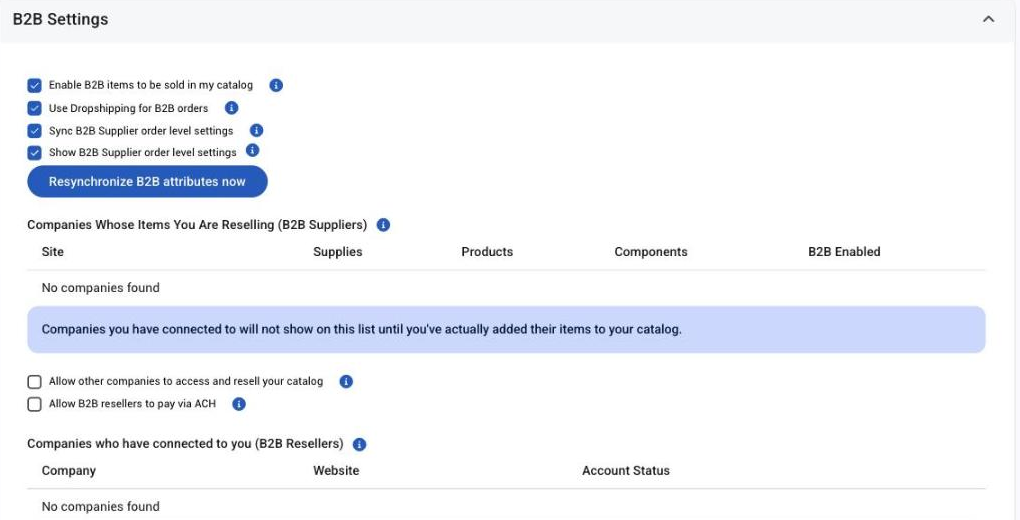
You are now listed as a supplier that resellers can connect to. Resellers that have connected are listed on this page under Companies who have connected to you (B2B Resellers), with each company's website and account status.
Choose what resellers can sell
Resellers can only see and import items you have marked for B2B.
- Open the product and tick Allow B2B access, then save.
- To mark many at once, use Settings > Utilities > Product Updater, which has an Allow B2B access column: How to use the Product Updater.
- Supplies and components you want to offer need the same box ticked, and a supply must also be for sale. Products marked for internal use can't be offered.
If you don't see the Allow B2B access box on a product, tick Allow other companies to access and resell your catalog in B2B Settings first (previous section) and come back.
Resellers see only your active, B2B-enabled items. Items that are exclusive to one company, and exclusive tags, are respected for the reseller's company: a reseller sees an exclusive item only if the exclusivity points at its company.
Price each reseller
A reseller buys from you at the price your site gives the reseller's company, so the way to give a reseller a negotiated price is a price adjustment, as for any customer. Go to Settings > Operations > Price Adjustments and create a company-exclusive adjustment for each reseller: Price adjustments.
Have five different resellers? You'll need five adjustments, or, if you're giving them all the same price, put a unique tag on those companies and base one adjustment on the tag: Tags in Allmoxy. The reseller sees your price to them as its cost and adds its own markup on top; it never sees your base pricing.
Set up each reseller's company on your site
A reseller is a customer company on your site, and that company record decides whether its orders go through. Open the reseller's company from Accounts and check:
- Payment term. The company's payment term decides how you get paid. A pay-first term means the reseller's customer pays first and Allmoxy then charges the reseller's saved payment method on your site for your part of the order; any other term lets orders through and you invoice the reseller as usual. Terms: Creating and assigning payment terms.
- Order limit. An order over the reseller company's order limit on your site can't be placed; the reseller sees a message naming you. Set it to a figure you are comfortable building before payment: Credit limit vs order limit.
- Default billing address. Required. Every reseller order is billed to this address; without one, the reseller's save is refused.
- Default shipping address. A complete default shipping address is needed for orders that are not dropshipped to the reseller's customer.
- Primary contact. Every reseller order and payment on your site is recorded under the reseller company's primary contact, who needs the Submit Orders permission to place orders and Make Payments for pass-through payments. Without a primary contact, the reseller's orders fail with "Primary contact is not set".
You and your reseller decide these things together, but having them in place keeps the orders flowing and lets the reseller's customers order without errors. When a reseller creates its account through the connection (next section), the company starts with your shop's default finance charge, order limit and credit limit and card payments only, so review it afterward.
How resellers connect to you
Once another company has agreed to resell your products, the connection is made from their side; there is nothing to approve on yours. The reseller logs in to their own Allmoxy site, goes to Settings > E-commerce > B2B Settings, and picks you under Connect to B2B Suppliers. They are prompted to either log in to the customer account they already have on your site or create a new one, which adds a company and contact on your site like any sign-up. Either way, the two shops are now connected, and your shop appears on their B2B Settings in the list of companies whose items they are reselling.
They then click your shop's name there to see the products you allow and add them to their catalog, with their own categories and markups. If they tell you "...is currently not accepting B2B connections", check that Allow other companies to access and resell your catalog is ticked. If they are logged in as their site's main administrator account, the connection is refused; they need to use a normal user with Manage B2B.
What you see when a reseller orders
When your reseller's customer places an order with your items on it, it appears as a Bid in your order list, named with the reseller's order number and carrying a notice that it was placed by the reseller, with a tab back to the reseller's order. The order is recorded under the reseller's company and primary contact, never under the reseller's customer. You have the shipping information just like any other order.
When the reseller verifies that order, yours automatically moves to Ordered (or to Verified if your shop auto-verifies), meaning your team can get to work on it. From then on you move your order through your statuses as normal; your changes don't move the reseller's order, and the reseller can see your status from its side. If you change prices, quantities or shipping on the order, the reseller's totals update. Dropship orders print with the reseller's own branded packing documents. The full picture is in Guide: Sell through other Allmoxy shops (B2B vertical catalog).
What resellers can see
Resellers have very limited access to your product information. On a resold item, a reseller can view the names of your attributes and parts, but can't open your attribute tables or part calculations, and the reseller's Pricing tab holds only its own price adjustments on top of your price to them. The reseller controls only whether the item is available in its catalog, its sort, export class, tags and categories; everything else is read from your site.
A reseller's customers will never be able to access your site through the reseller. They see the reseller's catalog, and that's it. The orders you receive are the reseller's, under the reseller's company.
Things to know
- You can offer items to resellers and still sell them yourself. Allow B2B access only adds an item to what resellers may import; nothing changes for your own customers.
- Your order waits at Bid until the reseller verifies. The reseller's save creates it, and only the reseller reaching Verified places it. Nothing you do on your side moves the reseller's order.
- Pay-first or not is your call, through the payment term. On a pay-first term you are paid from the reseller's saved method on your site when its customer pays; on other terms you invoice the reseller.
- A connection can't be undone. If a reseller should stop selling an item, untick Allow B2B access on it; with the reseller's auto discontinue on, the item is switched off on their side.
- Both shops need the same default currency, and B2B isn't available on project-only shops.
- Your site is called on every reseller order view and save. If your site is slow or down, the reseller's orders with your items can't be placed until it is back.