
In the SKU Cabinet template a cabinet's price comes from a table: the customer picks a door style or finish, which belongs to a price group (1, 2 or 3), and a cabinet size such as BNS12, whose options carry one price per group in columns A, B and C. The pricing formula reads the style's identifier and returns the matching column of the size. Adding a size or changing a price means editing a cell, not a formula.
Applies to: shops on the SKU Cabinet template. Needs the Manage Catalog permission. For the general rules see How Allmoxy prices a product.
In this article
The formula
Each product's Pricing tab holds one section that reads, in effect: if the door style's identifier is 1, use column A of the size; if 2, use column B; if 3, use column C:
door_style.identifier == 1 ? cabinet_size.A : (door_style.identifier == 2 ? cabinet_size.B : (door_style.identifier == 3 ? cabinet_size.C : 0))
Your attribute names may differ (a shop with no finish options might call the first one simply Door Style), but the shape is the same.
The two attributes behind it
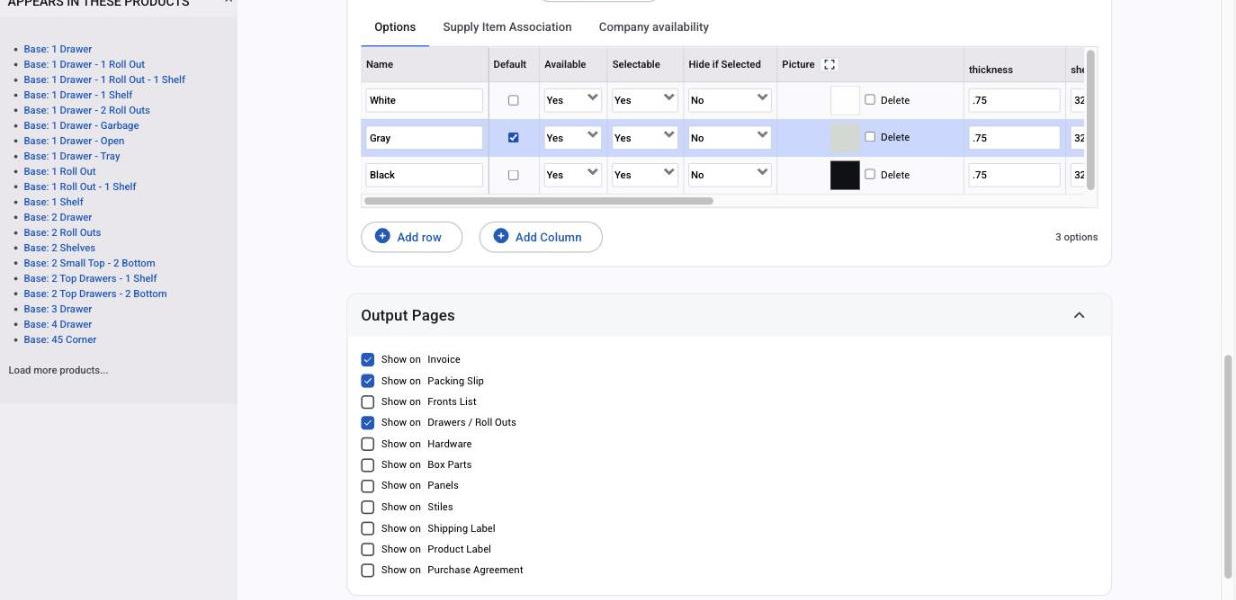
- Door style / finish has an
identifiercolumn. Every option is given 1, 2 or 3 to put it in the least, middle or most expensive group. Styles in the same group cost the same for a given size. - Cabinet size lists the SKUs (BNS12, BNS15, B2D30...) as options, with columns
A,BandCholding the price for each group. Column A is the price when the style has identifier 1, B for identifier 2, C for identifier 3.
Add a group by adding a column (D) to the size attribute, a new identifier value (4) to the styles, and a branch to the formula on each product. Keep the identifiers and column letters consistent across every size attribute.
Where to change prices
- Reprice a size: open the cabinet size attribute under Settings > E-Commerce > Product Attributes and edit the cells in columns A, B and C. Use Export Currently Saved Options to edit the whole table in a spreadsheet and import it back; see Import and export attribute options.
- Move a style to another group: change its
identifier. - Add an upcharge (hardware, assembly, a premium finish): give that attribute a
pricing_idof 1 and a price column, and add it to the formula as another section. Dropdowns that should not change the price keeppricing_id0. - Shop-wide increase: use a price adjustment for All Companies rather than editing every cell; see Price adjustments.
Things to know
- Every size needs a value in every column, including
0where a group doesn't apply, or the cabinet shows "-" on the order. - One style, one identifier. A style option with a blank identifier prices at the formula's fallback (
0above), with no warning. - Test after editing with
?dev=1on the product's Pricing tab; see Test and fix a pricing formula.