
Allmoxy tells you what to buy on the Need to Purchase list (Supplies > Checkout/Order, below the Check-In / Check-Out form): every stock row short of its minimum once reserved and on-order amounts are counted, with a Qty to Order you can edit. Tick the rows, click Add to purchase order, and Allmoxy builds one purchase order per vendor, emails it when its send box is ticked, and shows the items as On Order until you receive them.
Applies to: every shop that tracks supplies. Need to Purchase and purchase orders need the Check in/out inventory and Manage Supplies permissions. Project orders buy from the Purchasing tab instead.
In this article
- Before you start
- Read the Need to Purchase list
- Create the purchase orders
- Email the purchase order to the vendor
- Add comments for the vendor
- Send to more than one person
- PO numbers and the email subject
- What your vendor receives
- After you send it
- Things to know
Before you start
- Each supply has a vendor, and on each stock row a Minimum Qty and an Order in groups of number; see Set up supplies, vendors and stock locations. A row with neither never appears on Need to Purchase, so for items you only buy when a job needs them set on hand 0, minimum 0 and Order in groups of 1.
- Your products' parts are linked to supplies, so orders reserve them; see Link supplies to products.
Read the Need to Purchase list
Each row of the list is one supply at one location, with these columns: a checkbox, Location, Item, Piece Size, On Hand, Allocated (reserved on orders), Minimum Qty (the minimum you set on the item) and Qty to order. Hover over or open a row to see which orders are waiting on it.
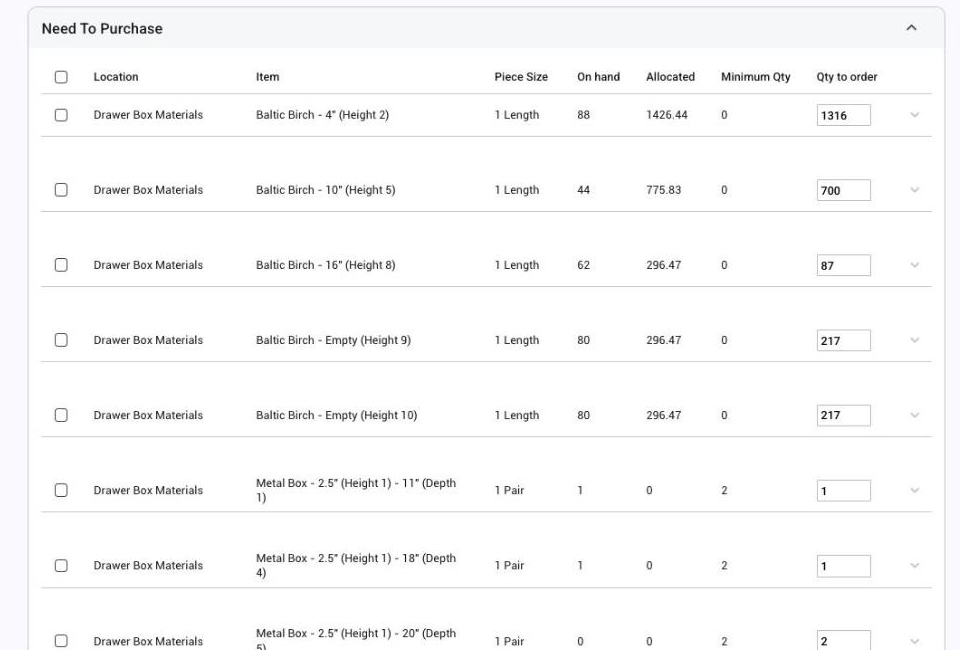
The need is worked out as minimum plus reserved, minus on hand, minus what is already on an open purchase order line. Qty to Order rounds that need up to whole groups of Order in groups of. For example, with a minimum of 5, 8 reserved, 3 on hand, nothing on order and groups of 10: need = 5 + 8 - 3 - 0 = 10, so Qty to Order is 10. If 10 were reserved instead, the need would be 12 and Qty to Order 20 (two groups). A red 0 in Qty to Order means Order in groups of is 0 on that row.
You can edit Qty to Order before creating the purchase order; the number you type is kept.
Create the purchase orders
- Tick the box next to each supply you need to order. You can select several items at once.
- Click Add to purchase order. The Create Purchase Orders page groups the rows by vendor: the supply's preferred vendor, or its first vendor if none is preferred. If supplies come from different vendors, Allmoxy creates a separate purchase order for each vendor, and each PO contains only that vendor's items.
- In each vendor block, check the items (name, needed quantity and order quantity) and the total. The Vendor choice on a row moves it to another of the supply's vendors.
- To add something the list didn't ask for, use Order Extra Supplies in the sidebar: pick the location, item, vendor and quantity, then add it to the PO.
- Fill in the email fields and comments (below) and submit.
You can also start a purchase order from scratch at Supplies > Purchase Orders with Add purchase order.
Email the purchase order to the vendor
An email goes out only for vendors where the Send email for purchase order box is ticked on the Create Purchase Orders page. It is pre-ticked when the vendor company has a contact email, taken from the company's Send Supply Orders To contact, else its primary contact, else the company email. Untick it to save the PO without sending. One email is sent per purchase order. The Reply to address defaults to you, so vendor replies come straight back to you.
Add comments for the vendor
Type special instructions in the Additional comments box of the vendor block when you create the PO. They are saved on the purchase order and included in the email.
Send to more than one person
To send a purchase order to several people at the vendor, type all of their addresses in the Email field, separated by commas or semicolons. Everyone listed gets the same email, so there is no need to forward it from the email logs afterwards.
PO numbers and the email subject
Allmoxy assigns the purchase order number when the PO is saved, numbered from 1 on your site, the same way it generates an order number when a customer orders from you. The number shows on the PO, on the Purchase Orders list and in the default email subject, "Purchase Order #[number] from [your company]".
If your vendor needs a different reference, edit the Subject line before you send. That changes what the vendor sees in the subject, but it does not change the PO number generated in Allmoxy.
What your vendor receives
The email holds your contact information, a table of the quantity, piece size, item, part number and price of each line, your comments, and a line asking the vendor to call you about any price differences. Nothing is attached.
After you send it
Once a PO is created, its items are marked On Order. The On Order list at the bottom of Supplies > Checkout/Order shows the date, location, item, part number, PO number, vendor, ordered and received quantities, with a Printable PDF link. On Need to Purchase the ordered amount now counts as on order, so the row drops off or shrinks.
When the delivery arrives, receive it from the On Order list with Mark As Received: Receive, change or resend a purchase order. Checking the stock in by hand adds to on hand but leaves the PO line open.
Things to know
- A vendor must be on the supply. If a row is sent to a vendor that isn't in that supply's vendor list, the whole submit fails with an error page. Add the vendor to the supply first.
- "N purchase orders failed to save" or "0 purchase orders created" usually means the vendor company was deleted. Contact support.
- Partly received lines still count in full as on order until the line closes, so Need to Purchase shows less than you need in the meantime.
- No minimum and no group size means never on the list, however much is reserved against the row.