
Customers can change their own order until they pay for it or you verify it; after that, only team members with Edit Verified Orders can. Use Duplicate This Order to repeat a job, Request a remake to redo part of a shipped order at no charge, and Cancel Order or Void to stop one.
Applies to: catalog and itemized orders. Editing an order at Verified or later needs the Edit Verified Orders permission.
In this article
- Who can edit an order, and when
- Change the ship dates
- Duplicate an order
- Remake part of a shipped order
- Cancel or void an order
- Things to know
Who can edit an order, and when
| Status | Your customer | Your team |
|---|---|---|
| Bid | Can edit | Can edit |
| Ordered | Can edit until they make a payment | Can edit |
| Verified, In Progress, Completed, On Hold, Void | Can't edit; sees the invoice instead | Needs Edit Verified Orders |
| Shipped | Can't edit | Needs Edit Verified Orders. Prices, discount and shipping are locked for everyone. |
Without Edit Verified Orders, an order at Verified or later is read-only, and it can't be moved back past Ordered. To change prices on a shipped order, move it back to an earlier status first; see Change an order's status.
Bids aren't locked to the prices they were quoted at. If you change your catalog, a bid picks up the new prices the next time it's opened.
Change the ship dates
- Open the order.
- In Order Info, change the Requested Ship Date or the Actual Ship Date.
- Save the order.
If you move the Actual Ship Date away from what the customer requested, let them know. A trigger on the ship date change can email them for you. See Set ship dates, lead times and the production schedule.
Duplicate an order
Repeat jobs, multi-unit housing and "same as last time" orders don't need to be built from scratch.
- Open the order you want to copy.
- Click Duplicate This Order. Allmoxy creates a new order with the same products and settings.
- Change the Order Name so you can tell the copy from the original.
- Make any changes, then save or submit it.
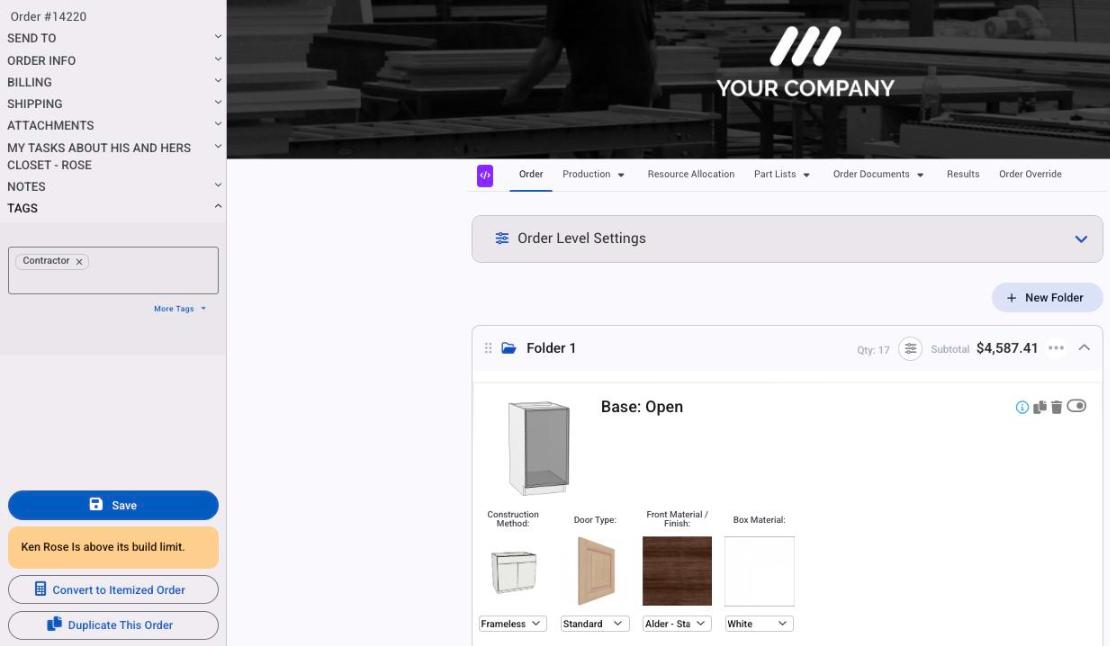
The copy starts as a Bid and is priced at today's prices, not the original's.
If you sell the same package of products over and over, a component can do this job too: it bundles products with their answers filled in. See Components: sell products as a bundle.
Remake part of a shipped order
When something on a shipped order has to be made again, a remake reorders it without charging the customer twice.
- Open the shipped order.
- Click Request a remake.
- For each item, enter how many to remake and a Reason for Remake. The product's options can't be changed on a remake.
- Click Submit Remake Order.
Your customers can request a remake on their own shipped orders too, if they have the Submit Orders permission. B2B customers can't request one from their own Allmoxy account: they log in to their customer account on your site and click Request a remake on the shipped order there.
The remake is a new order that starts at Ordered with a $0 price, so the customer doesn't owe anything for it. The reasons given for remakes are listed in Reports > Production > Remakes, which is a quick way to spot what keeps going wrong.
If a remake should be paid for after all, use Convert to Normal Order. It goes back to Bid and is priced from your catalog.
Cancel or void an order
- At Bid or Ordered, click Cancel Order. Customers can cancel their own orders at these two statuses too. Cancelling needs the Create Bids or Submit Orders permission, so if someone can't see Cancel Order, check that first.
- After that, change the status to Void and save. Moving an order past Ordered to Void needs Edit Verified Orders.
A voided order isn't deleted. It stays in your records with its invoice marked void, which keeps a clear trail of cancelled jobs. It drops out of the default list at Orders > Orders; tick Void in the status filter to see it again.
Voiding doesn't put supplies back in stock. If supplies were reserved, checked out or used for the order, adjust your inventory by hand.
Things to know
- Cancel Order does nothing past Ordered. Void the order instead.
- Editing a placed order reprices only the lines you change. Lines you don't touch keep their price. See How order statuses work, and when prices lock.
- Keep Edit Verified Orders to a few people. Changes after Verified affect what's being built and what's been invoiced.
Watch: Edit, duplicate, change dates and void orders (older screens)