
An export class is the label that tells your accounting software which income account or class a product's revenue belongs to when it exports to QuickBooks or Xero. Keep the list consistent and your books reconcile cleanly; let it sprawl into three spellings of "Cabinets" and the export gets messy. Export classes are a managed list you build once and pick from everywhere.
Applies to: shops exporting sales to QuickBooks or Xero. Managing the list and setting it on products needs the Manage Catalog permission.
In this article
- What changed
- Create your export classes
- Set an export class on a product
- Two classes that mean the same thing
- Export classes and production lines
- See revenue by export class
What changed
Export class used to be a text box you typed into on each product. It is now a list you build once under Catalog > Export Class, and every product picks from a dropdown. If you already had classes typed on your products, they are in the list; this just formalizes what you had.
Create your export classes
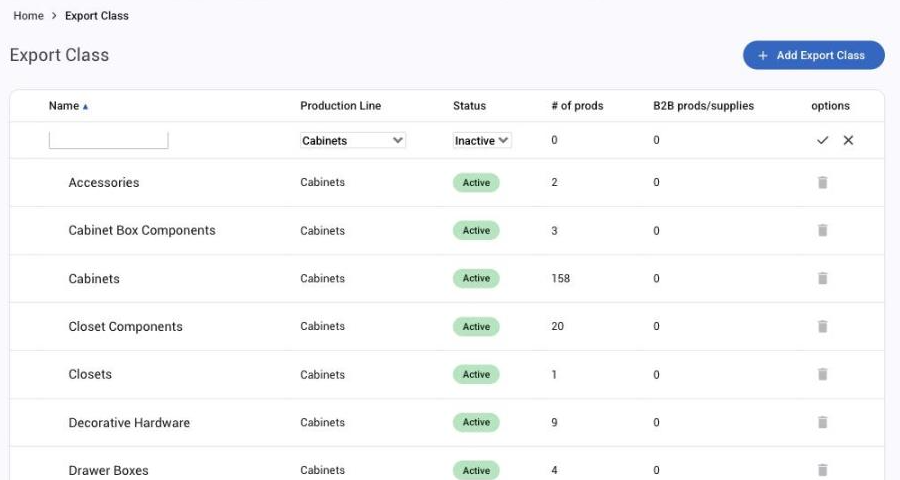
- Go to Catalog > Export Class (also under Settings (gear) > E-commerce).
- Click Add Export Class.
- Type the name exactly as you want it to read in your books, matching the classes or income accounts you already have in QuickBooks or Xero, choose the Production Line it belongs to, set the status to Active and click the tick.
The list shows each class with its production line, status, how many products use it, and how many B2B products, supplies and inventory items. Click a status to toggle it; a class in use by products cannot be deleted, only made inactive.
Set an export class on a product
Open the product (Settings (gear) > E-commerce > Products) and pick from the Export Class dropdown in Product Info.
To do many at once, use the Product Updater (Settings (gear) > Utilities > Product Updater, or Catalog > Products > Update). It has an Export Class column, so you can set the class across a batch of products in one pass. One caution: the Product Updater saves the class name only, without linking the product to the class or its production line. That's how one class can split into two spellings, so when the production line matters, or you're merging classes, set the class on the product form instead.
Two classes that mean the same thing
When export class was a text box, one class could end up typed several ways ("DRAWER BOX", "Drawer Box"). The list shows each spelling as its own class, with its own product count. To merge them:
- Decide which class to keep. Check its Production Line first, since products moved onto it take that line.
- Open each product that uses the other class (Settings (gear) > E-commerce > Products), pick the class you're keeping in the Export Class dropdown in Product Info, and save. Choosing a class also sets the product's production line from the class, unless Override production line is ticked on the product.
- Use the product form for this, not the Product Updater. The Product Updater saves the class name only, without linking the product to the class, which is how one class splits into two in the first place.
- Check supplies that carry the old class too, and re-pick it there.
- When the old class shows 0 products, make it inactive or delete it. A class still in use can't be deleted.
The product list and its CSV show the name saved on each product, so two classes with nearly the same name can look like one there. If you can't tell which products are on which class, contact support and we'll send you the list.
Export classes and production lines
Each export class belongs to a production line, and a production line lists its export classes: open Settings (gear) > Operations > Labor Processes, open the line, and pick them in Export Class. This keeps revenue from a line's processes mapped to the right class, which matters when labor and materials should not land in the same place in your books.
See revenue by export class
The Sales by Export Class report (Reports > Financial > Sales by Export Class) groups revenue by class, the same split your accounting export uses. The cleaner your list, the cleaner the report.