
Almost every report can leave Allmoxy two ways: as a CSV file you open in a spreadsheet, or as a printable PDF. In the new version of a report, click Export and choose the format; in the previous version, open the Export menu at the top of the report and choose Export as CSV or Printable PDF. The CSV often has more columns than you see on screen, so when a report seems to be missing something, export it and look. This article covers both versions, what each file holds, a worked example that exports a list of orders, and what to do when an export is too big or empty.
Applies to: anyone who can open the report. The file holds what your permissions let you see; customers get only their own company's rows.
In this article
- Export from the new version
- Export from the previous version
- What's in the file
- Worked example: export a list of orders
- Need production files for many orders? Use a batch
- If the export is too big, empty or fails
- Things to know
Export from the new version
- Set the filters so the report shows what you want. The export uses the same filters as the screen.
- Click Export at the top right of the report.
- Choose CSV or PDF. The file name is filled in for you from the report name and date range (with "filtered" added when other filters are on); change it if you like.
- Confirm. The file downloads to wherever your browser saves downloads. The format you chose is remembered for next time.
If the report has no rows, Export tells you there is nothing to export. If the report has more rows than the file can hold, a message asks you to narrow the dates or filters.
Export from the previous version
- Set the filters in the panel at the side of the report and let the report reload (on the few reports that have a Submit button, press it; the export uses the last filters you submitted).
- Open the Export menu at the top of the report. It appears only when the report has rows.
- Choose Export as CSV for a file named after the report, or Printable PDF for a PDF of what's on screen.
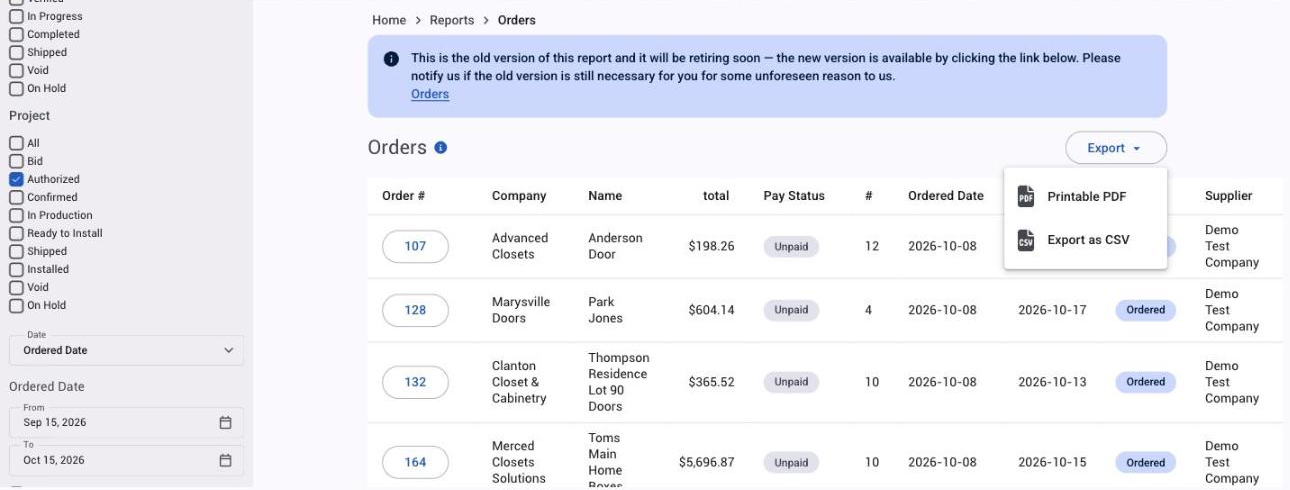
Three reports (Allocated Supplies, Supplies in Use and Remakes) still have the older Send To box in the side panel instead of the Export menu; the choices are the same. Two reports can't be exported in the previous version at all: Email Logs and Trigger Call Log.
What's in the file
The CSV holds every row that matches your filters, not just the page on screen, and opens cleanly in Excel or another spreadsheet. It usually has more columns than the screen: the Orders report's CSV is one row per line item with about 20 columns, the Shipping report's adds addresses and shipping instructions, and the Aging and Sales by Customer files add the customer number. A few go the other way (Employee Productivity exports only the summary). So if a report is missing something you think you need, export it and see if the CSV has it. In the new version the CSV always uses the report's standard columns, whatever you have hidden or reordered on screen.
The PDF is the report as you see it. In the new version it has the title, your filters, the visible summary tiles and charts, then the detail table; wide tables are shrunk or split across pages, and curly quotes and some special characters print as plain ones. In the previous version it is a picture of the report area, so expand the rows you want printed first (tick Expand Extra Data to open them all) and collapse what you don't.
Worked example: export a list of orders
The most useful general-purpose export is the Orders report.
- Go to Reports > Production > Orders.
- Choose the date the list should use: Entered (the day the order was created), Ordered (the day it became an order, ticked to start) or Shipped (the day it was marked shipped, falling back to its scheduled dates). Project orders add Authorized and Installed. Set the date range.
- Tick the statuses you want. Ordered is ticked to start, so widen it (Verified, In Progress, Shipped) for everything in production. You can also narrow by company, pay status, B2B supplier and tags.
- Click Export. In the new version, choose CSV and whether you want one row per order or one row per line item; the previous version's CSV is one row per line item.
The on-screen total at the foot of the report is the total of the orders' invoice totals (what you billed), not your cost; for cost against price use Order Results Comparison.
Need production files for many orders? Use a batch
Exporting a report gives you a list. If what you need is the production files for a group of orders at once (cut lists, exporter files for your machines or design software, packing slips) rather than opening each order, use Orders > Batch Orders: Batch orders: export, print and update many at once.
If the export is too big, empty or fails
- Too big. The new version refuses an export with too many rows and asks you to narrow the dates or filters; split the range into months and export each.
- Nothing to export. No rows match the filters. In the previous version an empty export simply shows the page again instead of downloading a file. Check the dates (they are remembered from last time) and the status or type boxes.
- The CSV doesn't match the screen. In the previous version the CSV uses the last filters you submitted, so wait for the report to reload after a filter change (or press Submit where there is one) and export again. In the new version, hidden columns are left out of the PDF but kept in the CSV; that is by design.
- The export failed. Try again; if a long date range keeps failing, shorten it.
Things to know
- The CSV often has more than the screen. Export first, then decide whether you need a different report.
- The PDF is what's on screen. Expand rows before printing in the previous version; hide tiles you don't want in the new one.
- The Export menu hides when there are no rows (previous version), and the new version says there is nothing to export.
- Email Logs and Trigger Call Log have no export in the previous version.
- Production files for many orders come from Batch Orders, not from a report.
- Very large exports can time out. Split the range.