
A batch runs the same action on a group of orders in one go: export files with one of your exporters, print an output page for every order as a single PDF, or update a labor process to move them all along. Go to Orders > Batch Orders and click Add Batch.
Applies to: catalog and itemized orders, for employees with permission to batch orders. Batches aren't available on project-only accounts, and customers can't use them.
In this article
Why batch
Printing packing slips or pick lists one order at a time means opening each order, finding the page and printing it. Multiply that across 50 or 60 orders a week and it adds up fast. A batch handles the whole stack in one pass, and you can combine actions: export your cut files, print packing slips and move the labor process forward, all in one run.
Create a batch
- Go to Orders > Batch Orders. The list shows your saved batches with their Batch #, Name, # of Orders and Batch Date.
- Click Add Batch.
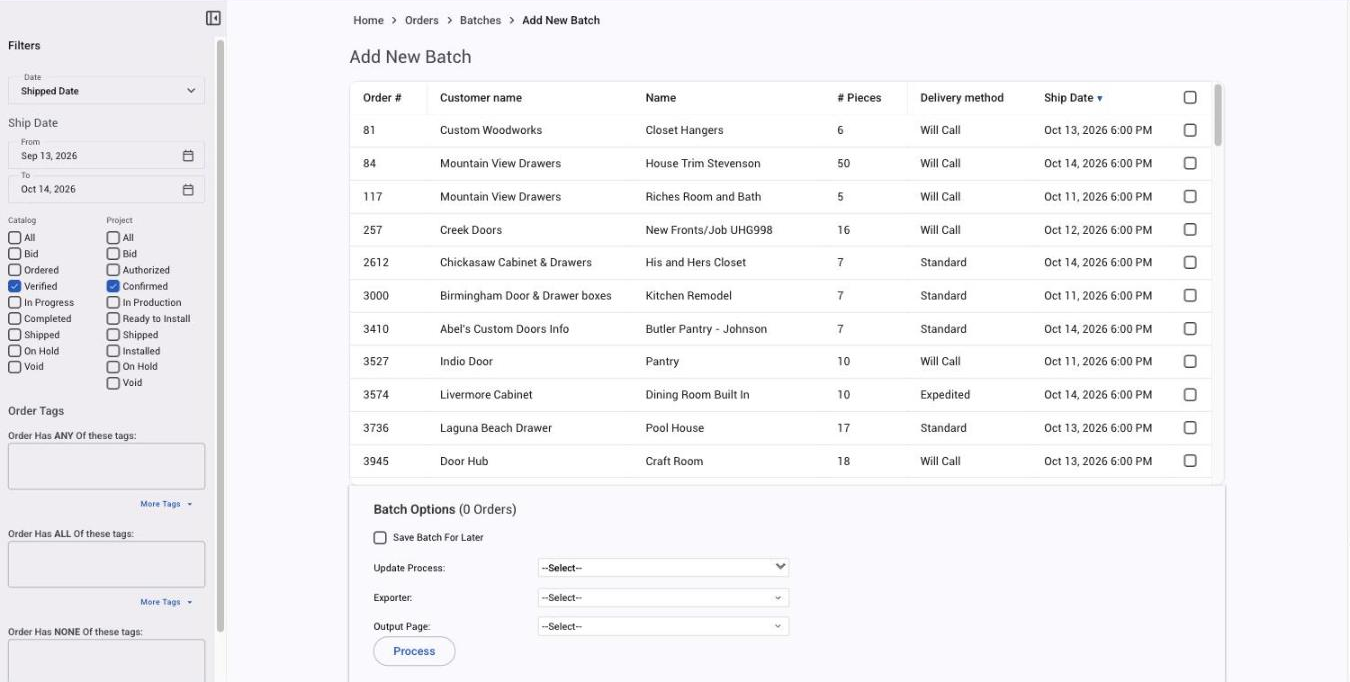
- Narrow the list with Filters on the left: choose a date and a From and To range, tick the statuses you want, and filter by order tags. Verified orders (Confirmed for projects) are shown to start.
- The orders list shows each order's Order #, Customer name, Name, # Pieces, Delivery method and Ship Date. Tick each order you want in the batch, or tick the box at the top of the list to select them all.
- Give the batch a name you'll recognize later.
Choose what the batch does
In Batch Options, pick one action or several:
- Update Process: applies a labor process to every order in the batch, with optional Hours. If that process's category is linked to an order status, every order moves to that status, which makes this a quick way to update many orders at once. See Set up production lines and labor processes.
- Exporter: creates the export file from every order with one of your exporters. Files download named after the batch and the export. See Exporters.
- Output Page: prints one output page, such as a packing slip, pick list or invoice, for every order as one combined PDF.
- Save Batch For Later: keeps the batch on the Batch Orders list so you can come back to it.
Click Process. A message tells you whether it worked.
Run more actions on a saved batch
Open a saved batch from the Batch Orders list and run another action on the same orders, such as printing a second output page.
Tips
- Name your batches. Saved batches are much easier to find, especially if you keep recurring batches for different parts of your workflow.
- One output page and one exporter per run. Pick the page you need, run it, then run the batch again for a different page.
- Make a lean output page for bulk printing, such as a pick list with only what the floor needs, and batch print just that page.
- B2B orders print the same way in a batch as they do anywhere else.
- Bigger batches take longer. The more orders and actions you include, the longer the run takes to finish.