
Reports are read-only views of your shop's data: sales, invoices and payments, production, shipping, inventory, time and activity. They live under the Reports menu in three groups, Financial, Production and Managerial, and each one shows only to people who hold its permission. Running a report never changes anything. This guide covers what every report has in common: who can see it, the two versions of most reports, which date a report filters on, how filters are remembered, sorting and exporting, and where to find the page that explains each report.
Applies to: every Allmoxy shop. Opening any report needs the View reports permission plus that report's own permission. Customers can hold a few report permissions too (see below).
In this article
- Where reports live and who can open them
- Two versions of each report
- Which date a report uses
- Filters are remembered
- Sort, expand and export
- Reports with their own page
- Things to know
Where reports live and who can open them
Open the Reports menu at the top of the page. It shows three groups:
- Financial: money in and owed (Aging, Invoices, Transaction History, the Sales by reports, Sales Tax and more). Details: Financial reports: what each one shows.
- Production: orders, scheduling, labor and supplies (Orders, Work Schedule, Shipping, Status History and more). Details: Production reports: what each one shows.
- Managerial: logs, inventory, tasks and margins (Activity Logs, Email Logs, Projection, Order Results Comparison and more). Details: Managerial reports: what each one shows. This group shows only to your own staff.
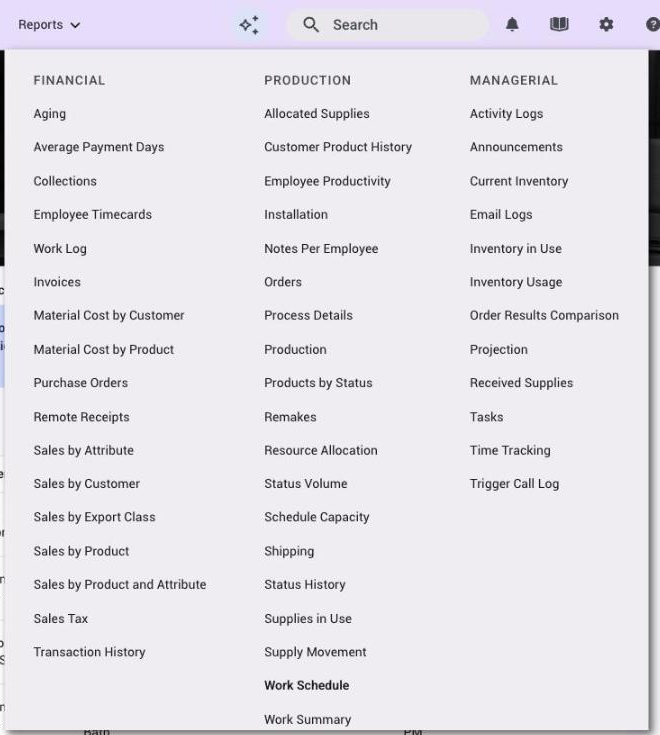
A report appears in the menu only for people who have View reports plus that report's own permission (View Aging Report, Order Report, Shipping Report and so on). Both are set per person on the contact's permissions; your administrator grants them: Add an employee and set up their login. Two entries come and go with your settings: Installation shows only when project orders are turned on, and Transaction History is hidden when payments are turned off.
Customers can hold report permissions as well. A customer contact starts with View reports and a handful of report permissions (Shipping Report, View Invoices Report, View Transaction Report, Customer Product History and Resource Allocation Report), and on every report they see only their own company's rows. Resource Allocation refuses customers even with the permission, so in practice customers use Shipping, Invoices, Transaction History and Customer Product History. Customers always get the previous version of a report (next section).
If your shop runs project orders only, a few sales and product reports are locked: Sales by Attribute, Customer Product History, Products by Status, Remakes, Sales by Product and Sales by Product and Attribute.
Two versions of each report
If a report looks different the first time you open it, that's normal. Most reports now have a new version with filters on the left, summary tiles and charts above the table, a Customize button and one Export button. The previous version has a filter panel at the side of the page and an Export menu with Printable PDF and Export as CSV.
Which one you see depends on your shop and how you signed in. If your shop has the new reports, your employees get the new version when they sign in with the Allmoxy sign-in. Customers always see the previous version, and so does anyone who signed in with the older password login. The new version opens with a blue notice that links back to the previous version by the report's name, so you can always get to the previous version; it stays available for now. Setting up a report the way you like it is covered in Customize a report: columns, charts and saved filters.
Most of what this guide says applies to both versions. Where a report behaves differently in the two versions, the report's own entry says so.
Which date a report uses
Every report filters on one date, and the label above the date pickers tells you which. The same word can mean different things in different reports, so check the label before you trust an empty result. The dates you will meet:
- Charge Date: the day the invoice reached the charge status of the customer's payment term (the shop-wide Charge status in your Financial settings is used only when a term has none; an order that is shipped first is charged at Shipped). It is set once and does not move. Used by Aging, Average Payment Days, the Sales by reports, Material Cost and Sales Tax. Payment terms: Create and assign payment terms.
- Invoice date: the day the invoice was opened. Used by Invoices (its column is headed Ordered Date).
- Transaction Date: the day a payment or credit memo was recorded. For online payments that is the day the payment was made; for manual payments, the day you recorded it. Used by Transaction History and Remote Receipts.
- Entered Date: the day an order was saved, or a note or announcement was entered. Used by Customer Product History, Work Summary, Remakes and Notes Per Employee.
- Ordered Date: the day a bid became an order, or, for purchase orders, the day the purchase order was submitted to the vendor. Used by Orders (to start) and Purchase Orders.
- Status Date: the day an order reached a status. Used by Status History and Order Results Comparison.
- Ship Date and Desired Delivery Date: usually the order's scheduled ship date (the actual date if one is set, otherwise the desired date). Shipping, Projection and Schedule Capacity use it. The Orders report's Shipped date is the day the order was marked shipped, falling back to the scheduled dates when it hasn't shipped. The Sales Tax column headed Ship Date holds the charge date.
- Time Tracked and Start Date: when employee time was clocked. Used by Employee Timecards, Employee Productivity, Process Details, Time Tracking and Production.
- Movement Date: the day a supply moved between locations or was checked out. Used by Supply Movement and Inventory Usage.
- Date Received: the day supplies were checked into inventory (Received Supplies). Due Date: when a task is due (Tasks). Email Date: the day Allmoxy sent the email (Email Logs). Activity Date: the day of the activity (Activity Logs).
Report times show in the time zone on your profile (or the shop's, if you haven't set one).
Filters are remembered
Each report remembers the filters you used last time and opens with them again, even days later. That is handy when you run the same report each week, and confusing when a report looks empty because it is still on last month's dates. In the new version, click Clear all at the top of the filter panel to go back to the defaults; in the previous version, change the filters and the report reloads by itself (a few reports still have a Submit button). Some reports open on today only until you widen the dates (Activity Logs, Status History and Sales by Export Class, among others).
Your filters are yours: a colleague opening the same report sees their own last filters. In the previous version you can't share a filtered view as a link; tell them the filter values instead. In the new version the filters are in the address, and a saved search keeps a set of filters for next time.
Sort, expand and export
Click a column header to sort by that column; click again to reverse. Many reports hide extra detail inside each row: click a row to open it, or tick Expand Extra Data in the filter panel to open every row at once. The printable PDF contains whatever is expanded on screen.
Almost every report can be exported from the Export button or menu, as a CSV file for a spreadsheet or as a printable PDF, and the CSV often holds more columns than the screen. Steps, what's in each file, and the exceptions: Export a report to CSV or PDF. To send your data to other software automatically: Get your data out of Allmoxy: triggers, webhooks, Zapier and the API.
Reports with their own page
A few reports are part of a bigger job and are explained with it:
- Shipping: Plan deliveries and mark orders shipped with the Shipping report (marking orders shipped).
- Work Schedule, Projection and Schedule Capacity: Set ship dates, lead times and the production schedule.
- Email Logs: Check whether an email was sent (Email Log).
- Inventory in Use and the other inventory reports: Guide: Inventory and purchasing in Allmoxy.
- Employee Timecards and Time Tracking: Manage time cards and the payroll report.
When a report is empty, missing an order, or won't open: A report is empty, missing an order, or won't open.
Things to know
- Two permissions per report. View reports opens the menu; each report needs its own permission too. If a report is missing from someone's menu, that is the first thing to check.
- Reports never change data. Run them as often as you like. (The Shipping report's truck button and the Installation report's hammer are actions on the order, not the report.)
- The date label is the key. Charge Date, Status Date and Ship Date are different days for the same order.
- Filters stick. An empty report is usually last week's dates. Clear all, or widen the range.
- Customers see only their own company, always in the previous version.
- Very long date ranges can be slow or time out. Split the range.