
Allmoxy's QuickBooks Online integration syncs your financial data to QuickBooks Online automatically, so you stop keying invoices and payments twice and your accounting records stay current. Setting it up is mostly preparation: two QuickBooks settings must be off before you connect, and your products need export classes so revenue lands in the right accounts. This guide covers what syncs, the preparation, connecting, and what to do when something looks wrong.
Applies to: shops using QuickBooks Online. The Settings > Integrations > Accounting page needs the Manage Accounting permission. QuickBooks Desktop has no direct connection: use the export queues instead, see Guide: Send invoices and payments to your accounting software.
In this article
- What gets synced
- Before you connect: settings to review
- Your existing records: what the sync will and won't send
- Set your Default Export Class
- Connect Allmoxy to QuickBooks Online
- What changes in the export queues
- Troubleshooting and common issues
- Things to know
What gets synced
Once connected, Allmoxy syncs the following to QuickBooks Online on a schedule, roughly every hour. A quiet shop's last run time doesn't move, so an old time on its own doesn't mean anything is wrong:
Orders and invoices
- Orders sync to QuickBooks as Estimates.
- When the order reaches the customer's Status to Charge Customer, the estimate converts to an Invoice. The charge status is set on the customer's payment term, commonly Shipped, and can differ per customer (a specific customer might be charged at Completed instead): Create and assign payment terms.
Payments
- A payment made before the invoice exists appears in QuickBooks under the customer in Unapplied Funds; once the estimate converts to an invoice, the payment applies to it automatically.
- A payment made after the invoice exists posts straight to that invoice.
- This only works with QuickBooks' Automatically apply bill payments setting off, otherwise QuickBooks applies the payment to the customer's oldest open balance instead.
Other financial data, synced when it is created: finance charge invoices, credit memo invoices (all of them, or only the ones you choose, see Optional credit memo sync below), processing fee invoices, and customer information.
Credit memos and account credit. Three cases come up often:
- A credit memo you give a customer as a goodwill credit syncs to QuickBooks as a credit memo and sits on the customer there. When the customer uses it to pay an invoice in Allmoxy, that payment goes over too and is applied to the invoice in QuickBooks.
- A customer who overpays gets account credit in Allmoxy. In QuickBooks the overpayment shows as an unapplied credit on the customer until it is applied to a later invoice. That is correct accounting, not a fault; it clears when the credit is used.
- A credit applied to an invoice whose order hasn't reached its charge status yet shows as unapplied in QuickBooks until the order gets there and its invoice is created, then applies on its own. Until then the two systems can show different balances for that customer: QuickBooks is waiting to recognize the revenue until the order ships. If someone asks why the QuickBooks balance looks different: "You have an open credit and an open invoice. Once that order ships, the credit applies and the balance clears."
Credit memos post to a Product/Service named Credit Memo and finance charges to one named Finance Charges; QuickBooks creates both the first time they are needed. Map each to the income account you want before your first credit memo or finance charge goes over, so they don't land in the default account (see Set your Default Export Class, the same Products/Services screen).
You'll see a last run time on the integration card showing when the last sync completed. Each synced record also gets a QuickBooks number stored on it in Allmoxy, in three custom fields the integration creates for you (QB Estimate ID and QB Invoice ID on invoices, QB Payment ID on payments); that is how the export queues tell what has been synced.
Before you connect: settings to review
Some settings in QuickBooks Online must be adjusted before connecting Allmoxy. Skipping these steps causes real problems with your invoices and payments.
Step 1: Confirm you have the right permission. The Integrations > Accounting entry only appears for people with the Manage Accounting permission. If you don't see it, ask your account's primary contact (or your Customer Success contact) to grant it, then refresh the page: Employee permissions: what each one does.
Step 2: Review your export classes and QuickBooks Products/Services. Allmoxy's export classes map to QuickBooks Products/Services, which map to the income account you want revenue in. Review the export class on your products, and check that the matching Products/Services in QuickBooks point at the right income accounts: Export classes: map revenue to your accounting software.
Step 3: Turn off QuickBooks Sales Tax. Allmoxy sends sales tax as a line item on each invoice. If QuickBooks Sales Tax is on, every invoice ends up with doubled tax amounts and a reconciliation headache. Skip this if you have never set up QuickBooks Sales Tax. To turn it off: log in to QuickBooks Online, hover over All Apps in the left sidebar, select Sales Tax > Overview, find Sales Tax Settings and select Turn off sales tax.
Step 4: Turn off Automatically apply bill payments. This QuickBooks setting applies every payment to the oldest open invoice, ignoring which invoice the customer paid in Allmoxy. To turn it off: log in to QuickBooks Online, click the gear icon in the upper right, select Account and Settings, go to Advanced > Automation, switch off Automatically apply bill payments and click Save. Allmoxy applies payments to the exact invoices paid; this setting would override that.
Step 5: Turn off any other accounting or payment integration. If you previously used another tool to push invoices or payments into QuickBooks (a Stripe-based tracker, a Zapier automation or a similar connector), turn it off before connecting Allmoxy. Two integrations at once means duplicate invoices in QuickBooks (see Troubleshooting).
Your existing records: what the sync will and won't send
The sync does not back-fill history. It starts from its first run after you connect: invoices, payments and credit memos created before that moment are not sent, and stay wherever you have been keeping them (imported into QuickBooks from the export queue, typed in by hand, or in another system). So the preparation is about the records that straddle the connection.
Step 1: Work out how you have been getting invoices into QuickBooks. If you have been using the Export Invoices Queue and importing the file (Transaction Pro, SaasAnt or similar), your imported records are already marked as sent and the sync leaves them alone. If you have been typing invoices into QuickBooks by hand, or are moving to QuickBooks from another system, go to Step 2. The safest rule: if it is already in your books, it should not come over through the integration.
Step 2: Clear the queues of anything already in your books. Go to Financial > Export Invoices Queue, widen the date filter, tick every invoice you have already entered in QuickBooks and click Clear (or Export & Clear; you don't need the file). Do the same in the Export Credit Memos Queue and Export Transactions Queue. On a production connection, a record cleared before the sync picks it up is never sent. Clearing only marks the records as sent; it doesn't check anything, and a cleared record doesn't come back, so clear only what is already in QuickBooks: The export queues and what is in the invoice CSV.
Step 3: Expect your open orders to appear as estimates. An order placed before you connected that is still open (Ordered, Verified, In Progress or Completed) is sent to QuickBooks as an estimate the next time it is saved or changed, and gets an invoice when it reaches its charge status. Those orders can't be cleared from the invoice queue, because the queue only lists Shipped orders. If an open order is already invoiced in your books, void the copy the sync creates. Later edits to an order that was placed before you connected aren't copied, so check its QuickBooks copy after any change.
Step 4: Watch the first couple of weeks. After connecting, use the Export Status filter on the invoice queue (Ready to Export, or QuickBooks Synced) as a daily check on what has gone over, and compare a few invoices and payments in QuickBooks against Allmoxy. No automated rule covers every history; a short review early on is far easier than cleaning up financial records later.
Moving to QuickBooks from another accounting system? Your history from the old system is yours to migrate; the sync won't send it. Treat Allmoxy the same as any new connection: clear what is already in your books, then connect.
Set your Default Export Class
The Default Export Class is used for any product that has no export class of its own, so every line can transmit. Every invoice line in QuickBooks must reference a Product/Service; a line with no export class won't transmit. QuickBooks creates the Product/Service for a class automatically if it doesn't already exist.
Mapping at a glance: export class to QuickBooks Product/Service; Allmoxy product name to the QuickBooks line description. Common defaults are things like Cost of Goods Sold, Cabinets, Wood Products or Materials; choose whatever fits your chart of accounts. You can give individual products more specific classes later.
We recommend assigning classes in bulk before you connect:
- In Allmoxy, go to Settings > Utilities > Product Updater (also Catalog > Products > Update).
- In the left sidebar, scroll below the categories to the editable fields and select Export Class.
- Click Get Products to pull your catalog, then fill in any blank Export Class so each product points to the right QuickBooks Product/Service. You can focus on products where Available for Sale is Yes, or update everything in one pass. Steps: Copy, bulk-edit, import and export products.
Doing this first prevents products landing in the wrong Product/Service, which is harder to clean up in QuickBooks afterward.
Connect Allmoxy to QuickBooks Online
Once the QuickBooks settings are adjusted:
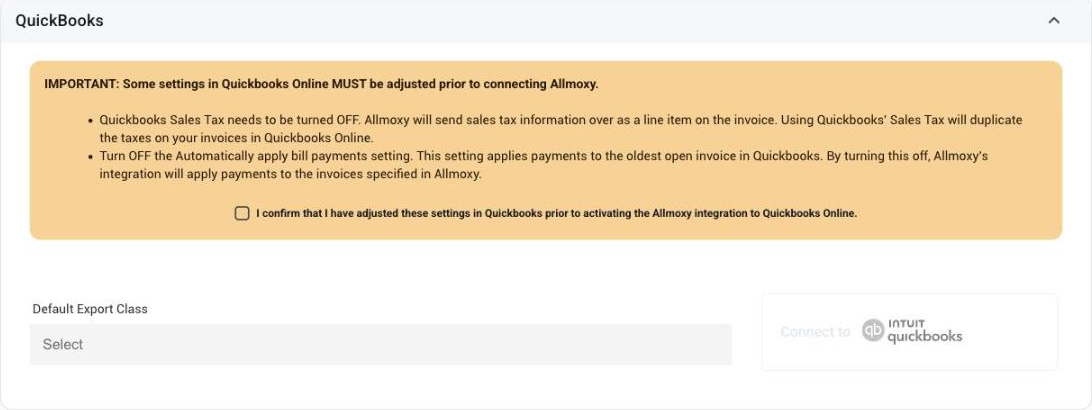
- In Allmoxy, go to Settings > Integrations > Accounting. The QuickBooks card lists the two QuickBooks settings to turn off first.
- Choose your Default Export Class from your export classes. Tick the box confirming that Sales Tax and Automatically apply bill payments are off in QuickBooks. This activates the Connect to QuickBooks button.
- Click Connect to QuickBooks. You are sent to QuickBooks to sign in. If you have several QuickBooks companies, select the one to sync this Allmoxy instance to, review the permissions and data access information, and click Connect.
- You are sent back to Allmoxy with a "QuickBooks connection successful" message, and the card shows the connection as Active. The integration starts on the next sync run.
The card then shows your Environment (Production or Sandbox), the Status (Active or Inactive), the last run time, an Optional credit memo sync box and a Disconnect button.
Optional credit memo sync. By default every credit memo syncs. Tick this box and each new credit memo gets a Send to financial software box of its own, so you can keep a memo out of QuickBooks (for example one you already entered by hand). A memo created with the box unticked shows a "not synced" icon on your invoices list and is left out of the credit memo export queue as well: Use credit memos, account credit and write-offs.
Test in a sandbox first (optional). To try the integration before it touches live data, connect to a QuickBooks sandbox company first. To switch from Sandbox to Production: click Disconnect on the card, click Connect to QuickBooks again, sign in with your production QuickBooks account and complete the connection. The card's Environment shows which you are on. A sandbox connection doesn't switch on the synced-status features in the export queues.
Managing the connection. To disconnect, or to switch to a different QuickBooks company, click Disconnect and run the connection process again with the account you want.
What changes in the export queues
While the integration is active, the Export Invoices Queue and Export Sales Orders Queue get an Export Status filter: Ready to Export (the default) lists only records with no QuickBooks number yet, and QuickBooks Synced lists the ones the sync has already copied. The filter goes back to Ready to Export each time you open the queue. The Export Credit Memos Queue and Export Transactions Queue show a QuickBooks Yes/No column instead. You can still export a CSV from any queue; just don't import into QuickBooks what the sync has already sent. The queues themselves: The export queues and what is in the invoice CSV.
The three QuickBooks custom fields (QB Estimate ID, QB Invoice ID, QB Payment ID) appear on your Custom Fields settings page once the integration is active. Leave them alone; the sync fills them in.
Troubleshooting and common issues
- Taxes doubled on every invoice in QuickBooks. QuickBooks Sales Tax is on. Turn it off (Step 3). Invoices already created need fixing in QuickBooks.
- Payments applied to the wrong invoices. Automatically apply bill payments is on in QuickBooks. Turn it off (Step 4).
- Duplicate invoices in QuickBooks. Another integration (Zapier, a Stripe-based tracker, a CSV import of the same batch) is pushing the same records. Keep one route per record type and remove the duplicates in QuickBooks.
- A line didn't transmit, or landed in the wrong Product/Service. The product has no export class, or the wrong one. Fix the product's export class; the Default Export Class covers products with none.
- The sync seems to have stopped. The card still says Active, but the last run time is old and the Ready to Export list keeps growing. Report it from the Support Center with your instance name: Report a bug to Allmoxy.
- An invoice I expected isn't in QuickBooks. The order hasn't reached its charge status yet (it is still an estimate). Check the order's status and the customer's payment term.
- A voided order already has a QuickBooks estimate or invoice. Check QuickBooks and void or credit it there as well.
- An old invoice showed up in QuickBooks that was already in my books. The record wasn't cleared from the export queue before you connected, and the order was saved or changed after go-live. Void or delete the copy in QuickBooks. It won't be sent again.
- Duplicate invoices right after connecting. You used the export queue before and the old records weren't cleared from it first, or the order was still open when you connected (see Your existing records). Delete the copy the sync created and keep your original. Going forward, the sync only sends what is new.
- A payment is in QuickBooks twice. The customer's payment was entered in QuickBooks by hand and then synced as well. Remove the hand-entered one. Once your history is cleared, every new payment comes over only through the sync, so record payments in Allmoxy and let it send them.
If you run into anything else during setup, reach out to your Customer Success contact. We want your QuickBooks integration running smoothly.
Things to know
- Preparation is the setup. Sales Tax off, Automatically apply bill payments off, export classes on your products, other connectors off: do these before you click Connect.
- Shipped, or whatever the charge status is, turns the estimate into an invoice. Until then the order is an estimate in QuickBooks.
- Payments can arrive before invoices. With deposits or pay-before-processing customers, that is normal; they sit in Unapplied Funds and apply later.
- It runs on a schedule. A record you just created shows up in QuickBooks after the next run, not instantly; check the last run time before you worry.
- Stripe fees still need a journal entry. The sync records what the customer paid; Stripe's fee is booked from your Stripe payout report, see Reconcile payments and Stripe fees.
- Nothing is back-filled. The sync starts at the moment you connect; clear what is already in your books before then, and expect open orders to arrive as estimates.
- Credit memos go to a Credit Memo item. Map it, and Finance Charges, to the income accounts you want before the first one goes over.