
The export queues under the Financial menu are where invoices, sales orders, credit memos and payments wait until you send them to your accounting software. Each queue is a list with a tick box per row and three buttons: Export downloads a CSV file, Clear marks the records as sent, and Export & Clear does both. This article explains what enters each queue, how batches work, every column in the invoice file and the other files, and the recommended column mappings for Transaction Pro or Saasant.
Applies to: shops exporting to QuickBooks Desktop, Xero, Sage or any package that imports CSV files, and QuickBooks Online shops checking what has synced. The queues need the financial queues permission; Invoice Batches also needs Manage Invoices. The overall workflow is in Guide: Send invoices and payments to your accounting software.
In this article
- The queues and what enters them
- Export, Clear and batches
- What is in the invoice file (Detailed mode)
- Generalized Ledger mode and the other files
- Map the columns in Transaction Pro or Saasant
- Things to know
The queues and what enters them
- Export Invoices Queue (Financial > Export Invoices Queue): every invoice not yet exported, once it has an invoice date and a ship date. An order's invoice appears only while the order is Shipped; finance charges, bounced-payment fees and card-fee invoices appear whatever their status. The sidebar filters by charge date (the last 180 days to start), customer name or order number, and order tags; click Submit to apply the filters. The date column prints the ship date.
- Export Sales Orders Queue: orders that entered the status chosen as Status To Export Sales Order on Settings > Admin > Financial (Verified, In Progress, Completed or Shipped), dated by when they last entered it. With that setting on None the queue is hidden. Use it if your books want orders before they ship.
- Export Credit Memos Queue: every credit memo not yet exported and not void, with no date window.
- Export Transactions Queue: every payment not yet exported, with no date window.
- Export Purchase Orders Queue sits under Supplies and is covered in Order supplies from vendors with purchase orders.
Each queue shows the record number, customer, name, amount, tax code and date, with a check-all box in the header.
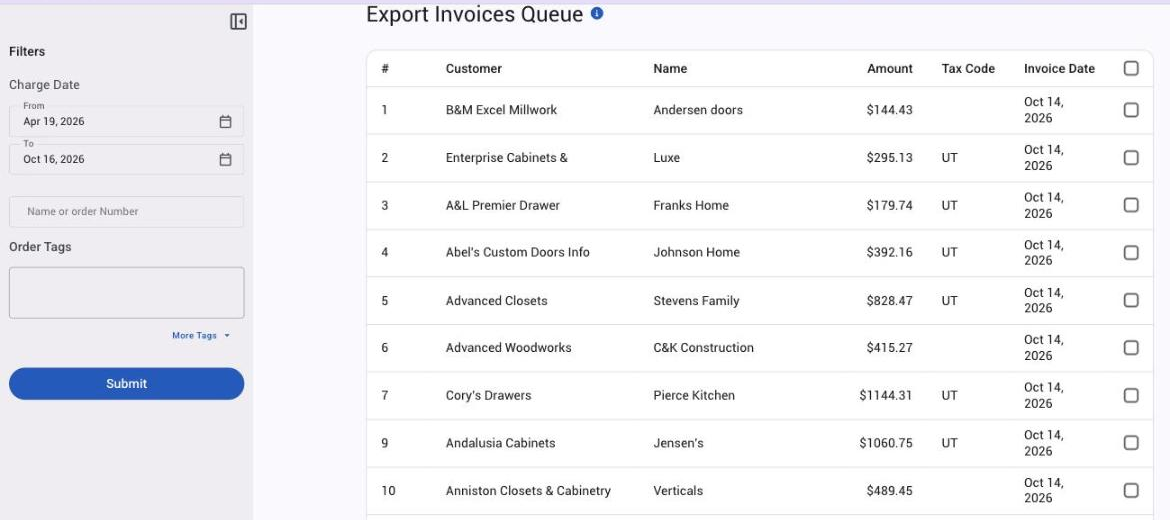
The credit memo and transactions queues are hidden when payments are disabled on your shop. Invoices created by the data importer or the API are born already exported and never show.
Export, Clear and batches
Tick the rows you want, then:
- Export builds the CSV and downloads it. The records stay in the queue, so you can export again if the import fails.
- Clear marks the ticked records as exported without a file. Use it for records you have already entered in your books by hand.
- Export & Clear marks them exported and downloads the file in one go; the rows disappear from the list.
Clearing only flips a flag. Nothing checks that the import worked, and a cleared record never returns to the queue, even if the order is moved back from Shipped and changed. If you clear something by mistake on the invoice queue, re-export its batch (below); for payments and credit memos, ask support.
Batches. On the invoice queue, Save Batch (ticked by default) with an optional Name saves the ticked invoices as a named batch when you export; the name becomes the file name. Batches are listed under Financial > Invoice Batches, where you can open one and Export it again (the file is rebuilt from current data, and the exported flags are untouched) or Delete Batch. The other three queues show the Save Batch box too, but batches only work for invoices: untick Save Batch there before you click Export, or the file doesn't download.
With QuickBooks Online connected, the invoice and sales order queues gain an Export Status filter (Ready to Export, or QuickBooks Synced) and the other two queues a QuickBooks Yes/No column, so you can tell what the sync has already sent: What changes in the export queues.
What is in the invoice file (Detailed mode)
The invoice file (Detailed mode, which every shop uses) has one row per line: each product line, each supply line, a "Quote Order" row for the remainder of an itemized order, one "Other Costs" row per other-cost line, a "Shipping" row, and one row each for finance charges, bounced-payment fees and card fees. Rows are grouped by invoice number. The columns:
| Column | What it holds |
|---|---|
| Company Name | the customer company |
| Charge Date | the date the invoice was charged |
| Invoice ID | the invoice number |
| Grace Period | the company's payment term, as its export name (for example net30), or cod / net plus the days when the term has no export name |
| Export Class | the product's, supply's or resold item's export class; "Other Costs" for other-cost rows; your card-fee export class for card-fee rows |
| Item Name | the product or supply name, or the row's kind |
| Address, Address 2, City, State, Zip | the billing address |
| Invoice Name | the invoice (job) name |
| AMT | the row amount |
| Taxable | Tax or Non |
| Account | Accounts Receivable |
| Tax Code | the order's tax code followed by Sales Tax, for example UT Sales Tax |
| Tax Rate | the order's rate (an override first, then the looked-up rate, or GST plus PST) |
| Company ID | the company's number in Allmoxy |
| Due Date | charge date plus the term's grace days (the charge date on fee rows) |
| Taxable 2 | Y or N |
| QTY | the quantity on product and supply rows |
| Shipping Address 1, Shipping Address 2, Shipping City, Shipping State, Shipping Zip | the order's shipping address |
| Tax Amt | the tax on the row |
| Shipping Attn | the attention line of the shipping address |
| Order Unique ID | the order's unique number |
The columns are listed in the order they appear in the file, so you can map them once in your importer. The file also carries Order Date (which holds the invoice date) and Ship Date. Any custom field marked Include in exports is appended as an extra column; the QuickBooks ID fields are left out. The tax columns are read from the order as it was saved; the export never recalculates tax, so the file agrees with the invoice. Items bought from a B2B supplier are fetched live from the supplier when you export; if that fails, a "Failed to retrieve data from (supplier) with order id (number)" line is written into the file instead, so retry later.
Why the shipping address is included. Primarily for tax reporting: the shipping address exports at the end of each row and may need additional mapping in your accounting software. For Will Call orders your own Ship From / Will Call address is used as the shipping address. On B2B orders the shipping address shows only for addresses that allow taxed shipping; for a non-taxable address it is left blank.
Generalized Ledger mode and the other files
Generalized Ledger mode is a second shape of the invoice file: one row per account for all the ticked invoices together, with CATEGORY, POSTING COMMENT (the batch name or a timestamp) and AMOUNT: Accounts Receivable (the invoice totals), the sales tax total (named by the caption you set under Invoice Export), Freight Income (shipping), Transactions (payments applied to those invoices) and, for each export class, Retail Taxable Sales and Sales Discounts from product lines. Supplies, itemized remainders, other costs and B2B lines appear only inside the Accounts Receivable total. The Invoice Export setting that switches between the two modes is not released yet: it is visible only to Allmoxy administrators, so ask support if your package needs the ledger shape.
Sales orders file: the same rows as a Detailed invoice file, with the date column named after your export status (for example SHIPPED DATE) and holding the date the order entered it.
Credit memos file: one row per memo, export class and item name "Credit Memo", the memo's subtotal as a negative amount, dated by its ship date, plus a QB Invoice ID Yes/No column when QuickBooks Online is connected.
Transactions (payments) file: one row per payment per invoice it was applied to: company, reference number, payment date, method (a manual payment shows as "manual - " followed by the method), amount applied, invoice number, account and memo, plus a QB Payment ID column when QuickBooks Online is connected. A payment spread across three invoices is three rows.
Map the columns in Transaction Pro or Saasant
Transaction Pro (from the Intuit app center) and Saasant import Allmoxy's invoice file into QuickBooks. Map the QuickBooks fields to the file's columns once and save the mapping. Recommended mappings, QuickBooks field to Allmoxy column:
| QuickBooks field | Allmoxy column |
|---|---|
| Customer | Company Name |
| Transaction Date | Charge Date |
| RefNumber | Invoice ID |
| BillTo Line1 | Company Name |
| BillTo Line2 | Address |
| BillTo Line3 | Address 2 |
| BillTo City | City |
| BillTo State | State |
| BillTo PostalCode | Zip |
| ShipTo Line1 | Invoice Name |
| Item | Export Class |
| Description | Item Name |
| Price | AMT |
| Sales Tax Item | Tax Code |
If your Sales Tax Item in QuickBooks doesn't match the value Allmoxy brings over (for example UT Sales Tax), set a default value for that field in the importer's mapping instead. Map the shipping address columns too if your books need them for tax reporting. The whole process in order: export from the Export Invoices Queue with Save Batch ticked, import the file with the saved mapping, check the import in QuickBooks, then tick the same invoices in the queue and click Clear.
Things to know
- Shipped puts an order in the invoice queue. Not Verified, not Completed, unless you use the Export Sales Orders Queue for an earlier status. A project order moved on to Installed before it was exported leaves the queue.
- The date window hides older invoices. The invoice queue opens on the last 180 days; widen the dates if something is missing.
- Clear means sent, not checked. Re-export a batch if an import failed; a cleared record never re-queues on its own.
- Save Batch belongs to the invoice queue. Untick it on the other queues.
- Export classes drive the Item column. A product with no class, or a renamed class, lands in the wrong account: Export classes: map revenue to your accounting software.
- Voided fee invoices stay listed. A voided finance charge or fee still appears in the invoice queue; clear it without exporting.
- Tax on the rows is the order's tax. The file agrees with the invoice; if the rate looks wrong, fix the order first: Troubleshoot a sales tax rate.