
To copy a product, open it and click Clone this product. To change one setting on many products, use the Product Updater at Settings > Utilities > Product Updater. To move a whole product between Allmoxy sites, Export Product Data on one site and Import Product on the other.
Applies to: every shop. You need the Manage Catalog permission.
In this article
- Clone a product
- Adapt a template product to your shop
- Change many products at once: the Product Updater
- Move a product to another Allmoxy site
- Which export file has what
- Things to know
Clone a product
- Open the product and click Clone this product in the sidebar.
- The copy opens, named "Copy of ..." and set to discontinued so customers don't see it yet.
- Rename it, make your changes on each tab, tick Available for sale and save.
The clone carries the attributes, parts, labels, images, tags and exclusivity of the original. Pricing, weight and validations are on the copy's own tabs, so check them.
Adapt a template product to your shop
If Allmoxy set your catalog up from a template and you sell something slightly different, don't edit the template product beyond recognition and don't delete it. Instead:
- Add a category for your own versions.
- Clone the template product that is closest to what you sell.
- On the clone, add the attribute or part you need. New parts can use the attributes that are already there.
- Discontinue the original (untick Available for sale) if you won't sell it. Discontinuing keeps everything; deleting products, attributes or parts can break formulas that refer to them.
Change many products at once: the Product Updater
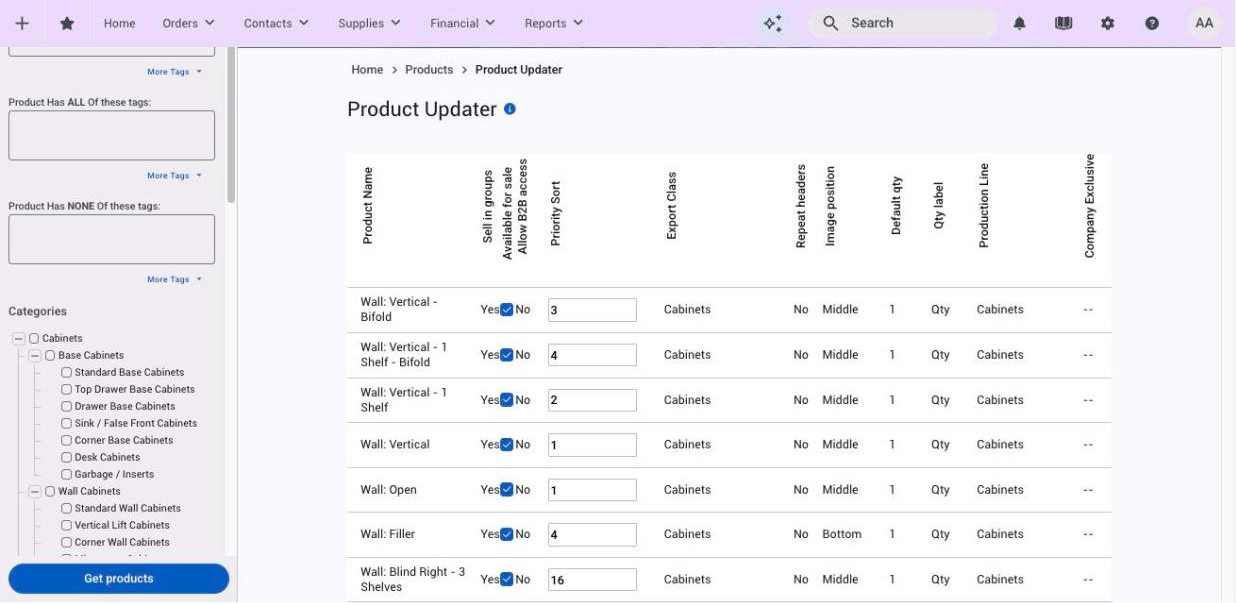
- Go to Settings > Utilities > Product Updater.
- In the sidebar, narrow the list by Product Name, Product Tags or Categories.
- Under Editable Fields in the sidebar, tick the fields you want to change: Product Name, Sell in groups, Available for sale, Allow B2B access, Priority Sort, Export Class, Repeat headers, Image position, Default qty, Qty label, Production Line or Company Exclusive. Products only appear once at least one field is ticked.
- Click Get products.
- Every product gets a row. The fields you ticked become editable (a checkbox or a text box); the rest show their current value. Make the changes and save.
It's the quickest way to turn Allow B2B access on for a whole category, discontinue a line, or re-sort products. One caution: setting Export Class here stores the class name only, without its production line, so set export classes on the product form when the production line matters.
The Attribute Updater, next to it in the menu, does the same for attributes.
Move a product to another Allmoxy site
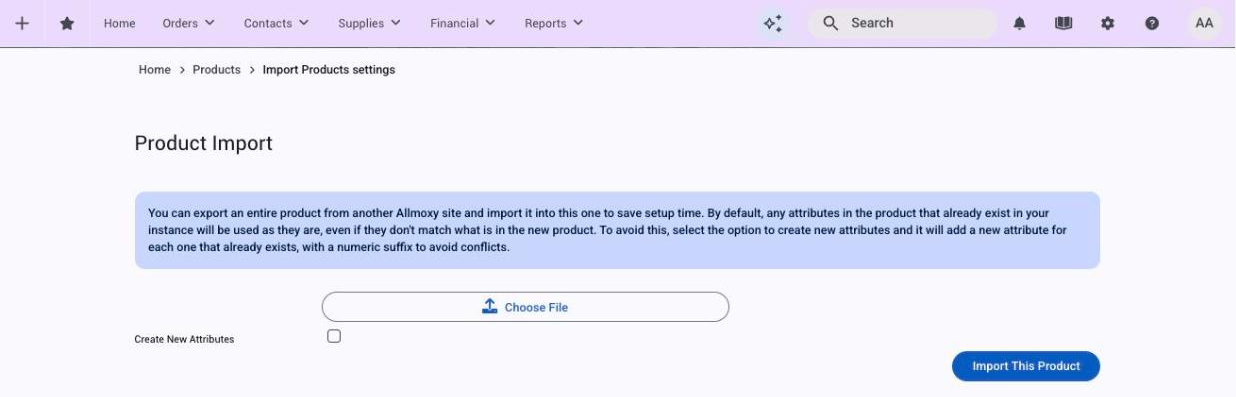
Export: open the product and click Export Product Data in the sidebar. You get a file holding the product's definition: its attributes and options, parts, labels, images and option pictures. Supply rows on parts and exporters are not included, so set those up again after importing.
Import: on the other site, go to Settings > Utilities > Import Product, choose the file and click Import This Product. The product is created on the site's first active production line. Two modes:
- Default (match): each attribute in the file is matched to an existing attribute by its formula name and used as it is, even if its options differ. Attributes that don't exist are created.
- Create New Attributes: tick it to create every attribute fresh, with a number added to the name where one already exists. Formulas in the product are rewritten to the new names. Use this when the two sites' attributes have drifted apart.
Check the pricing and parts tabs after an import; formulas are validated again when you save.
Which export file has what
When you're matching your Allmoxy names to another program, such as your design or nesting software, use the file that holds what you're matching:
- Product names and settings: the product list's Export (Catalog > Products), as CSV. One row per product.
- Option names and their columns (export names, codes, prices): open the attribute and click Export Currently Saved Options. One row per option, with every custom column. See Import and export attribute options.
- Export Product Data on a product is for moving that product to another Allmoxy site. The file isn't meant to be opened in a spreadsheet.
Things to know
- Export on the product list is different: it downloads the list (CSV or PDF), not a product.
- Global Clone, Mass Delete and Find & Replace under Settings > Services Tools copy parts or validations onto many products, remove items by name, and edit formula text across the catalog. They're Allmoxy-administrator tools; ask support if you need a change like that.
- Formula names stay put. Renaming a display name is safe; the formula name set when an attribute was created never changes, so imported formulas keep working only when the names match.
- Discontinue or delete? Discontinue a product you don't sell any more (untick Available for sale): customers stop seeing it, and everything that refers to it keeps working. Delete only a product that was never used on orders, in components or in other formulas. If you delete one by mistake, contact support to bring it back.