
An itemized order combines two kinds of pricing: costs you price by hand (labor, supplies, overhead and other costs, plus the markup or profit you choose) and products from your catalog, priced by their formulas as usual. It's a tool for jobs your catalog alone doesn't price, such as an install with labor and resold supplies alongside your cabinets, or a one-off repair. Most orders should still be catalog orders.
Applies to: itemized orders, built by your team.
In this article
- When to use one
- Start an itemized order
- Add catalog products
- Add labor
- Add supplies
- Add overhead
- Add other costs
- Set the price
- Things to know
When to use one
Reach for an itemized order when catalog products alone can't price the job:
- Labor-driven work, where the cost is the hours rather than the parts.
- Supplies you resell, with a markup on top.
- Extra costs such as machining or a fuel surcharge.
To add a one-time charge, such as a setup or design fee, to a normal catalog order, use an internal use product instead. See Internal use products.
Start an itemized order
- Click Add > Itemized Order, or go to Orders > Add Itemized Order.
- Fill in the order info the same way you would for any order. See Create an order.
To turn an order you've already started into an itemized one, open it and click Convert to Itemized Order.
Add catalog products
Add products from your catalog in My Products, the same way you would on a catalog order. Each one is priced by its product formulas. See Create an order.
Add labor
In Labor, add a line for each piece of work: the Employee, the Process, their Wages and the Hours. Allmoxy works out the Cost: the wage plus your payroll tax percentage, times the hours. The payroll tax rate comes from your Financial settings.
Leave the employee empty and pick only a process to use that process's average hourly wage. See Set up production lines and labor processes.
Add supplies
In Supplies, add each item the job uses: pick the Location, the Item and the Quantity. Supplies come from your inventory.
Add overhead
Overhead puts a share of your operating costs on this order. In Overhead, choose the Overhead Type, check the Total Monthly Cost, and set this order's share. Click Add Overhead for another line. The types and monthly costs come from your shop's overhead settings.
Add other costs
In Other Costs, add anything else: a Description of Cost and a Price. Machining, a fuel surcharge or a delivery charge all fit here. A cost can be marked tax exempt.
Every section has Apply to Sales Tax and Apply to Markup, so you decide line by line what is taxed and what your markup applies to.
Set the price
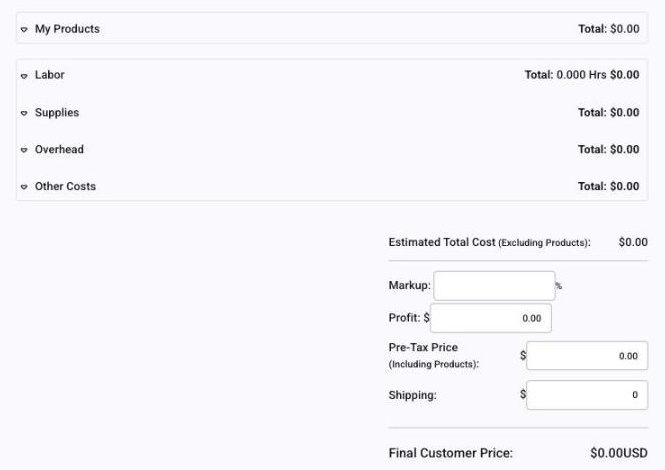
Estimated Total Cost (Excluding Products) adds up the costs you entered by hand; your catalog products aren't in it. Then set your price in whichever way fits how you quote:
- Markup: %: a percentage. A default markup from your settings fills in until you save a profit.
- Profit: $: the dollars you want to make on the job.
- Pre-Tax Price (Including Products): the price before tax, with your catalog products added in. Type a number here when you have a total you need to hit.
Add Shipping if you charge for it. Final Customer Price is what your customer pays.
Things to know
- Itemized orders follow the catalog ladder: Bid, Ordered, Verified, In Progress, Completed, Shipped. If your shop auto-verifies orders, placed itemized orders go straight to Verified too.
- The price recalculates each time you save, until the order ships. After that it's locked.
- Markup is a percentage, not a multiplier. Enter 30 for 30%.