
Almost every case of something missing from, or showing up on, an output page comes down to a Show on checkbox on a part or attribute, or the page's Output Page Type. The fixes below go from most to least common.
Applies to: anyone maintaining part lists and invoices. Needs the Manage Catalog permission.
In this article
- Parts are missing from a part list
- A product shows on a part list though nothing is set to show
- The packing slip or another Invoice page disappeared
- Part data is on the invoice, or a product is not
- Hide a page or an attribute per order
Parts are missing from a part list
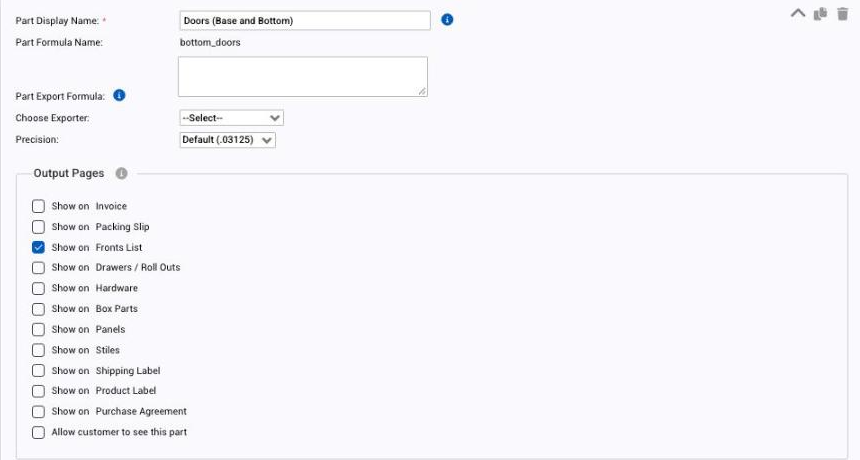
Each part chooses the pages it prints on, so a part that is not ticked for a page does not print there. Two ways to fix it:
- One product at a time. Open the product (Settings > E-commerce > Products), go to the Parts tab, open each part that should print and tick Show on for the page.
- Every part at once. Open the output page and tick Add all existing product parts to display on this output page, then save. This sets every part of every product to show on the page.
Things to know
- Option 2 is a blunt tool. On a page meant for one kind of part, such as stiles and rails, it adds every other part as well. Use it for an All Parts page, not a dedicated cut sheet.
- Attributes work the same way through Add all existing product attributes to display on this output page.
A product shows on a part list though nothing is set to show
Occasionally a product name appears on a page even though none of its attributes or parts is ticked for it. The workaround is to give the product a part that is explicitly hidden: open the product's Parts tab, add a part, and on its part attribute tick Hide attribute on the output page. That forces the page to leave the product out.
The packing slip or another Invoice page disappeared
If a page that used to show on every order has gone, its Output Page Type was probably changed to Part List. A Part List page only appears when the order has a part set to show on it. Open the page and set the type back to Invoice to show it on every order.
Part data is on the invoice, or a product is not
Open the Invoice page and look at Show parts on this output page.
- If you never want parts on the invoice, untick it.
- If you want some products' parts there, leave it ticked and set at least one part of each of those products to show on the Invoice page.
Hide a page or an attribute per order
A page cannot be switched on and off per order. The nearest thing is the page setting Hide attributes that are zero or empty: any attribute with no value, or a part whose quantity formula returns 0, is left off that page for that order. For attributes that depend on what was selected, use Hide if Selected on the attribute option, described in Format output pages.