
A tag is a label you put on a record to group it with others: a company, a contact, an order, a product. Once a group of companies carries a tag you can give them a discount, show them a product nobody else sees, fire a trigger for them, or filter a list down to them. You create a tag by typing it on a record and ending it with a comma; you see, rename, merge and delete tags at Settings > Utilities > Manage Tags.
Applies to: every shop. Adding, changing or removing tags needs the Manage Tags permission (on for employees by default). On a company it also needs Add/edit companies; on a contact, Add new user / edit other users profiles; on an order, Submit Orders or Create Bids.
In this article
- What you can tag
- What tags do
- Add a tag
- Tag a company
- See every tag
- Rename, merge or delete a tag
- Things to know
What you can tag
Tags can exist on:
- Companies (customers, vendors and others) and company contacts
- Individual accounts
- Orders
- Products, components and supplies
- B2B products (items you resell from a partner's catalog)
- Part lists, as Tags For Resource Allocation
- Employees, for time and payroll filters
Each kind of record has its own tags: a company tag says nothing about that company's orders.
What tags do
Use tags to:
- Adjust pricing. A price adjustment with Company set to Use Tags gives a discount or surcharge to every company carrying the tag, and only to their orders. See Price adjustments.
- Provide exclusivity. Set Company Exclusive to Use Tags on a single product or on a whole category so only companies with that tag see it. See Guide: Categories in Allmoxy.
- Show or hide options. An option on a select attribute can be shown only to companies with certain tags. See Show attribute options by company tag.
- Fire a trigger. A trigger can target companies with chosen tags, send to contacts with chosen tags, test order and product tags as a condition, and add or remove tags as its action. See Intro to triggers.
- Filter lists and reports. The Companies list filters by company tags (any, all or none of the tags you pick); Company Contacts by contact and company tags; orders and products by their own tags. It is a filter rather than a sort.
The whole picture is on Prices and products for each customer group.
Add a tag
A tag comes into being the first time you type it on a record.
- Open the record (a company, contact, order or product), click Edit and find the Tags section. On a company the Tags box is also in the sidebar of its page.
- Type an existing tag and select it, or type a new name and end it with a comma; the comma is what creates the tag.
- Save if you are on the edit form. In the sidebar box a green banner confirms that the tag was added or removed.
Keep one spelling: "Dealer" and "dealers" are two different tags.
Tag a company
- Go to Contacts > Companies and open the company (or hover over the company's name in the list and select Tags for a quick edit).
- Edit the Tags box in the sidebar of the company's page, or click Edit and use the Tags section on the form.
- Type an existing tag or a new one followed by a comma. The green banner confirms the change.
Now you can filter the Companies list by that tag, aim pricing or an exclusive product at it, and build triggers that use it. To tag every new sign-up automatically, use a trigger with the Add Tags action; see Review new sign-ups and keep fake accounts out.
See every tag
There is no report of tags, but one page lists them all: Settings > Utilities > Manage Tags (titled Tag Management). Its drop-downs and its All Existing Tags list show every tag on your site.
To see the tags in use on one kind of record, use the sidebar filter of that list: the Companies list for company tags, the orders list for order tags, the products list for product tags. The "more tags" arrow in the filter shows every existing tag for that list.
Rename, merge or delete a tag
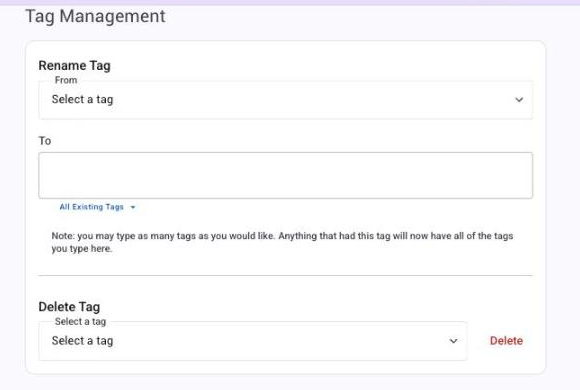
- Go to Settings > Utilities > Manage Tags.
- To rename a tag, pick it under Rename Tag in From, type the new name in To and save. Every record that carried the old name now carries the new one.
- To merge two tags, rename one to the name of an existing tag. Its records move to the existing tag and the old tag is deleted.
- To split a tag, type several names separated by commas: every record that had the old tag gets each new one.
- To delete a tag, pick it under Delete Tag and click Delete. Allmoxy asks "Are you sure" first, because the tag is removed from every record at once.
Before you rename or delete a tag, check what uses it. Tags start triggers: make sure the tag isn't attached to the triggers that keep your day running. The same goes for price adjustments, customer-only products and categories, option visibility, and time and payroll filters.
Things to know
- The comma matters. A new name typed without the comma isn't created. If a tag you "added" isn't there, that is usually why.
- Pricing and exclusivity read the company, not the person. A tag on a contact doesn't change their prices; tag the company (or, for an individual account, the account itself).
- Deleting is wide-reaching. It removes the tag from every record at once, with no undo. Rename or merge instead when you can.