
Your terms and conditions are the agreement between you and your customers. You write them on Settings > E-commerce > Order Settings, in the Terms And Conditions box near the bottom of the page. Allmoxy starts you with a generic template; read it through, put your company name where it says to, and make it your own. Customers can read your terms from the order page, and a setting right above the box decides whether they have to agree to them every time they submit an order.
Applies to: every shop. Editing Order Settings needs the Edit the site settings. permission.
In this article
Write or edit your terms
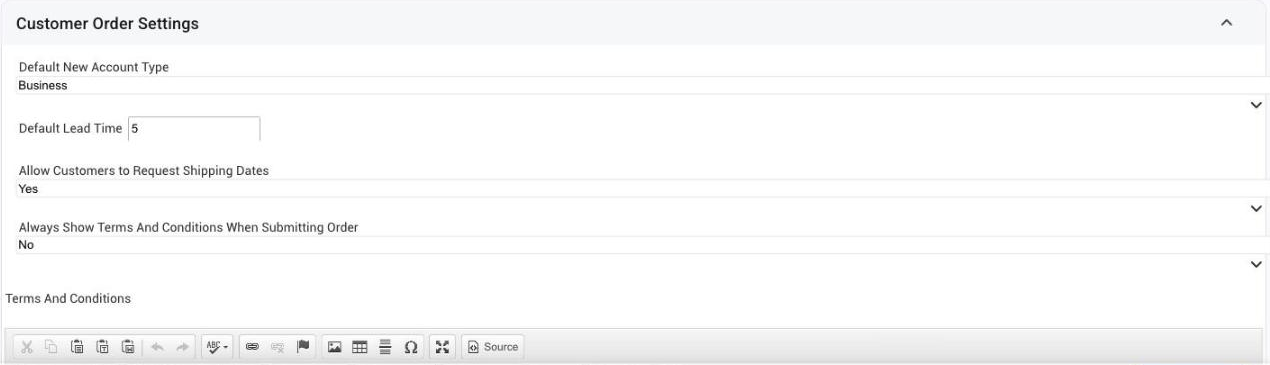
- Click the gear icon and open E-commerce > Order Settings.
- Scroll to the Customer Order Settings section near the bottom. The Terms And Conditions box holds your terms.
- You're welcome to use what's there by default, but read through it and edit it as needed. The template is generic: it says "Insert your company name here" in several places, so add your own company name wherever you see that, and change anything that doesn't match how you do business.
- Click Save Changes.
The box is a rich text editor, so you can use headings, bold and lists. Keep a copy of your text somewhere safe before a big rewrite.
Every order, or not?
Right above the box is Always Show Terms And Conditions When Submitting Order.
- No: customers can read your terms from the order page whenever they like, and aren't made to agree to them on each order.
- Yes: every time a customer submits an order, your terms open and they must click I agree to these terms before the order goes through. (A customer whose payment term makes them pay to place the order goes to payment instead.)
Pick Yes if your terms carry things customers must confirm on every job, such as a remake policy or a measurement responsibility.
Where customers see them
- On the order page. Next to the Submit Order button is a line, "By submitting this order you agree to our" terms; the link opens your terms in a dialog. With Always Show set to Yes, the same dialog is the agreement step before the order is placed.
- On the public order form, if you use public ordering, in the same place.
- At sign-up and first sign-in, the customer agrees to the terms of using your site. The Terms and Conditions entry in the avatar menu shows Allmoxy's standard site terms, which name your shop and Allmoxy LLC together; those are a separate document from the order terms you write here.
Things to know
- Order Settings is the place. Settings > E-commerce > Order Settings, near the bottom.
- The template is generic. Search it for "company name" and replace every one.
- Yes means every order. Customers click I agree to these terms before each submission.
- Two documents. Allmoxy's site terms (in the avatar menu) and your order terms (on Order Settings) are different texts.