
An employee in Allmoxy is a contact at your own company. Add them from Add > Company Contacts, pick your company, give them a username and a password (or let Allmoxy generate one), and tick Allow this person to log in. Set their permissions before they first sign in, and set their hourly wage or weekly salary if they will clock in. When someone leaves, set them Inactive rather than deleting them. This article walks through each step and what to check afterwards.
Applies to: shops adding or removing staff. Adding a contact needs Add new user / edit other users profiles; setting a username and password needs Change username; wages need View/modify private data; the permission boxes need Modify permissions. An administrator has all of these.
In this article
- Add the employee
- Set up their login
- Employee Information: wages and time cards
- Set their permissions
- Check it worked
- Edit many employees at once
- When someone leaves
- Things to know
Add the employee
- Click Add in the top bar and choose Company Contacts (or go to Contacts > Company Contacts and click Add Contact).
- In the company field, choose your own company. That is what makes the person an employee: everyone at your company is staff, everyone at any other company is a customer, vendor or other contact.
- Enter their first and last name, their email address and their job title. The email must not belong to another contact in your shop (including an inactive one or an individual account); if it does, you'll see "Email is already taken".
- Fill in the sections below, then click Submit (or Submit and Edit Next to add another).
Set up their login
In the User Account section:
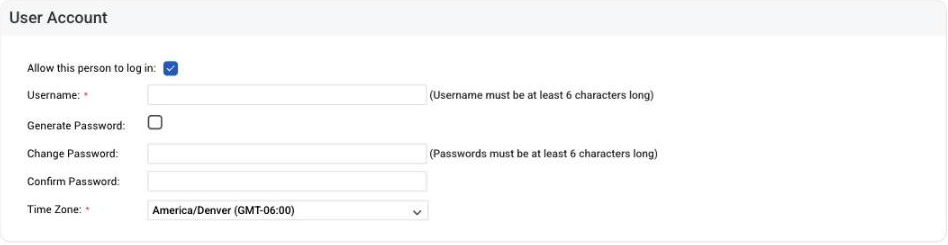
- Tick Allow this person to log in.
- Enter a Username of at least 6 characters that nobody else in your shop uses.
- Enter a password of at least 6 characters in Change Password and again in Confirm Password, or tick Generate Password to have one made for them.
- Choose their Time Zone.
When a new contact has both an email address and a username, Allmoxy sends them a sign-up email so they can sign in. They can sign in with either their username or their email. The first time they sign in they may be asked to choose a password of their own; that is expected and happens once.
Give every employee their own login. Time cards, job clocks, notes and the activity log all record who did what, and that only works when people don't share a login.
Employee Information: wages and time cards
Once the contact is saved, open their page and click Edit: the Employee Information section holds the Hourly Wage or Weekly Salary. Only people with View/modify private data see it. One of the two is needed before the person's Clock In button works, so fill it in now if they will use time cards. How time tracking fits together, pay periods and the time card report: Time cards and job time: set up time tracking.
Set their permissions
If you have Modify permissions, the permission boxes appear lower on the same form, grouped as Miscellaneous, Orders, Reports, Integrations and Notifications (and Operator on shops that have it). Each box is Allow (tick), Deny (cross) or blank, meaning the person gets whatever your company's setting gives every employee. Set the boxes before the person first signs in, so they see the right things from the start.
What each permission does, and how the company-wide baseline and per-person exceptions fit together: Employee permissions: what each one does.
Check it worked
Ask the new employee to sign in and open the pages you expect them to use. If a page says "You do not have access to this function", a permission is missing: Someone can't sign in, or keeps being asked to sign in. An administrator can also open the person's contact page and click Hijack to see the app exactly as they do (the Hijack is recorded; log out to return to yourself).
Edit many employees at once
Contacts > Contact Updater shows your contacts in one grid where you can change names, job titles, emails, usernames, status, hourly wage and weekly salary for many people at once (it can delete too, but that skips the history check below, so use Inactive instead). It needs Add new user / edit other users profiles. The administrator account (contact #1) can only be edited by an administrator.
When someone leaves
Open their contact page, click Edit, set their status to Inactive and save (turning off Allow this person to log in has the same effect on their login). They are signed out on their next page. If they were clocked in, they are clocked out and any open job clocks are ended, so their last time card closes cleanly.
Don't delete. Deleting is refused for anyone who has orders, notes, tasks, announcements or time clock entries, which is almost every former employee, and an inactive contact keeps their history attached to the right name. If you ever need them back, set them to Active again.
Things to know
- Your company is what makes them staff. A contact at any other company is a customer or vendor contact, whatever their job title says.
- Username: 6 characters or more, unused. Email: not used by any other contact.
- The sign-up email goes out only when both email and username are set. Add the username later and no email is sent; tell them their details yourself.
- Wage or salary before Clock In. Without one the Clock In button stays gray.
- Set permissions before the first sign-in. Blank boxes inherit your company's baseline.
- Inactive, not deleted, when someone leaves.