
Allmoxy and Cabinet Vision work together in both directions. Going out, a Cabinet Vision exporter writes each order as a plain text .ord file that Cabinet Vision imports and sends to your CNC; newer template shops already have it, and the file waits under Send To on every order. Coming in, a Cabinet Vision .ordx goes through the Importer, and a CSV cut list goes through Import Order (Legacy). This article covers the setup on the Allmoxy side, where to find the file, how to test it, the free Cabinet Vision catalog packages built to match Allmoxy's template catalog, and who can help you build it out.
Applies to: catalog shops (not project-only shops) that run Cabinet Vision. The Exporters page needs the Manage Supply Locations permission, and a product's part export formula needs Manage Catalog. Bringing an order in needs the Importer turned on for your shop.
In this article
- Who does what
- Set up the Cabinet Vision exporter
- Check each product's export formula
- Download the .ord file from an order and test it
- Bring a Cabinet Vision order into Allmoxy
- Cabinet Vision catalog packages (downloads)
- Get help building it
- Things to know
Who does what
Allmoxy specializes as the interface between you and your customers through the web: the front-facing catalog where customers and employees design, place orders, pay bills and manage their own accounts. Cabinet Vision specializes as the technical interface between your office and your CNC machines, and is the better tool for sending construction details to the machine. The two overlap in places, but in short, Allmoxy does not produce CNC machine code (it does provide almost unlimited configurable data exports), and Cabinet Vision does not give you customer-facing tools, especially web-based ones.
So use Allmoxy as the origin of the order. Allmoxy then exports a specially created Cabinet Vision file, and in a couple of clicks Cabinet Vision has all the data it needs to import the order and send it out to the CNC machine.
Set up the Cabinet Vision exporter
An exporter is a file definition: the name, the format and extension, and an optional header and footer. For Cabinet Vision the exporter writes plain text with a .ord extension, which is the file type Cabinet Vision imports.
- Go to Settings > Operations > Exporters (the page is titled Export Locations).
- If you have a newer template, this step has been done for you: you will see a Cabinet Vision ORD exporter already in the list (newer templates also include a Cabinet Vision ORDX one). You can still make tweaks to how the information is organized here.
- If it isn't there, click Add Exporter, name it (for example "Cabinet Vision ORD"), set the Data Format to Plain Text and the File Extension to ord, and save.
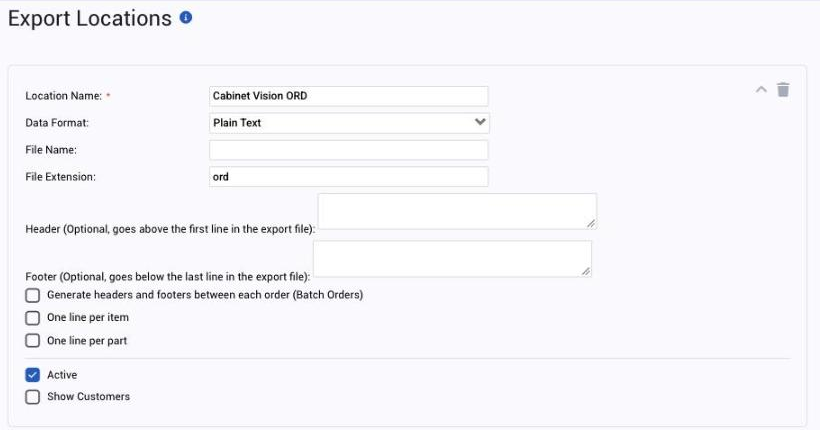
The fields on the exporter, and the header and footer, are explained on Exporters: send part data to your machines and software.
Check each product's export formula
The exporter only names the file. What goes into it comes from each product: a part on the product whose export formula writes that product's line, using the part's and the order's variables.
- Open a product (Settings > E-commerce > Products) and go to its Parts tab.
- If you are a newer instance, we've helped you out: the template includes an "(Exporter) Cabinet Vision ORD" part with a standard formula on each product. Open it, review the data being exported for that product, and make tweaks as necessary.
- If you're creating a Cabinet Vision part on a product that isn't in our template, add the part, write its export formula, and make sure you select the Cabinet Vision exporter in the Choose Exporter dropdown. Without that, the line goes nowhere.
How to write the formula, with examples, is on Exporters: send part data to your machines and software.
Download the .ord file from an order and test it
Test it out on a real order before you rely on it.
- Go to Orders and open an order that contains the product you want to test.
- Click any of the order's output page tabs, such as Invoice. The exports do not show on the order editing page, only on the output pages.
- In the Send To panel on the left, click Export Data For: (Cabinet Vision). The file downloads in .ord format to wherever your browser saves downloads.
- Open it in Cabinet Vision, review the import, and make tweaks to the formulas as needed.
If there is no link for the exporter, none of the order's parts has a formula pointed at it. See Find and save an export file for the download steps and how to send the file straight to a network folder.
Want to see it before you build it? Our demo site, demo.allmoxy.com, has a Cabinet Vision export set up; ask your Customer Success Manager for a walk-through.
Bring a Cabinet Vision order into Allmoxy
The other direction needs no exporter.
- An .ordx order file from Cabinet Vision goes through the Importer (Orders > Importer). Upload it, confirm the product and attribute matches, and Allmoxy creates the order. Steps: Import an order from a design file with the Importer.
- A CSV cut list exported from Cabinet Vision still goes through Orders > Import Order (Legacy), which reads a CSV built to your catalog's template. Steps: Import an order from a CSV file (Import Order Legacy).
Cabinet Vision catalog packages (downloads)
If you are building your Cabinet Vision catalog to match Allmoxy's custom cabinet template catalog, we offer a Cabinet Vision package as a starting point. The file is not perfect and does not match your exact methods, processes or procedures. Think of it as a great starting point and a massive time saver from having to create the entire catalog from scratch. It's free, and any feedback on improvements is much appreciated and accepted; the file will be updated over time to create a more accurate and seamless integration.
- Allmoxy templates pre Aug 18 2021: Download Master Custom.pkg
- Allmoxy templates post Aug 18 2021: Download Allmoxy Master Custom.pkg
- Cabinet Vision PKG file (ONLY Version 2021): Download Allmoxy.pkg
Pick the package that matches when your Allmoxy template was set up and the Cabinet Vision version you run, then import the .pkg in Cabinet Vision the way you would any other package. Expect to adjust it to your own construction methods afterward.
Get help building it
Allmoxy does not perform in-house integrations with third-party software such as Cabinet Vision: we will not touch the settings inside your Cabinet Vision software. We will, however, help you configure the Allmoxy side. Our implementation team can build or tune a Cabinet Vision exporter with you (send a sample .ord that Cabinet Vision produced, and we work backward from it); ask your Customer Success Manager. See Export files for nesting and design software.
Want someone to build out your Cabinet Vision export for you, on both sides? Reach out to one of our service providers. These are industry professionals who are also extremely skilled in Allmoxy, and we are happy to introduce you. You can find their contact information and areas of expertise at allmoxy.com/services-providers.
Things to know
- Allmoxy writes the file, not the machine code. Cabinet Vision imports the .ord and drives the CNC.
- The exporter lives at Settings > Operations > Exporters and needs Manage Supply Locations; each product's export formula needs Manage Catalog.
- The file is only on output pages, under Send To > Export Data For. It never shows on the order editing page.
- Project-only shops can't use exporters. The Exporters page is not available there.
- .ordx comes in through the Importer; CSV goes through Import Order (Legacy). The Importer does not read CSV.
- The catalog packages are a starting point, free, and matched to Allmoxy's template catalog, not to your shop's methods.