
Import Order (Legacy) turns a CSV file of order lines into a new order: each row names a product and its options, and Allmoxy fills in an unsaved order for you to check and save. For design files, such as Cabinet Vision exports, PDFs or photos, use the newer Importer instead.
Applies to: catalog orders, for employees and customers who can create bids or submit orders. Not available on project-only accounts.
In this article
- Importing design files? Use the Importer
- Before you start
- Build the file
- Put products in folders
- How values are read
- Import the file
- Match fields when your columns differ
- Review and save the order
- Fix common import problems
Importing design files? Use the Importer
The Importer (Orders > Importer) reads design and order files and matches them to your catalog for you. When it's on for your account, this older tool is labeled Import Order (Legacy); otherwise it's just Import Order. See Guide: Import an Order from Almost Any File with the Importer and Import an order from a design file with the Importer.
The CSV import is still the right tool when you, or a customer, have order lines in a spreadsheet, for example an order exported from the customer's own system.
Before you start
- Product names in the file must match the exact name of an active product, or the sale name of a supply you sell.
- Know each product's attributes, in order, and which are group attributes and which are item attributes. See Arrange attributes on a product.
- Review the file before you import it. A missing column or a misspelled option is much easier to fix there.
- Want customers to send orders this way? Build a CSV template in the layout below for the products they order, and share it with them to fill in and import.
- Want help building the file? Allmoxy's implementation services can set up import files with you. Contact Allmoxy support to ask.
Build the file
Without matching (see below), every row follows a fixed layout:
- The product name (or the supply's sale name).
- One column for each group attribute, in the product's attribute order.
- The quantity.
- One column for each item attribute.
Hidden attributes still need their column, even though their value is ignored. A header row isn't needed; if you include one, it shows one harmless "not a valid product or supply" message.
For example, if a Shaker Door product has the group attributes Wood Type and Finish and the item attributes Width and Height:
Shaker Door,Alder,Pre-Cat Finish,2,15 1/2,30
Shaker Door,Alder,Pre-Cat Finish,4,18,30
Both rows share their group answers, so they become one line on the order with two items. Rows that are identical in every column merge into one, and their quantities add up.
Columns are counted, not named. A missing or extra column shifts every value after it, including the quantity. If your file's columns don't follow this layout, use Match fields instead of reordering them.
Put products in folders
To sort lines into folders (Kitchen, Pantry, Island), add a folder column first and keep the product name right after it:
Kitchen,Shaker Door,Alder,Pre-Cat Finish,2,15 1/2,30
Pantry,Shaker Door,Alder,Pre-Cat Finish,4,18,30
Then tick Using Folders when you upload. The folders named in the file are created on the order.
How values are read
| Attribute type | What to put in the cell |
|---|---|
| Dropdown | The option's name. Capitals don't matter, but the spelling does, and the option must be available on that product. A value that doesn't match is left blank, with no message. |
| Yes/no | yes, 1 or true turns it on. Anything else, such as 0, turns it off. |
| Number | A number. Fractions such as 15 1/2 are converted to decimals, and inches and millimeters are converted if the customer's default units differ. |
| Text | Copied as is. |
| Hidden | Needs a column; the value is ignored. |
| Supply | Only the quantity is read. |
Import the file
- Go to Orders > Import Order (Legacy), or Orders > Import Order if you don't have the Importer.
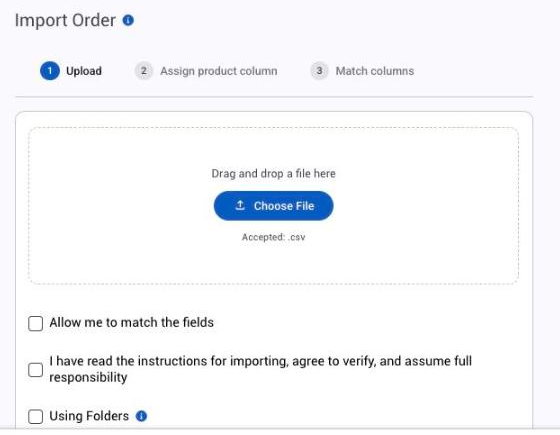
- Drag your CSV file onto the upload area, or choose it. Only CSV files are accepted.
- Tick Allow me to match the fields if your columns don't follow the fixed layout.
- Tick I have read the instructions for importing, agree to verify, and assume full responsibility. It's required.
- Tick Using Folders if your file has a folder column.
- Click Next. The steps along the top are Upload, Assign product column and Match columns.
Match fields when your columns differ
Match fields lets you tell Allmoxy which column is which, so a file whose columns are named or ordered differently still imports. Say the customer's file calls an attribute "edge" and your product calls it "edge profile": you match the two.
- Choose the column that holds the product name (and the folder column, if you're using folders).
- For each product in the file, match each column to an attribute or to Quantity.
- Continue.
Customers matching fields can only import products available to their company.
Review and save the order
The import opens a new order that isn't saved yet. Nothing is stored until you save.
- Check every line. A line showing "-" instead of a price has an option the import left blank; open it and pick the option.
- Save it as a Bid, or click Submit Order to place it.
To throw the import away and start again, use Clear and start over.
Fix common import problems
| What you see | Why | What to do |
|---|---|---|
| "X" is not a valid product or supply. | The name doesn't exactly match an active product or a supply's sale name, or it's your header row. | Fix the name in the file, or use Match fields. A header-row message is harmless. |
| A line is missing options | The value doesn't match an option name, or the option isn't available on that product. | Fix the value in the file and import again, or pick the option on the line. |
| Values landed in the wrong attributes | A column is missing or out of order (hidden attributes still need one). | Add the missing column, or use Match fields. |
| The order shows "-" and stays a Bid | A required option was left blank by the import. | Open the line, pick the option, save. |
| A customer can't place the imported order | They're over their order limit. | See Order limits, credit limits and what your customer owes. |