
The Shipping report at Reports > Production > Shipping is your delivery run sheet: every order whose Ship Date falls in your date range, grouped by shipping method and then by customer, with pieces, address, shipping instructions and the balance due. From it you mark orders shipped with the truck button, see which orders still need payment or have items not yet completed, and export the list as a CSV or PDF. This article covers the report, what to do when an order isn't on it, how to send a customer a tracking number, and how to ship part of an order.
Applies to: catalog, itemized and project orders. Opening the report needs the Shipping Report permission. Customers and individual accounts have it by default and see a reduced version of their own company's orders (see below).
In this article
- What the report shows
- Filter the list
- The icons: ship, payment needed, completion checklist
- Mark an order shipped
- Export the report
- What your customers see
- Can't find an order on the report?
- Send tracking numbers to your customer
- Ship part of an order
- Things to know
What the report shows
The report lists orders by their Ship Date, which is the order's Actual Date in Order Info (the Requested Date is the customer's ask; see Set ship dates, lead times and the production schedule). Orders are grouped by shipping method and then by customer, so a driver can read it stop by stop. Pickup orders (Will Call, or a method set to act as will call) are marked as will call instead of carrying a delivery address.
For each order you see the order number and name, the customer, the shipping address (click it to open it in maps), the shipping instructions typed on the order, the delivery method, the status, the number of pieces, the total, the last labor process completed on it and, for B2B orders, the supplier. Each customer group shows the balance still due on their orders. Summary tiles at the top count the stops in the range, their total value, the orders past due (due before today and not yet shipped, completed or delivered), the average pieces per stop and the total pieces across every shipping method (the tiles are # Stops, Total $, # Past Due, Avg Pieces/Stop and Total Pieces). Total Pieces is in the PDF too. The columns are Ship To, Order #, Order Name, Pieces, Last, Order Status, Delivery, Total, Supplier, Instructions and Shipping Status; Customize lets you choose which show.
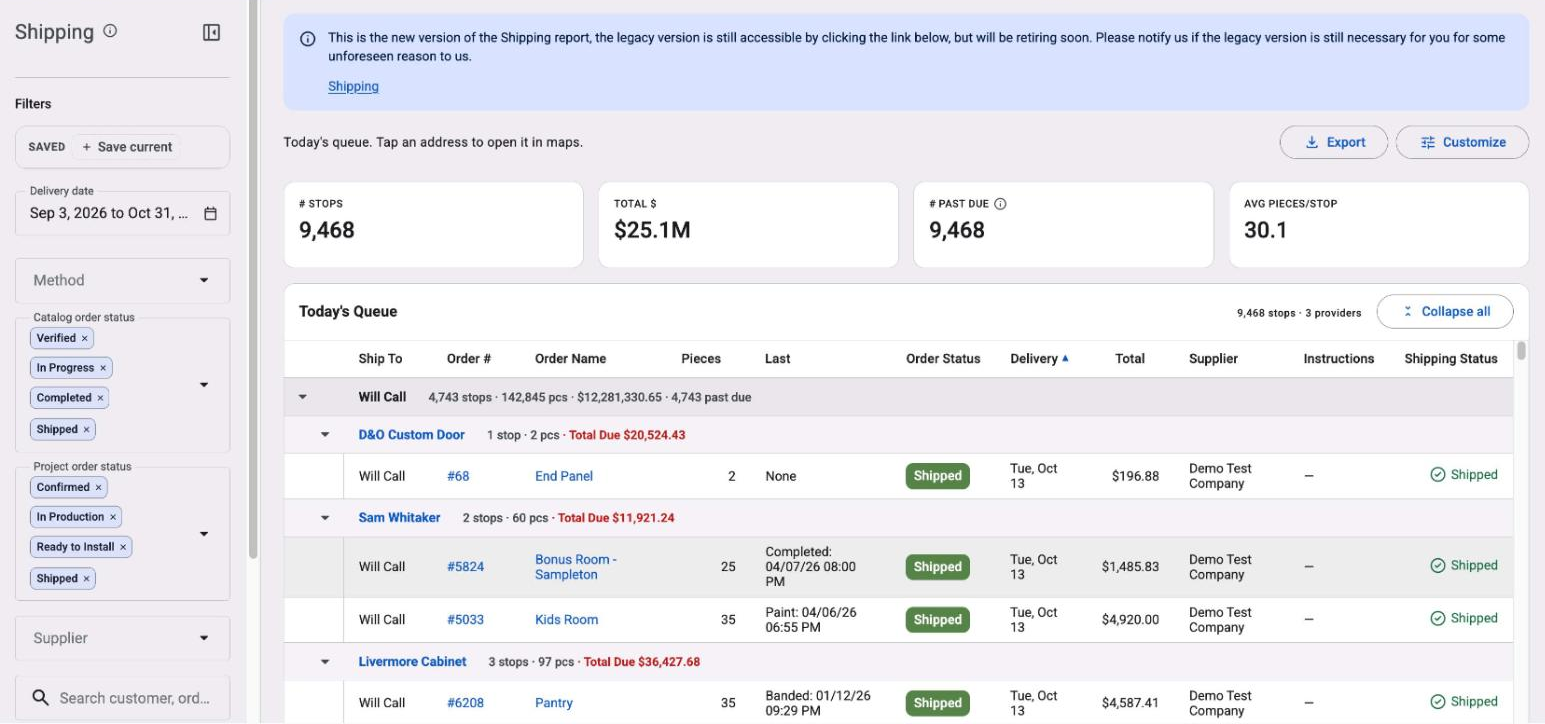
The newer report screen opens by default. The older page is still available from the Shipping link in the notice at the top, and shows the same orders; it is being retired, so tell support if you still rely on it.
Filter the list
The filters sit in the rail beside the table:
- Delivery date: the range of Ship Dates you want to see. It opens on today, so widen it to the day or the week you're loading.
- Method: one or more shipping methods, so you can print a run sheet for your own truck and a separate list for carrier pickups.
- Catalog order status and Project order status: by default the report shows catalog orders that are Verified, In Progress, Completed or Shipped, and project orders that are Confirmed, In Production, Ready to Install or Shipped.
- Supplier: only on B2B orders, when you resell a supplier's products.
- Search customer, order or address: a customer name, an order number or an address.
- Tags: orders with all, any or none of the tags you pick.
- Hide shipped: a switch that takes shipped orders off the list once they're out the door.
A set of filters you use every day can be saved with Save current (under Saved, at the top of the rail) and reopened in one click; Clear all resets the filters.
The icons: ship, payment needed, completion checklist
Use the status column on each order to learn more about where the order stands before you ship it.
- The truck marks the order shipped. Click it, confirm, and the order moves to Shipped. This fires any triggers you've set for that status and also adds the invoice to the Export Invoices Queue.
- The payment-needed notice means payment is still needed to ship this order. It appears if the customer has any orders past due, not just the order on the report, so check the customer's balance before you load the truck.
- The completion checklist notice means some items on the order have not been marked completed. Labor process tracking is required for this information to be accurate. Click it to see the Completion Checklist, which lists the items that haven't been marked completed via the scanning station. If you try to ship an order that hasn't been completed, a popup asks you to confirm that you want to ship it anyway.
Mark an order shipped
- Set the date range and filters so the order is on the list, or type its number in the search box.
- Click the truck on the order's row and confirm.
The order's status becomes Shipped, your Shipped triggers run (a customer email, say), the shipping charge and totals are frozen, and the invoice is stamped with its ship date. That invoice ship date is separate from the Actual Date in Order Info, which stays as you set it. Marking shipped also sends the automatic invoice-shipped email if you use it.
Every other way to mark an order shipped (on the order itself, from a scanning station or a batch), and how to move an order back out of Shipped if you clicked the wrong one, is in Change an order's status.
Export the report
Click Export and choose Export as CSV or Export as PDF. The PDF is the run sheet to hand a driver, and it lists the filters you used, with shipping methods by name, so anyone holding it can see which run it covers. The CSV adds the full addresses and the shipping instructions, so it's the one to open in a spreadsheet or paste into a routing tool.
What your customers see
Customers and individual accounts can open the Shipping report too, because the Shipping Report permission is on for them by default. They see a reduced report of their own company's orders only: no other companies, no last process, and none of the status tools. It's a handy way for a dealer to see what's coming to them this week without asking you.
Can't find an order on the report?
The report uses the order's Actual Date, so an order that isn't where you expect usually has a date outside your range or a filter hiding it.
- Adjust the date filters: back-date if the order should have shipped earlier, forward-date if it should ship later.
- If you're still having trouble, open the order and click the Order Info tab in the sidebar. Note the Actual Date recorded there (that is the shipping date the report uses), then make sure the date filter on your Shipping report includes that date. If the date is wrong, change it there and the order moves to the right day.
- Check the status filter, the method filter and the supplier filter, and switch off Hide shipped if the order has already shipped.
- Type the order number in the search box, or use Ctrl + F in your browser to search the page for it.
Still can't find it? Reach out to Allmoxy support via the chat, with the order number and the Actual Date you see in Order Info.
Send tracking numbers to your customer
Allmoxy doesn't track packages, so a tracking number from your carrier isn't stored anywhere on its own. We recommend doing it with a custom field on the order, printed on the output page you send when the order ships.
- Go to Settings > Operations > Custom Fields and add a new custom field for an Order (For: Order). Name it Tracking Number, note its variable name, and leave Allow Customer to Edit off. You need the Manage Custom Fields permission; see Custom fields.
- Open the output page you send customers when their order has shipped (Settings > E-commerce > Output Pages) and add the field's variable where the tracking number should print. See Output pages.
- Before you mark an order shipped, type the tracking number into the field in Order Info on the order.
- Send it. Either set a trigger on the Shipped status that sends an email with that output page attached (see Intro to triggers), or put the field on your default invoice page so the automatic invoice-shipped email carries it.
The email text itself can't include custom fields; only the output page can. Webhooks do carry the order's custom fields, if you push orders to another system. Customers don't see custom fields on the order page, so the printed page is how the number reaches them.
Ship part of an order
An order has one status and one ship date, so Allmoxy can't ship half of it and keep the rest open. When a part of an order is held up by supplies, you have three ways to handle it:
- Don't start the order until you have all the supplies and can complete the whole thing.
- Split it into two orders. Open the order and use Duplicate This Order (see Edit, duplicate, remake or cancel an order). On one order, delete the products you can't finish yet; on the other, delete the opposite products. Before you place the copy, check its prices, shipping method, addresses and ship dates, then complete and ship each order as its own order when it's ready.
- Keep it as one order and use notes and tags on it to keep track of the fact that you've only shipped half, then mark it shipped once everything has gone.
Things to know
- Shipped is frozen. Once an order is Shipped its shipping charge and totals don't change. To fix something, move it back first: Change an order's status.
- Ship Date is the Actual Date. Change it in Order Info and the order moves on the report. Marking shipped doesn't change it.
- No labels, routes or tracking. The report plans and records shipping; printing labels, planning routes and tracking packages are not available in Allmoxy.
- Pickup orders are on the report too, marked as will call instead of an address, so you can see what is waiting for collection on a given day.