
Every product carries a pricing formula that you write. When a customer fills in the product's attributes on an order, Allmoxy puts those answers into the formula and works out a price for one item, applies any price adjustments that target that customer or product, takes off the order's discount percent, rounds, and multiplies by the quantity. This page walks through that order of operations and when a price changes or freezes.
Applies to: anyone who writes pricing formulas or needs to explain a price. Writing formulas needs the Manage Catalog permission; price adjustments need Manage Financial Settings.
In this article
- The order of operations
- What a formula can use
- When a price is recalculated
- Prices that show "-" or $0
- Things to know
The order of operations
For each item on a product line, Allmoxy works out the price in this order:
- Formula sections. The product's Pricing tab holds one or more named sections. Each is worked out on its own and the results are added together. Comments in
/* */are ignored. - Minimum price. If the total is below the product's Minimum Price, the minimum is used instead. This result is the item's original price.
- Price adjustments. Every active adjustment that targets this customer (or their tags) and this item is worked out on the original price and added: surcharges up, discounts down. See Price adjustments for how several combine.
- Order discount. The order's discount percent (set by someone with Set Order Discounts) comes off the adjusted price.
- Rounding and quantity. A negative result is raised to $0, the price is rounded to the product's Per Item Price Precision, multiplied by the quantity and rounded to cents.
The line prices are added to the supply lines and any profit to give the order price. Tax and shipping are added on top of that.
A price override typed by someone with Manually Edit Orders replaces the computed price for that item. Adjustments and the order discount are not applied to an override.
What a formula can use
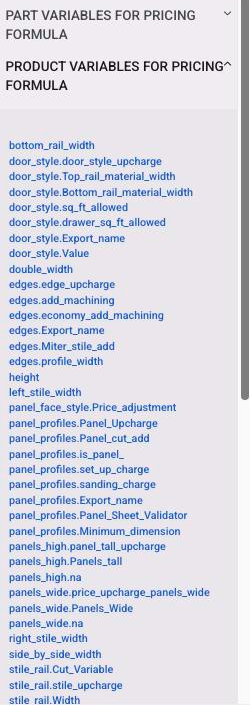
A formula is made of numbers, operators and variables (the sidebar on the Pricing tab lists every one the product can use):
- Attributes by formula name, such as
widthorheight. A checkbox gives 1 or 0. - Option columns on a dropdown attribute, such as
wood_type.price. The value is the column for whichever option the customer picked, with any per-product override taking precedence. - Part values, such as
parts.panel.Width. A part value is one of the part's own part attributes, such as Qty, Width or Length. - Proxy variables, such as
proxyvar.labor_rate, shared formulas written once in Settings. - Quantity, as
quantity.
How to put these together is in Write a pricing formula.
When a price is recalculated
- While editing, every attribute change reprices the line, so the customer sees the price move as they build the order.
- At Bid, lines are repriced every time the order is opened, so a Bid follows your catalog: change a formula, a proxy variable or an adjustment and every open Bid picks it up on its next view.
- Once placed, a line is repriced only when someone changes it. One exception: changing the order's discount percent reprices every line on the order from today's catalog.
- Once shipped, prices are frozen and the discount can't be changed.
- Lines edited on the Order Override page are never repriced again.
So if a Bid total "changed by itself", the catalog changed. Place the order, or set an override, to stop it following the catalog.
Prices that show "-" or $0
- "-" (a broken price). Something in the formula could not be resolved: the customer hasn't chosen an option the formula needs, an option is missing a value in a column the formula reads, a part has no formula, or the result went negative on a product with no minimum price. The order can't be placed until the line is fixed.
- $0 or exactly the minimum price, with no warning. The formula could be read but failed while being calculated: a division by zero, a proxy variable that is missing or broken, or a syntax problem that only appears with real values. The order can be placed, so these are worth catching before customers do.
Test and fix a pricing formula shows how to find the failing piece.
Things to know
- Adjustments are worked out on the original price, not on each other. A 200% surcharge and a 50% discount on a $10 item give $20 + (-$5) = $15.
- "Show on Orders" doesn't change the price. It only controls how much of an adjustment is displayed on the line; the full amount is always charged.
- Hidden options still price. An option that is hidden or unavailable on a product still returns its column values to formulas, so a default hidden option can carry a price.
- Precision is per product. Set Per Item Price Precision on the Pricing tab; parts round to their own precision.