
When a report shows nothing, or not the order you expected, the cause is almost always one of a handful of things: you don't hold that report's permission, the dates are wrong (reports remember your last filters, and some open on today only), the report filters on a different date than you think, a status or type box is unticked, or, for the Work Schedule, the order isn't Verified or has already been started. Work down the list in order; each section says what you'll see, why, and what to do. The last section says what to send us if none of it fits.
Applies to: anyone who runs reports. Permission changes need an administrator: Add an employee and set up their login.
In this article
- The report isn't in the menu, or says you don't have access
- The report is empty or short: check the dates
- The report is empty or short: check the status and type boxes
- An order isn't on the Work Schedule
- A specific order or row is missing from another report
- The wrong version opens, or the new one won't load
- The export fails, is empty or doesn't match the screen
- Still stuck? What to send support
- Things to know
The report isn't in the menu, or says you don't have access
A report appears in the Reports menu only for people who hold View reports and that report's own permission (Order Report, View Aging Report, Shipping Report and so on). If a report you used to see is gone, or opening one says "You do not have access to this function" or "No access to" the report, ask your administrator to grant the report's permission on your contact. Two special cases: Email Logs needs View Email Logs and View other companies together (the menu shows it with either, so you can see the entry and still be refused), and Resource Allocation and Time Tracking are for employees only.
On a shop that runs project orders only, six reports are locked and say so when you open them: Sales by Attribute, Customer Product History, Products by Status, Remakes, Sales by Product and Sales by Product and Attribute. That is expected.
The report is empty or short: check the dates
Reports remember the filters you used last time, so a report can open on a date range from weeks ago and look empty. In the new version, click Clear all at the top of the filter panel; in the previous version, set the dates again (the report reloads by itself; a few reports have a Submit button to press).
Several reports open on today only in the previous version, which is the usual reason they look empty: Activity Logs, Status History, Sales by Export Class, Remakes, Supply Movement, Notes Per Employee, Production, Schedule Capacity, Trigger Call Log and Installation. Widen the range.
Then check which date the report filters on: the label above the date pickers says. A sale is dated by its Charge Date (when the invoice reached the charge status of the customer's payment term), not its order or ship date, so an order shipped on the 30th and charged on the 2nd is in next month's sales. Status History uses the day an order reached a status; Shipping and Projection use the scheduled ship date; the Orders report lets you choose. The full key is in Guide: Reports in Allmoxy.
The report is empty or short: check the status and type boxes
Several reports start with a box unticked or a choice unmade, and show nothing, or less than you expect, until you set it:
- Invoices (previous version): the Orders type starts unticked, so order invoices are hidden until you tick Orders.
- Orders: only the Ordered status is ticked to start; tick Verified, In Progress and Shipped for the rest.
- Status Volume: Shipped is ticked to start.
- Sales Tax: nothing shows until you tick at least one tax code.
- Sales by Attribute and Sales by Product and Attribute: pick the attribute first.
- Remote Receipts: pick the supplier first.
- Work Schedule: pick the production line first (the previous version shows nothing until you do).
- Products by Status: Ordered, Verified and In Progress are ticked to start.
An order isn't on the Work Schedule
The Work Schedule is the queue of work that is ready to build, so it lists only orders at Verified: that keeps jobs your company hasn't approved off the shop floor. If an order hasn't been verified, by an employee or by your shop's auto-verify, it won't be in this queue; check its status on the order.
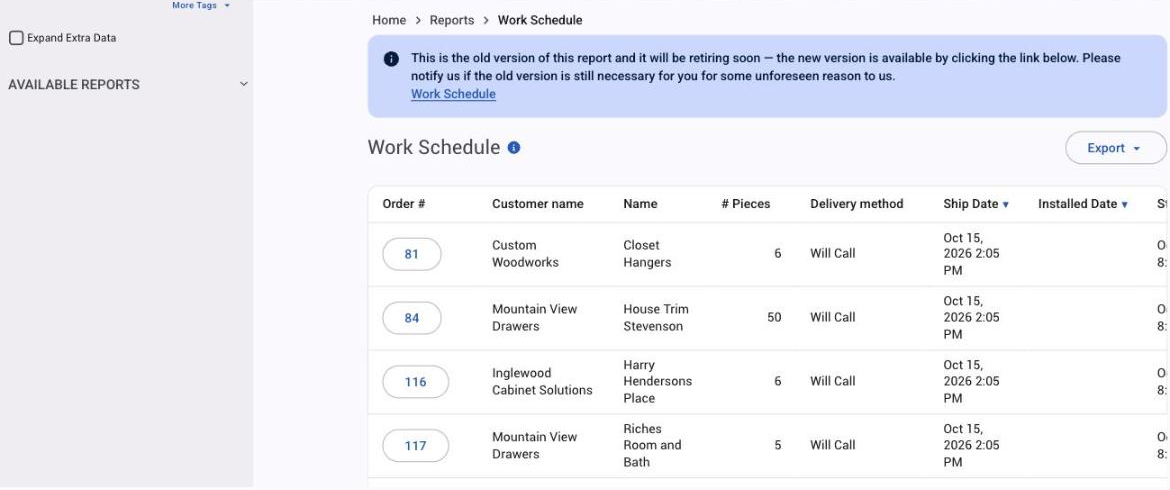
Three more reasons an order you expect isn't there:
- It was started. Start Job (or clocking time to it) moves the order, or that production line's part of it, to In Progress, and it leaves the Work Schedule. Find it on the order list or the Orders report instead.
- It is on another production line. The Work Schedule shows one line at a time. If you have several production lines, use the production line filter in the side panel to change lines and check for your order in each one.
- It is outside the dates (new version), which open on today through the next 30 days by line start date; widen them or switch the date to Delivery.
To confirm an order is there, press Ctrl+F (Cmd+F on a Mac) and type the order number, or use the search box in the new version. What verifying and Start Job do to an order: Change an order's status; lead times and the schedule: Set ship dates, lead times and the production schedule.
A specific order or row is missing from another report
- Aging leaves out inactive companies, void invoices, and orders at Bid, Void or On Hold.
- Average Payment Days leaves out invoices with no payment at all.
- Invoices never shows void invoices.
- Orders on Ordered date never shows bids; on Shipped date a bid with no desired or actual date may be missing.
- Allocated Supplies drops orders that have no invoice yet, and counts only Ordered, Verified, In Progress and On Hold.
- Work Summary counts only time clocks that fall fully inside the date range and skips orders with none.
- Customers see only their own company's rows on every report.
The wrong version opens, or the new one won't load
- You see the previous version with a blue notice. You signed in with the older password login, or you just changed a filter in the previous version. Click the report's name in the notice to open the new version, or sign out and sign in with the Allmoxy sign-in.
- You see the previous version and no notice. Your shop doesn't have the new reports, or you are signed in as a customer; customers always see the previous version. Nothing to fix.
- The new version is stuck on Loading, or shows a bare link. The new report didn't load. Click the link to open it directly, and tell support which report and when; the previous version keeps working meanwhile.
- The new version shows a sign-in page. Sign out and sign in again with the Allmoxy sign-in; if it keeps happening right after a fresh sign-in, tell support.
The export fails, is empty or doesn't match the screen
- Too large. The new version refuses an export with too many rows; narrow the dates or split the range.
- Nothing to export. No rows match the filters; in the previous version an empty export just shows the page. Check the dates and boxes above.
- The CSV has columns you hid, or in a different order: in the new version the CSV keeps the report's standard columns on purpose. Hide columns to tidy the screen; the file stays the same.
- The CSV doesn't match the filters (previous version): the export uses the last filters you submitted. Wait for the report to reload after a change, or press Submit where there is one, then export again.
- The report times out on a long date range: split it into months.
More on exports: Export a report to CSV or PDF.
Still stuck? What to send support
Open the support chat and tell us the report's name, the filters and dates you set (a screenshot of the filter panel is ideal), whether you are seeing the new or the previous version, and the order number or row you expected to see. With that we can usually tell you in one reply whether it is a permission, a date, a filter or something for our developers.
Things to know
- Two permissions per report. View reports plus the report's own. Email Logs needs two of its own.
- Filters are remembered. Clear all before you decide the data is missing.
- Many reports open on today only in the previous version.
- The date label is the key. Charge Date, Status Date and Ship Date are different days for the same order.
- The Work Schedule shows Verified orders for one line. Started orders leave it.
- Customers always see the previous version, and only their own company.