
A webhook is a trigger action: when the event you choose happens, Allmoxy sends that event's data to a web address you give it, once, as it happens. Using the webhook (web request) option you can build triggers that send web requests to external systems, so you can automate processes, receive instant notifications and keep your systems in sync, all from the familiar Triggers page. This article covers when a webhook is the right tool (and when Zapier or the API is), how to set up the Send web request (Webhook) action field by field, what the request contains, and how to check that it arrived.
Applies to: every Allmoxy site and every order type. Building the trigger needs the Add/edit site triggers permission; reading the Trigger Call Log needs the Trigger History permission. You also need a web address that accepts the request, from the app you are connecting or from your own system.
In this article
- The short version
- Webhook, Zapier or the API?
- Set up the Send web request (Webhook) action field by field
- What the request contains for order events
- What it contains for other events
- Three example uses
- Check delivery in the Trigger Call Log
- Things to know
The short version
If you have built triggers before, here is the whole thing:
- Go to Settings > Operations > Triggers and build a trigger as normal: pick the event, the target and any extra conditions.
- In the action section, select Send web request (Webhook).
- Copy the webhook address from the app you are syncing and paste it into Endpoint URL.
- Open Advanced Options if you need to change the HTTP Method, Content type or Headers, set Active to Yes and click Save.
The rest of this article explains each of those fields, what the request carries, and how to see whether it was delivered.
Webhook, Zapier or the API?
If you don't write code, webhooks might seem confusing, but the idea is simple. A webhook is an HTTP callback: one system calls a web address on another system to tell it something happened, and sends the details along. It is the easiest way to automate tasks across systems without manual work.
Allmoxy has three ways to get its data into other systems, and each suits a different job.
- A webhook pushes data out of Allmoxy the moment an event happens, to any web address you give it. It is a trigger action, so it works for every event a trigger can listen for and needs no developer. Allmoxy only sends; it does not read anything back from the other system.
- Zapier is for apps that live in Zapier. The Allmoxy app in Zapier receives a fixed set of moments (new companies and contacts, sign-ups, order status changes, invoices, payments recorded by hand, tags and clock events) and your Zaps pass them on. See Connect Allmoxy to Zapier and build your first Zap and Zapier triggers and the data each one sends.
- The API provides a comprehensive set of tools for interacting with Allmoxy programmatically. Use it when you want to retrieve or manipulate data on demand, which will require the work of a developer. See Set up API access: Client ID, contact keys and test tokens.
Think of the API as a way to actively pull data from Allmoxy, and webhooks as the way Allmoxy notifies you whenever something significant happens. Combining the two gives you the best of both worlds: the ability to retrieve data when needed and the power to receive updates automatically. Choose a webhook when the receiving app gives you a web address to post to, when the event you need isn't one Zapier gets, or when you want the full order record rather than Zapier's summary.
Set up the Send web request (Webhook) action field by field
- Build the trigger as usual at Settings > Operations > Triggers: name it, pick the event and its condition, choose the target (all companies, one company or company tags) and add extra conditions if the event allows them. The steps are in How triggers work and how to build one, and the events in Trigger events, conditions and message variables: reference.
- In the action section, select Send web request (Webhook).
- Endpoint URL: paste the webhook address from the app you are syncing. Most apps call it an incoming webhook or a catch hook; your own system would give you the address of the page or endpoint that should receive the data. Use an address that starts with https so the data travels encrypted.
- HTTP Method (under Advanced Options): POST or GET. POST sends the fields in the body of the request, which is what nearly every receiving app expects. GET sends the same fields as the query string on the end of the address; use it only if the receiver asks for it.
- Content type (under Advanced Options): application/json or application/x-www-form-urlencoded. JSON keeps the nested fields nested (an order's items stay as a list of products with their lines), and any JSON parser reads it back as is. A form body flattens them into names like items[products][0][product_id]. If the receiving app gives you the choice, pick JSON.
- Headers (Optional) (under Advanced Options): click Add and type a Name and a Value for anything the receiver needs in the request itself, such as an authorization token. Each header is sent exactly as typed, one name and one value. This is also where you put a secret of your own (see Things to know).
- Set Active to Yes and click Save.
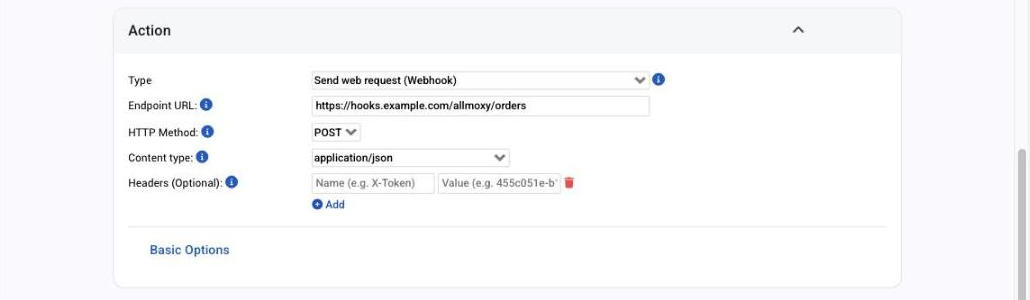
There is nothing else to fill in: Allmoxy decides which fields to send from the event you picked, and sends all of them every time.
What the request contains for order events
Every webhook carries the event's message variables, named without their braces ({order_num} arrives as order_num), plus instance_url and instance_company_name (your site address and your company name), plus tags, the names of the record's own tags. Keys arrive sorted alphabetically.
Order events carry the most: Order Status Changes To, Remake Status Changes To, Ship Date Modified, Order Past Due By and Second Payment Due send the full order. On top of the variables (order number and name, status, totals, ship dates, the shipping address block, the contact and the company's primary contact) you get:
- Product information: items, the order's products with their group data, each line item with its quantity and chosen option names, the order's supplies, and product and supply counts. Lines bought from a B2B supplier site add a directory field.
- Money: total, subtotal, tax, gst, pst, shipping, paid, b2b_subtotal and b2b_shipping.
- Dates: invoice_date, charge_date, ship_date, due_date and entered_date (in UTC).
- Order details: tax_code, exported, shipping_method_id, shipping_method_name and is_remake.
- The customer company's limits: credit_limit, build_limit, grace_period, custom_tax_rate and pst_exempt.
- order_custom_fields, each with its variable name, label and value, when the order has any. See Custom fields.
- Company-level tags and addresses (company_tags, company_addresses) and the order contact's tags and addresses (contact_tags, contact_addresses), and in tags the order's own tags. See Tags in Allmoxy.
A trimmed JSON sample, with invented values and real field names:
{
  "company_name": "Maple Ridge Cabinets",
  "company_tags": ["Wholesale"],
  "job_status": "verified",
  "order_num": "10428",
  "order_name": "Henderson Kitchen",
  "order_total": "1,284.50",
  "total": 1284.5,
  "delivery_date": "10/02/2026",
  "requested_ship_date": "10/02/2026",
  "items": {"products": [{"product_name": "Shaker Door", "items": [{"qty": "4", "data": {"Width": "15.5", "Height": "30"}}]}]},
  "order_custom_fields": [{"variable_name": "po_number", "name": "PO Number", "value": "MR-5518"}],
  "tags": ["Rush"]
}
Two order-related events send a little less. Output Page Signed sends the signed order's items, dates, custom fields and limits, plus the signer's name and the signature date and time, but not the raw totals or the company tags (use order_total). Order Process Started and Order Process Ended send the order variables (number, name, status, total, ship dates, shipping address, process name) with the clocked employee's tags and addresses, but no items or raw totals.
What it contains for other events
Events that are not about an order carry their own variables and no product information:
- New Company Created: company name, ID, email, phone numbers, the first contact's name, email and phone numbers by type, company_addresses and the company's tags.
- New Company Contact Created and New Individual Created: the contact's name, ID, email, addresses and phone numbers by type, contact_addresses, plus company_tags and company_addresses.
- Payment Made: amount_paid, the invoice numbers paid (invoiceids as text, invoices as a list), the company and the contact, with their tags and addresses.
- Note Created On: the note text, what it belongs to, and the company, order, product or supply fields that apply to that record.
- Order Attachment Added: the file name, order number and name, and the uploader's tags and addresses.
- New Product Created and New Supply Created: the name and the record's tags.
- Finance Charge Created: the invoice ID, date and amount with the company's tags and addresses.
- New Remote Request: the company and the connecting site's domain.
- Credit Card Expires Soon and Product Subscription Cancelled (administrators): the card or subscription details and a link to the payment methods page.
The full field list for every event, with a sample for each, is what you see in the Trigger Call Log after the first run (next section), so the quickest way to see exactly what your receiver will get is to send one test.
Three example uses
- Create a task card when an order is placed. A trigger on Order Status Changes To, status Ordered, posts to your project management tool (Trello, Monday, Jira or Asana, for example) and creates a corresponding task card, assigned to the relevant team member with a due date, so the team is immediately aware of new projects and nobody re-keys the order. Do the same on Completed to kick off the next step.
- Keep your boards in sync in real time. Triggers on status changes, Ship Date Modified and the process events keep your project boards reflecting the most current data from Allmoxy: new orders, status changes, ship date changes, process steps as they start and end, and shipping. Team members can track progress, monitor project details and get notified about changes inside the tool they already use, which keeps the shop floor and the office team on the same page.
- Keep another system current. New Company Created, Payment Made and New Supply Created can post to your CRM, your accounting system or your own database, so the records there update themselves instead of waiting for manual data entry.
Check delivery in the Trigger Call Log
Cause the event on a test order or company, then open Reports > Managerial > Trigger Call Log (it needs the Trigger History permission). Every webhook call writes one row with the trigger, the event, the action, Success or Failed and the run time. The info icon on the row shows the address, method and content type that were used, every field that was sent, and the response code and body the other system answered with. A 2xx response counts as Success; anything else, including a timeout, is Failed. Rows can take up to 10 minutes to appear, and each trigger has a Trigger Call Log link of its own that opens the log filtered to it.
A Failed row means the receiver was down, answered slowly (more than 30 seconds) or rejected the request; the response body usually says why. Fix the address or the receiver and cause the event again; there is no resend button. A trigger that didn't match its target or conditions writes nothing at all. More in My trigger didn't fire, fired twice, or sent the wrong thing.
Things to know
- Use an https address. The data includes customer names, addresses and totals, and https keeps it encrypted on the way.
- Each webhook is sent once, with no retry. It goes out during the save, and the save waits for the answer: up to 10 seconds to connect and 30 seconds in all. A slow receiver makes saving the order slow, and a receiver that never answers leaves a Failed row.
- Allmoxy adds no signature or shared secret. If your receiver should accept requests only from Allmoxy, add your own secret in a custom header (for example X-Shop-Secret with a long random value) and have the receiver check it.
- Allmoxy only sends. With GET the fields go in the query string instead of a body, and whatever the other system answers is stored in the Trigger Call Log but not used. To pull data out of Allmoxy on demand, use the API.
- Variable fields are formatted text; the raw extras are plain numbers. order_total arrives as "1,284.50" and total as a plain number with no comma; dates in variables print as m/d/Y or N/A, and product_list is an HTML table.
- On a B2B order placed in one submit, b2b_subtotal and b2b_shipping can be blank, because the supplier's totals are stored after the trigger runs. Remakes and public orders are the usual cases.