
A trigger is a rule that reacts to one event in Allmoxy: when this happens (an order moves to Verified, a payment is recorded, a company signs up), for these customers (all of them, one company, or companies carrying certain tags), and if these extra conditions hold, do one thing (send an email or a text, post an announcement, assign a task, add or remove tags, or send a web request to another system). You build them at Settings > Operations > Triggers. This article explains the parts and walks through building, testing and cloning a trigger; the full list of events is in Trigger events, conditions and message variables.
Applies to: every Allmoxy site and every order type. Building triggers needs the Add/edit site triggers permission, and customers never see the Triggers page. Reading the Trigger Call Log needs the Trigger History permission.
In this article
- What a trigger is
- Start from a template or build your own
- Build a trigger step by step
- Choose the target: all companies, one company or company tags
- Narrow it down with extra conditions
- Pick the action
- Events you can listen for
- Turn it on, test it and check the Trigger Call Log
- Clone and edit a trigger
- Admin-only settings
- Ideas to start with
- Things to know
What a trigger is
Every trigger has the same parts: one event it listens for; the event's own condition, where the event has one (which statuses, which labor process, how many days past due, which kind of record a note is on); a target, the customer companies it applies to; extra conditions, on the four events that allow them; exactly one action; and a status, Active or Inactive. When the event happens, every active trigger listening for it checks its target and conditions, and each one that matches runs its action. An event with no trigger listening does nothing.
Triggers fire from things your team does (a status change, a clock-in on a process), things your customers do (signing up, placing an order, signing an output page, uploading a file) and from Allmoxy's nightly jobs (Order Past Due By, Credit Card Expires Soon, Finance Charge Created, Product Subscription Cancelled). Everything runs right away, inside the save that caused it: nothing is queued, and a failed email, text or web request is recorded in the Trigger Call Log and not tried again.
Start from a template or build your own
Your site comes preloaded with thirty template triggers completing various actions throughout the order process, and all of them are inactive until you activate them. Open one from the list, read what it does, change the wording and the recipients to suit you, and switch it on; or start from a blank trigger with Add Trigger and build your own.
The list at Settings > Operations > Triggers shows each trigger's number, name, target, event, action and status, and you can filter it by name, event, target, action and Active or Inactive, which is the quickest way to find the template you want.
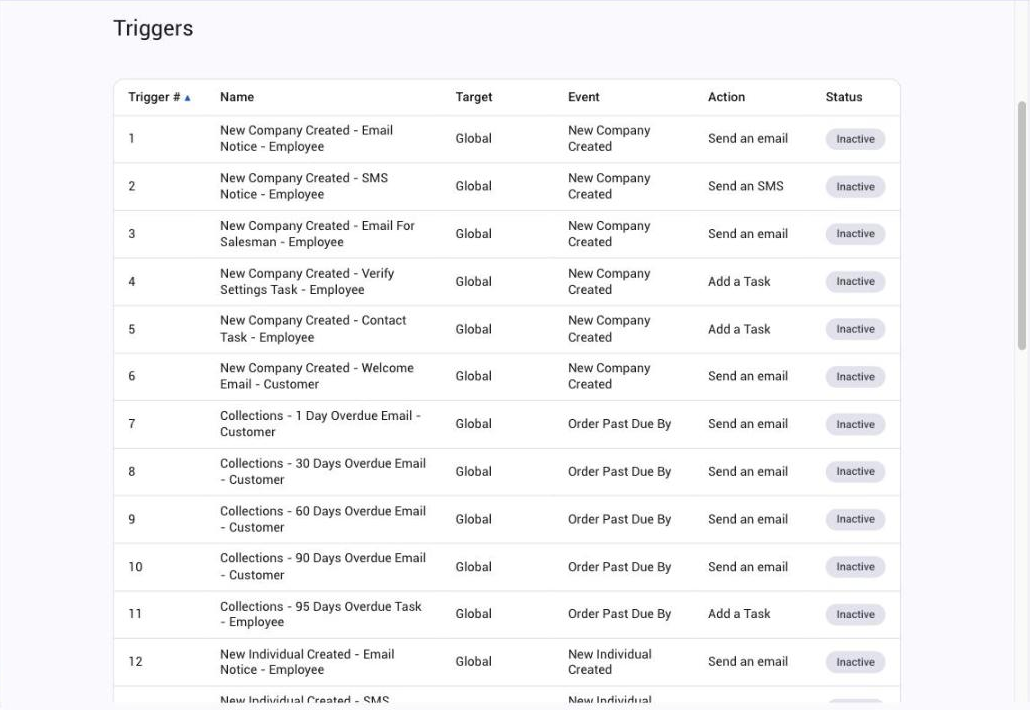
Build a trigger step by step
- Go to Settings > Operations > Triggers and click Add Trigger.
- Type a Trigger Name you will recognize in the list and in the Trigger Call Log, such as "Verified: email customer with invoice". If you leave the email subject empty, this name is used as the subject.
- Under Conditions, pick the event in Trigger when and set its condition. For Order Status Changes To, tick one or more statuses; for Order Process Started, pick the labor process; for Note Created On, pick the kind of record or Any. Which events have which condition: the events reference.
- Choose the Trigger Target: All Companies, one company, or Use Tags for companies with certain tags (next section).
- Add extra conditions if the event allows them (the section after that).
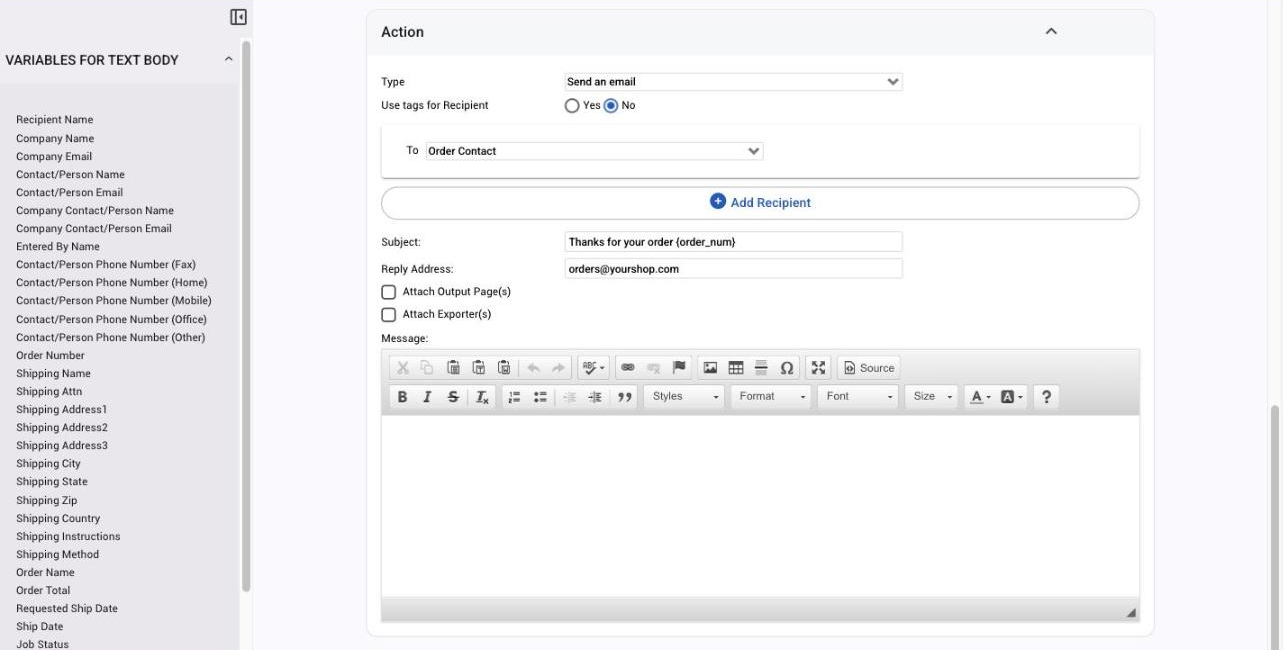
- Under Action, pick the Type and fill in its fields: recipients, Reply Address, Subject and Message for an email; the tags to add; the Endpoint URL for a webhook.
- Set Active to Yes and click Save. The trigger is live from the next matching event.
Choose the target: all companies, one company or company tags
The target decides whose records the trigger applies to:
- All Companies: every customer.
- One company, picked from the list: only that customer's orders, payments, notes and so on.
- Use Tags: the trigger matches when the record's company carries at least one of the company tags you choose.
For a note, an attachment or a process clock, the company is the one on the order or record the note, file or clock belongs to. Tags are how you build "per sales rep" or "per region" triggers: tag each customer company with the rep's name or the region, target that tag, and send to the right employee. Adding company tags is covered in Tags in Allmoxy, and the recipient side in Choose who gets a trigger's email.
Narrow it down with extra conditions
Four events allow extra conditions: Order Status Changes To, Remake Status Changes To, Order Process Started and Order Process Ended (the process events test the order that was clocked). On every other event, such as Ship Date Modified, Order Past Due By, Order Attachment Added, Output Page Signed and Payment Made, extra conditions are not checked, so leave them empty there.
Click Add Condition and choose a type in the And if row: Product, Product Attribute, Order Tag, B2B Items (shown when B2B is on for your site) or Shipping Method, each with is, is not, greater than, less than, greater or equal or less or equal. Order Tag asks whether the order has any of the tags or none of them, with a switch to include orders with no tags. You can layer several conditions, for example a specific product AND a particular product attribute value, and all of them must hold for the trigger to fire.
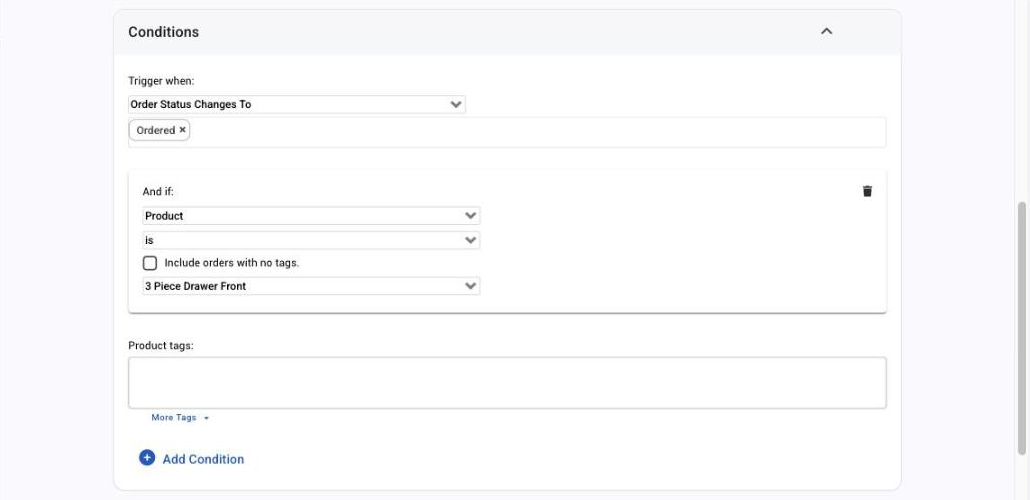
Status triggers also have a product tags box: when it has tags, at least one product on the order (or a B2B product bought from a supplier site) must carry one of them. This is the easy way to fire only for, say, orders that include a drawer box.
Pick the action
Each trigger runs exactly one action, and not every action is offered on every event.
- Send an email, to employees, the company's primary contact, the person who placed the order, or typed addresses. Who gets it: Choose who gets a trigger's email.
- Send an SMS, a text message. Steps: Send a text message with a trigger.
- Add an announcement, shown on the chosen people's dashboards. See Notes, tasks and announcements.
- Add a Task, assigned to the chosen employees and attached to the record's company. Same article.
- Add Tags, to the record the event is about. Steps: Automatically add tags to an order.
- Remove Tags, from that record. Same article.
- Send web request (Webhook), which sends the event's data to a web address. Steps: Send order data to another app with a webhook.
If you send an email, four things are worth knowing. The email goes out from Allmoxy's notification address with your company name as the sender, and the trigger's Reply Address field is where replies land, so put your office address there. The subject is the trigger's subject, or its name when the subject is empty. The message can use variables such as {order_num} and {company_name}, which are filled in from the record; pick them from the variable list beside the editor, because a variable the event doesn't have stays in the email as typed. On order events you can attach output pages and export files, and the PDFs are built fresh for each recipient.
Events you can listen for
The editor offers eighteen events to anyone who can build triggers, plus two for administrators. In short:
- Order events: Order Status Changes To, Remake Status Changes To, Ship Date Modified, Order Attachment Added, Output Page Signed.
- Production events: Order Process Started, Order Process Ended (they need labor processes and time tracking).
- Money events: Payment Made, Order Past Due By, Second Payment Due, Finance Charge Created.
- People events: New Company Created, New Company Contact Created, New Individual Created, New Remote Request.
- Catalog and notes: New Product Created, New Supply Created, Note Created On.
- Administrators only: Credit Card Expires Soon, Product Subscription Cancelled.
When each one fires, its condition, whether extra conditions and the Order Contact are offered, and the gotchas (a status trigger fires once per status passed, Ship Date Modified only for existing orders, how past-due timing is counted) are all in Trigger events, conditions and message variables: reference.
Turn it on, test it and check the Trigger Call Log
Set Active to Yes and click Save. Then cause the event on a harmless record: move a test order to the status, add a note to a test company, or record a small manual payment, and watch for the result.
To see what ran, open the Trigger Call Log at Reports > Managerial > Trigger Call Log (it is also in the Available Reports rail, and needs the Trigger History permission). It lists each run with the trigger, event, action, Success or Failed and the run date; the info icon shows the conditions and what was sent. You can filter by date, status, event, action and trigger; it opens on the last seven days, and entries can take up to 10 minutes to appear. Each trigger also has a Trigger Call Log link of its own that opens the log filtered to that trigger, which is the quickest way to tell which of two similar triggers fired. If the newer report view is empty or out of date, use the Trigger Calls link in the notice at the top, which opens the legacy report.
Two things write nothing to the log: a trigger whose target or conditions didn't match, and a recipient who was skipped (inactive, or with no email address). If the email shows Success but never arrived, check the Email Log and Ensure your Allmoxy emails send properly. For the causes in order, including "the company is not available as a trigger target", see My trigger didn't fire, fired twice, or sent the wrong thing.
Clone and edit a trigger
Open a trigger and use Clone this trigger to make a copy, then rename the copy, change its statuses, target or recipients, and switch it on. Cloning is the quickest way to build a family of similar triggers: one per status, one per sales rep, one per region. After cloning, open the copy and check its attachments (output pages and export files) and its recipients before you activate it.
Editing a live trigger takes effect on the next matching event; there is no draft, so make the change and test it the same way. To stop a trigger without losing it, set its status to Inactive.
Admin-only settings
Administrators see three flags on each trigger: Deletable, Editable and Visible. Turning one off protects a trigger from being deleted, changed or even seen by other trigger builders; a non-admin who opens a locked trigger gets a read-only view. Two events are offered to administrators only, Credit Card Expires Soon and Product Subscription Cancelled, along with their payment variables.
Ideas to start with
- Automatically alert employees when an order is placed, by email, text or a task, so they can verify it for production.
- Notify an employee when a new customer creates an account, so they can do the follow-up.
- Automatically email customers about their order status as it moves through your shop.
- Notify customers of an outstanding account balance automatically, with Email invoices and payment reminders automatically.
- Send an email automatically to the individual who placed the order: Choose who gets a trigger's email.
Things to know
- One save can fire several triggers. An order moved several statuses in one save fires Order Status Changes To once per status it passes, and two triggers that match the same event both run. If customers get several emails at once, narrow the status list or merge the triggers.
- Trigger emails come from Allmoxy's notification address with your company name. Replies go to the trigger's Reply Address field, so fill it in. Delivery problems after sending are covered in Who receives notifications from Allmoxy.
- The employee picker lists only active contacts who hold Add/receive tasks. A sales rep without that permission can't be picked by name; type their address instead.
- A variable the event doesn't have stays as typed, and the variable list can show one the event doesn't fill, so test the message once.
- List a Shipping Method condition last if you combine it with other extra conditions.
- There's no OR between conditions. Every condition on a trigger has to be true for it to fire. To act when any one of several things happens, build a separate trigger for each, or clone the trigger and change the condition.