
Settings > Admin > Theme (the page is titled Theme Settings) holds the look of your site: how products lay out on the order page, light or dark, which side the sidebar sits on, your time zone, country and language, Dealer Mode, and every logo and image your customers see. Use this page to find out what each setting does; the how-tos linked from each row walk through the task.
Applies to: every shop. Opening the page needs the Edit the site settings permission (on by default for the Employer role).
In this article
The Settings section
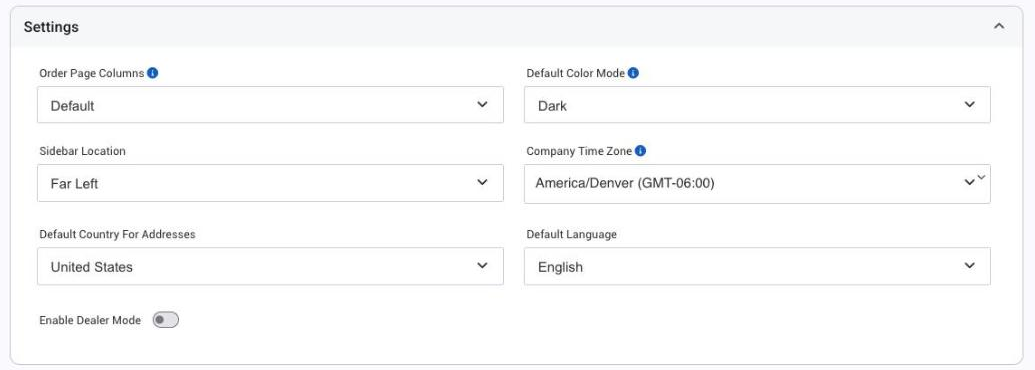
| Setting | What it does | Notes |
|---|---|---|
| Order Page Columns | Controls how many columns of products show on the order page your customers see: 1-Column Order Page through 5-Column Order Page, or Default. | Separate from Default Color Mode below. Changing one doesn't change the other. |
| Default Color Mode | Light or Dark for everyone who hasn't picked their own appearance in the avatar menu. | A person's own pick always wins. See Use light or dark mode. |
| Sidebar Location | Puts the black sidebar on the Far Left or Far Right of the page. Far left is the system default. | The chat widget, if you add one, sits on the opposite side. |
| Company Time Zone | Your company's time zone, used for dates and times across the site. | Each person can set their own time zone on their contact, and that includes your customers. |
| Default Country For Addresses | The default country for addresses. | |
| Default Language | The language the site shows to anyone who hasn't set their own. | See Set the language for your site and for each person. |
| Enable Dealer Mode | Lets a customer company's primary contact brand the site for that company's own users. | See Dealer Mode. |
| Show Header Logo | Shows your header logo in the header. | A custom header block takes the place of the logo. |
The image sections
Each image has its own section further down the page, with its own upload. The sizes are the ones the page is built for.
| Section | Where it shows | Size to use |
|---|---|---|
| Site Logo | On the login page, above the username and password. | 600 x 600 px |
| Login Side Image | The large panel beside the login form, for your branding, a finished job or an announcement. | 2000 x 4000 px |
| Invoice Logo | On output pages that use the logo tag (invoices, confirmations) and on the packing slip. | 250 x 75 px |
| Header Background | The backdrop of the header on every page. Its height sets the header height. | 2000 x 300 px |
| Header Content | Your header logo and the HTML editor for links or text that sit on top of the background. | Header logo 250 px wide by the header height (75 px by default) |
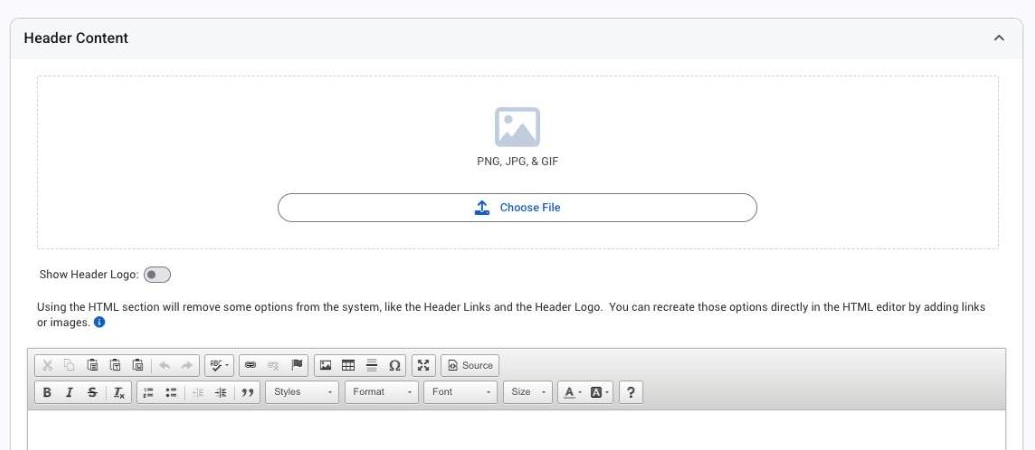
For the steps, and tips on what works well in each spot, see Brand your site: company name, logos, header and login page.
Things to know
- Units, fractions and precision aren't on this page. They're on Settings > E-commerce > Order Settings and on each measurement attribute. See Set measurement precision and show fractions.
- Your company name isn't on this page either. It lives on your company record. See Brand your site.
- Changes show on the next page load. If you don't see a change, reload the page.