
Order Settings is where you shape how orders are entered and what the order page shows: how many blank rows a product starts with, where your order numbers begin, how finely measurements are rounded, what customers can do before they sign in, and the terms they agree to. This page explains every setting in the order it appears. Where a setting has its own article, the entry links to it.
Applies to: every shop. Settings > E-commerce > Order Settings needs the Edit the site settings permission, which only the account owner has by default. Project-only shops see a few fields locked. Click Save Changes at the bottom right after any change.
In this article
General Settings
The first section holds the numbers and lists; the switches below them are covered in the next section.
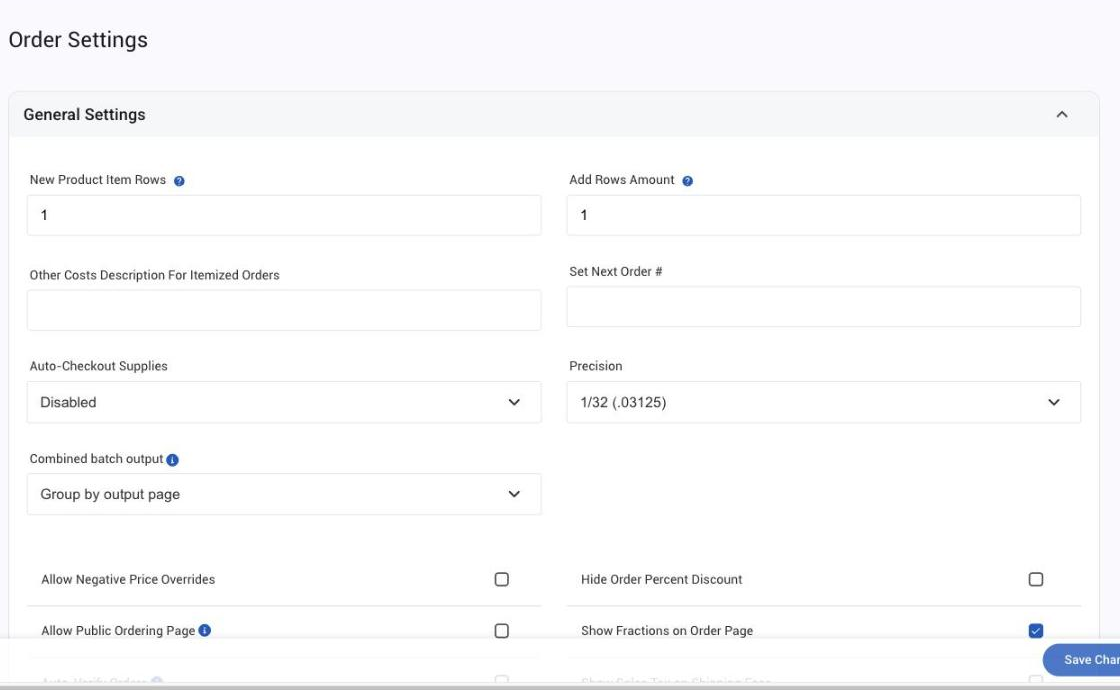
- New Product Item Rows: how many empty line item rows appear when a product is added to an order (1 to 10). Think about what you typically sell: most people aren't ordering five of the same cabinet, but they might order ten of the same door style in different sizes. The setting is shop-wide and applies to every product, so pick the number that suits most of what you sell.
- Add Rows Amount: how many new empty rows appear each time someone clicks Add Rows on a product (1 to 10). Like the setting above, it depends on your products and how people usually order.
- Other Costs Description For Itemized Orders: the heading printed above the other costs section of an itemized order, for example Other Costs or Quote. Locked on project-only shops.
- Set Next Order #: the number your next order gets. Order numbers run consecutively; enter a number higher than your current highest order and numbering continues from there. Invoices share their order's number, so invoice numbering moves with it: Invoices and payments in Allmoxy.
- Auto-Checkout Supplies: whether supplies allocated to an order leave inventory on their own when the order goes into production. Disabled: supplies stay allocated until someone checks them out. Global: every allocated supply is checked out. Per Supply: only supplies with Auto Checkout ticked in their own editor. This only applies once you have resource allocation set up, and we recommend setting that up only after your ordering system is launched. Start with Per Supply while you learn how it works, then move to Global once you have tested it: Guide: Inventory management and How order status affects inventory.
- Precision: the smallest step a measurement can take, from Whole number to 1/10000. A customer's entry is rounded to the nearest step when the order is saved, and part calculations round the same way unless an attribute, a product override or a part sets its own: Set measurement precision and show fractions.
- Combined batch output: what you get when you print several output pages for a batch. Group by output page (the default) downloads one file for each output page, with every order in it. Group by batch puts them in one file, with each order's pages together; the pages need the same page setup (size, margins and orientation), or Allmoxy names the pages that don't match.
The order page switches
The two columns of tick boxes under the General Settings are Yes/No switches. Ticked means on.
- Allow Negative Price Overrides: whether a manual price override on an order line may go below zero. On, a negative override is kept as typed; off, it is raised to zero. Overriding a price needs the Manually Edit Orders permission either way: Employee permissions: what each one does.
- Allow Public Ordering Page: on, visitors can see and price an order without logging in, and must log in or create an account to save it. Off, only the login screen shows: How customers sign up, and what they see first.
- Auto-Verify Orders: on, a newly placed order moves straight from Ordered to Verified when the customer submits it, so they get a read-only view right away. Useful when your catalog needs few changes after submission and you don't want customers editing an order once it is placed. It applies to catalog and itemized orders; project orders ignore it: Change an order's status.
- Default Collapsed Group Attributes: on, the grouped attributes on a product start collapsed when the product loads, and the customer clicks the group's toggle to open them. Helpful when you'd rather customers set door style, finish and the like once for the whole order through Order Level Settings.
- Default Collapsed Item Attributes: on, the item lines under a grouped product start hidden until Show Lines is clicked. Off, they show from the start.
- Default Expanded Order Level Settings: on, the Order Level Settings panel starts open on new orders and bids, so the attributes show instead of just the summary bar.
- Disable Individual Account Registration: on, the public sign-up form offers business accounts only, and everyone must enter a business name. Off, people can also sign up as individuals with no company. Turn it on if you work with contractors and designers rather than homeowners; you can still create individual accounts yourself: Ways to add customers.
- Hide Order Percent Discount: on, the percent discount an employee has applied is hidden from the customer's order page and its line prices. The discount still applies to the totals and shows on output pages.
- Show Fractions on Order Page: on, decimals a customer types are converted to fractions once the order is saved, on the order page, the cutlist and the invoice. Off, decimals stay decimals: Set measurement precision and show fractions.
- Show Sales Tax on Shipping Fees: on, the tax on shipping shows as its own Shipping Tax line in the order totals when shipping is taxable. It changes the display only, not the tax charged: Set up your shipping options.
- Show Warning Popup to Employees: on, employees see the same warning pop-ups customers see on the order form, such as the discontinued item warning. Off, employees skip them.
- Use Output Page Folders: on, an order's output page tabs are grouped into menus by type (Part Lists, Labels, Order Documents) instead of one long row of tabs; hover over a menu to see its pages: Output pages overview.
- Use Shopping Cart: on, the order form uses a cart layout: customers Add to Cart each product they have customized before picking the next one from the catalog below. Off, products are organized into folders with New Folder, Collapse and Expand controls: Create an order.
- Allow Validation Errors on Bids: on, a bid can be saved with red validation errors, so the customer keeps their work and comes back to it. The errors still have to be fixed before the bid can become an order: Product validations overview.
- Show Total Order Weight: on, the order page shows the order's total weight next to the item count, so customers can see what they are ordering weighs: Shipping calculations.
- Show Line IDs on Order Page: on, each product line on an order shows its line number.
Customer Order Settings
- Default New Account Type: Business or Individual, the account type meant to be preselected on the public sign-up form. At the moment the form doesn't read it, so changing it has no visible effect; use Disable Individual Account Registration above to limit who can sign up.
- Default Lead Time: the standard lead time for new orders, in days. Every new order's delivery date starts at today plus this number when nobody picks a date; blank counts as zero. We recommend your longest typical lead time: Schedule orders.
- Allow Customers to Request Shipping Dates: Yes shows a requested ship date on the order (and a requested install date on project orders) that customers can fill in; No hides it. Helpful when you work with contractors scheduling installs around other projects. If customers can request dates, make reviewing the date a manual step when you verify orders.
- Always Show Terms And Conditions When Submitting Order: Yes opens your terms every time a customer submits an order, and they must click I agree before the order goes through. No lets customers read the terms from the order page without agreeing on each order.
- Terms And Conditions: the rich text box holding the terms your customers agree to. Allmoxy starts you with a generic template; put your company name where it says to and add what matters to you, such as your standard lead time, rush charge disclosure and remake procedure: Your terms and conditions: write them and choose when customers agree.
Things to know
- Save Changes is at the bottom right. Nothing takes effect until you click it.
- The row settings are shop-wide. New Product Item Rows and Add Rows Amount apply to every product.
- Set Next Order # only goes up. Enter a number higher than your highest order; it also moves invoice numbering.
- Auto-Checkout is for shops using resource allocation. With nothing allocated, the setting does nothing.
- Precision has three levels. Order Settings is the shop default; an attribute or a product override can be finer.
- Output pages in Bid are a different switch. Whether cutlists and invoices open while an order is still a bid is set on Settings > Admin, not here.
- Financial settings live elsewhere. Credit limits, finance charges and the export status are on Settings > Admin > Financial: Financial settings: reference.